
📝 AI Exams
AI Exams are a core feature of WiseMindAI that use AI to generate exams based on your learning materials. After taking the test, you receive detailed analysis reports to help you understand your performance and identify areas for improvement, completing the full "Learn → Test → Evaluate" learning loop.
It acts like an "Intelligent Teacher" capable of:
- 📝 Auto-generating Questions: AI creates high-quality exam questions based on your study materials
- 🎯 Assessing Learning Outcomes: Understand how well you've mastered the knowledge through answering
- 📊 Generating Analysis Reports: AI analyzes your performance and provides detailed learning suggestions
- 💡 Identifying Weaknesses: Helps pinpoint key concepts that need focused review
🚀 Creating Exams
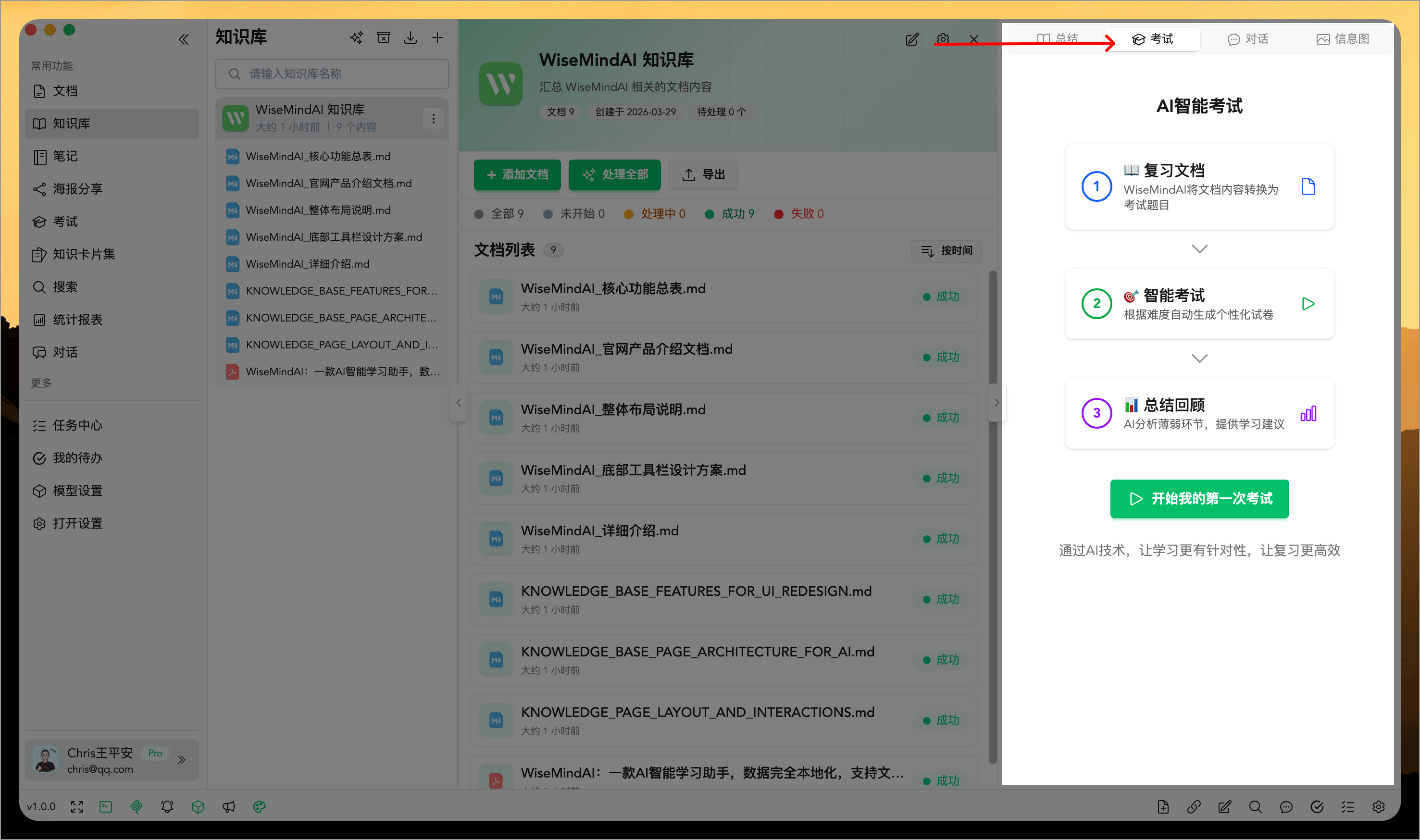
Method 1: From the "AI Exam" Tab
This is the most common method, suitable for creating and managing all exams.
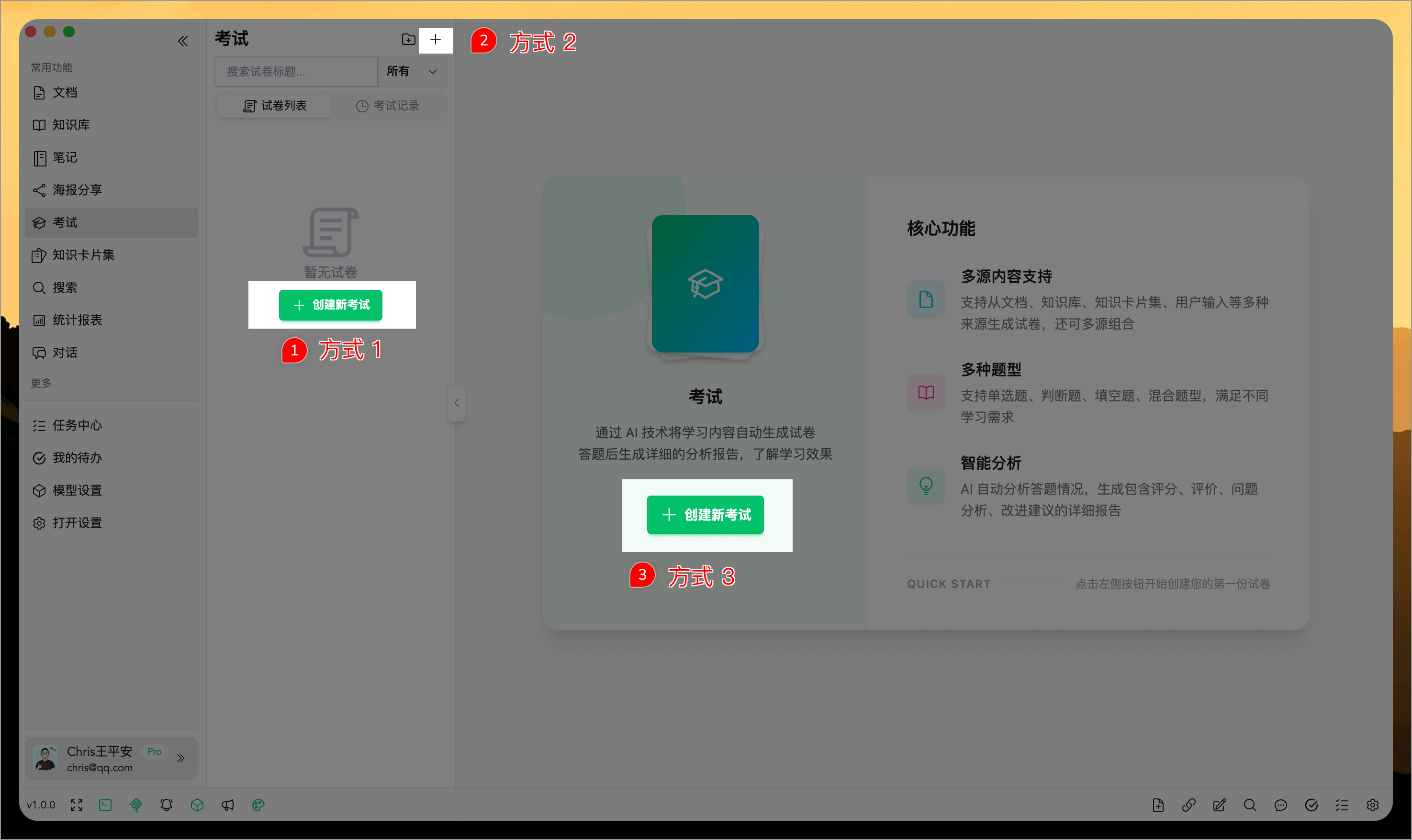
Open the WiseMindAI application, navigate to the "AI Exam" menu in the left sidebar, then click either the top "Create Exam" button or the central "Create Test Paper" button.
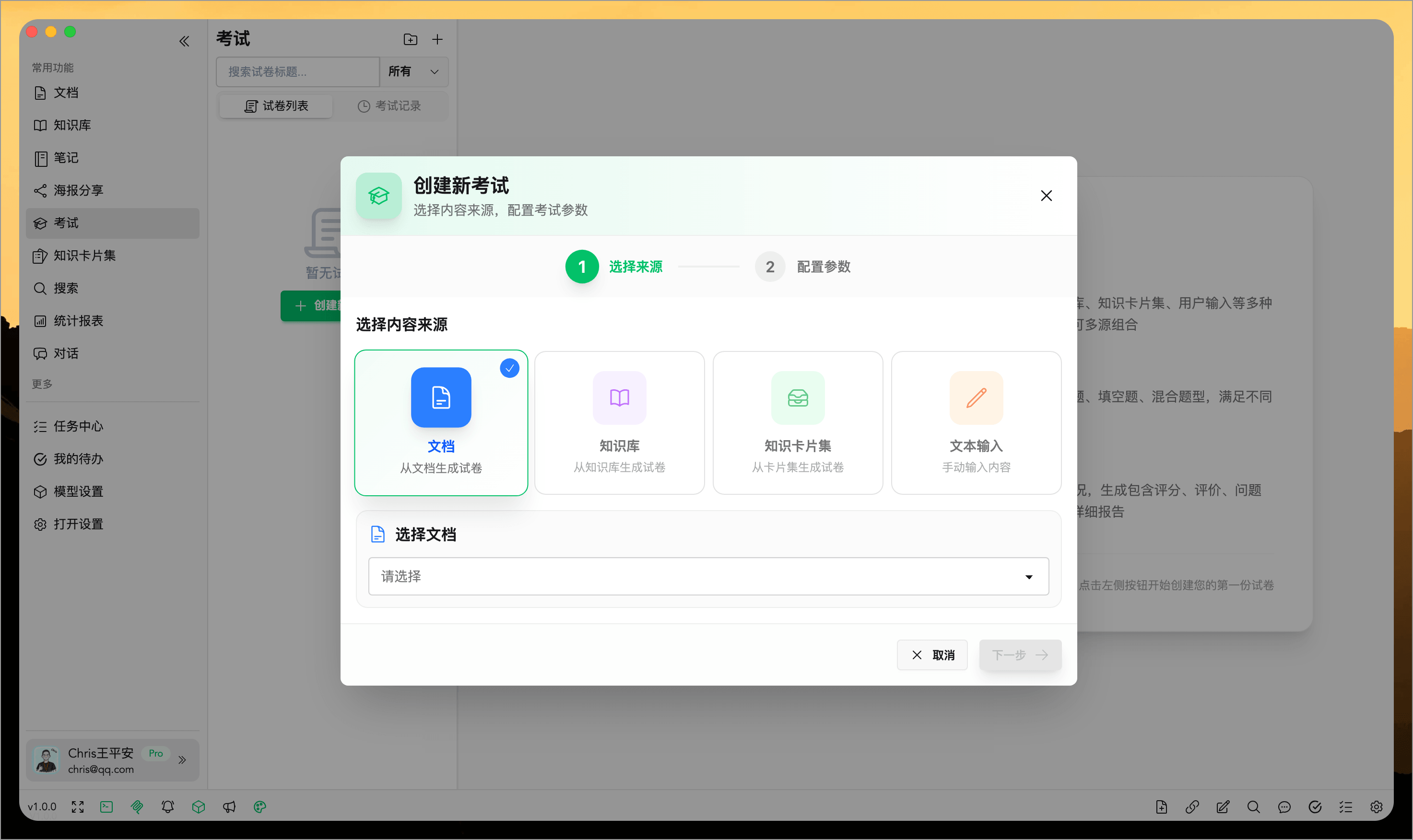
Next, select your content source. Currently, four sources are supported:
📄 Document Select any imported document as the test material, suitable for testing a single article.
📚 Knowledge Base Select an entire knowledge base; the system will use all documents within it, ideal for comprehensive topic coverage.
🃏 Knowledge Card Set Select a knowledge card set; the system uses content from all cards in the set, perfect for review and memory consolidation.
✍️ User Input Directly input or paste content you want to test (supports Markdown), suitable for ad-hoc testing or external material evaluation.
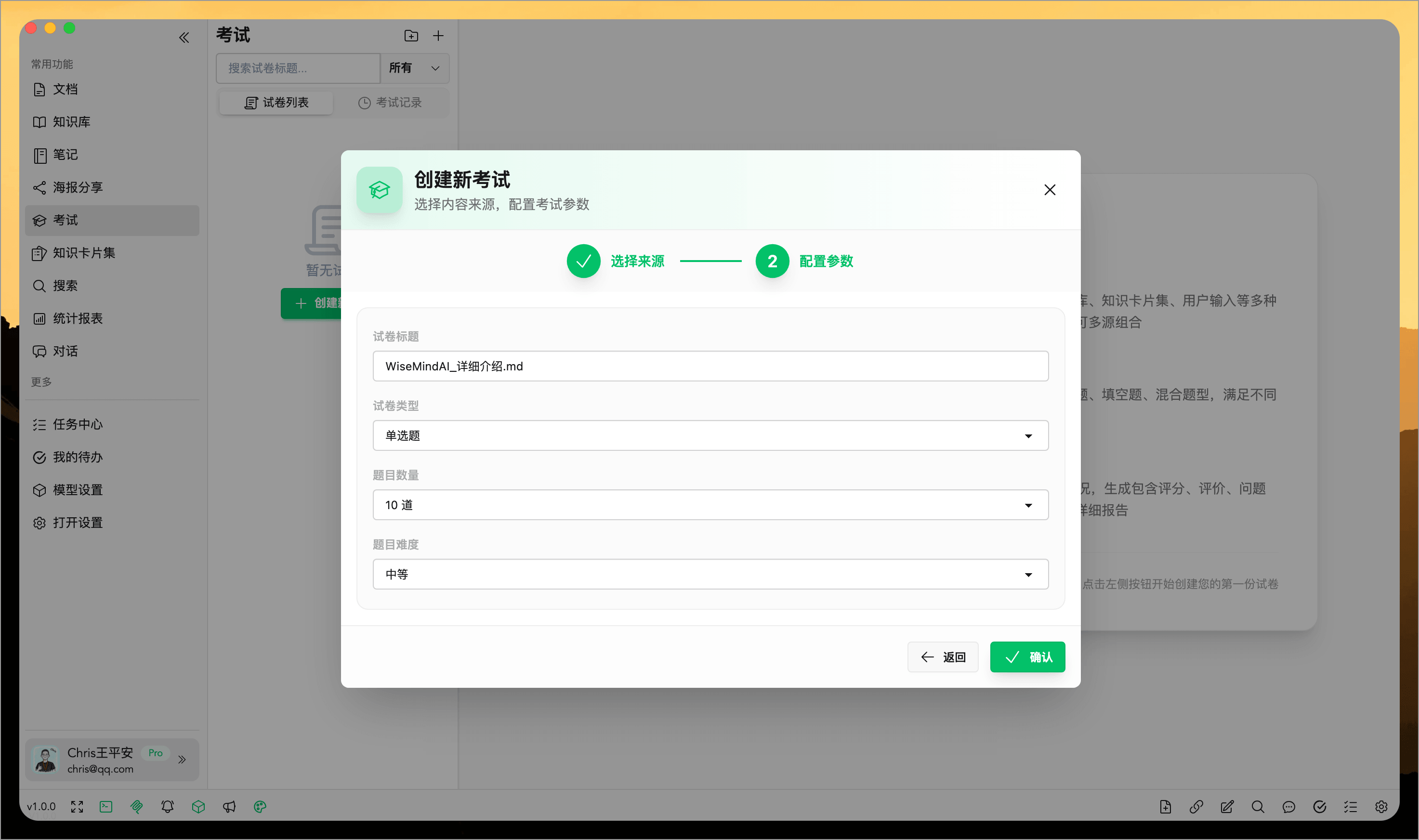
After selecting the source, click "Next" to proceed to the configuration page:
Exam Title: Customize your own title or let the system auto-generate one
Question Type:
- Single Choice: 4 options (A/B/C/D) with only one correct answer
- True/False: Determine if a statement is true or false
- Fill in the Blank: Enter the correct answer into blanks
- Mixed Types: Includes multiple question types above, offering comprehensive coverage
Question Count: Set how many questions to generate (recommended: 5-20)
Difficulty Level:
- Easy: Basic concepts and knowledge points
- Medium: Requires some understanding and application
- Hard: Requires deep understanding and comprehensive analysis
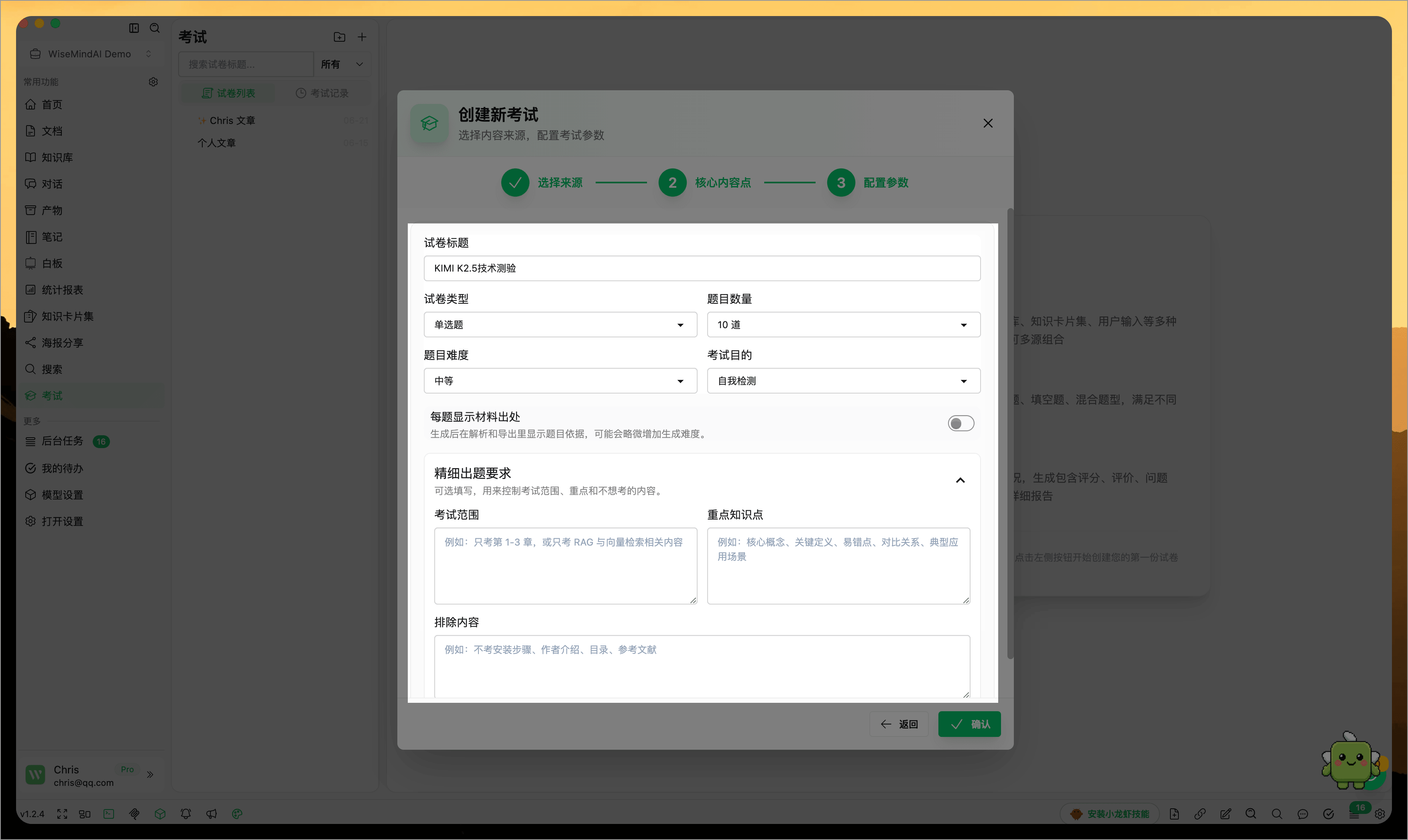
The new exam creation page offers finer-grained generation settings. Beyond question type, count, and difficulty, you can also select the purpose of the exam, scope, and core content points based on your material to make the test more aligned with current learning goals. For example, after reading a course document, you might choose only key knowledge points to generate questions, avoiding overly scattered topics. During review sessions, you can increase difficulty so AI focuses more on understanding and application-based questions.
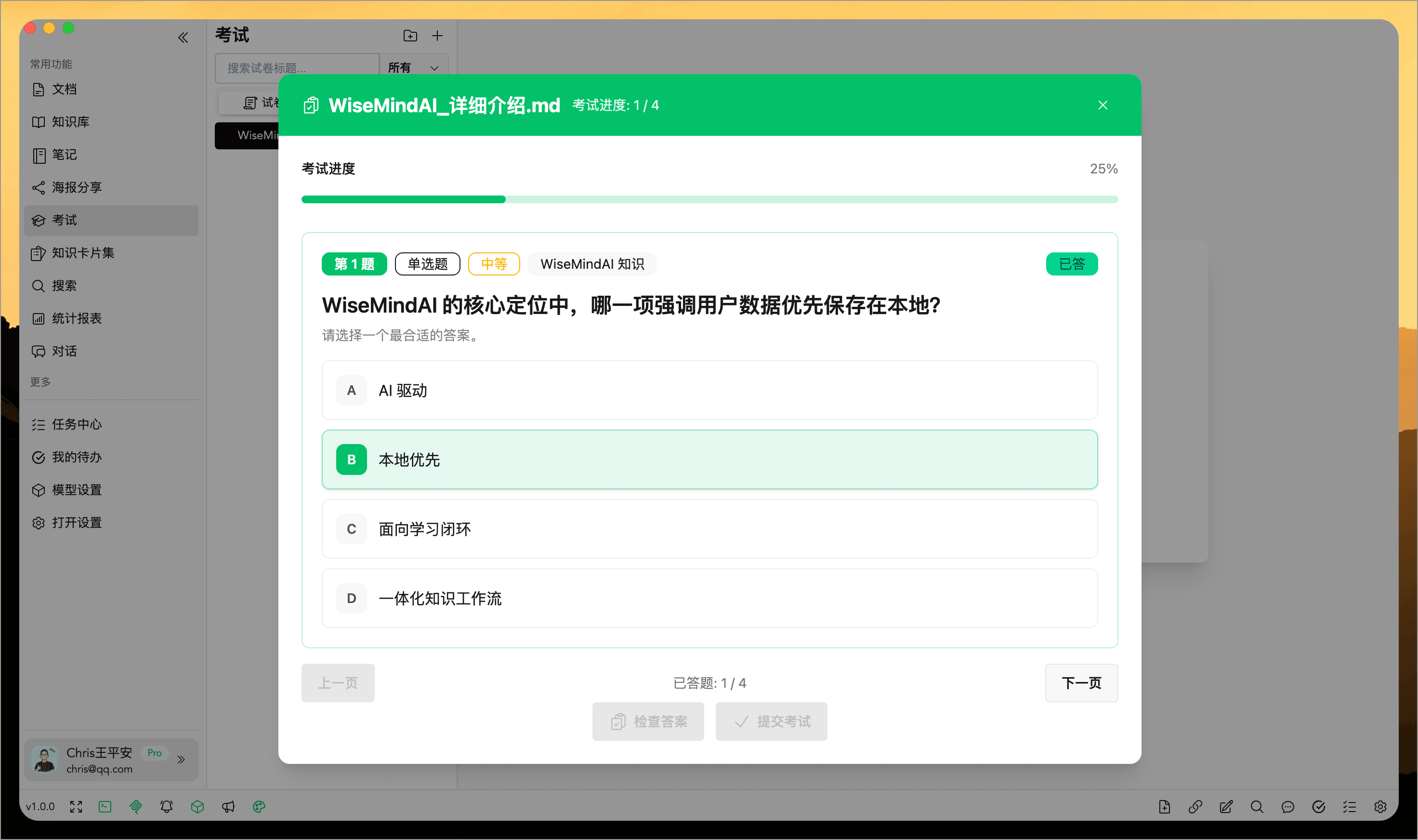
After configuration, click "Confirm" to begin generation. The process may take some time; please be patient. Once generated, you can start taking the exam immediately—the test paper is automatically saved and visible in your left sidebar as a newly created item.
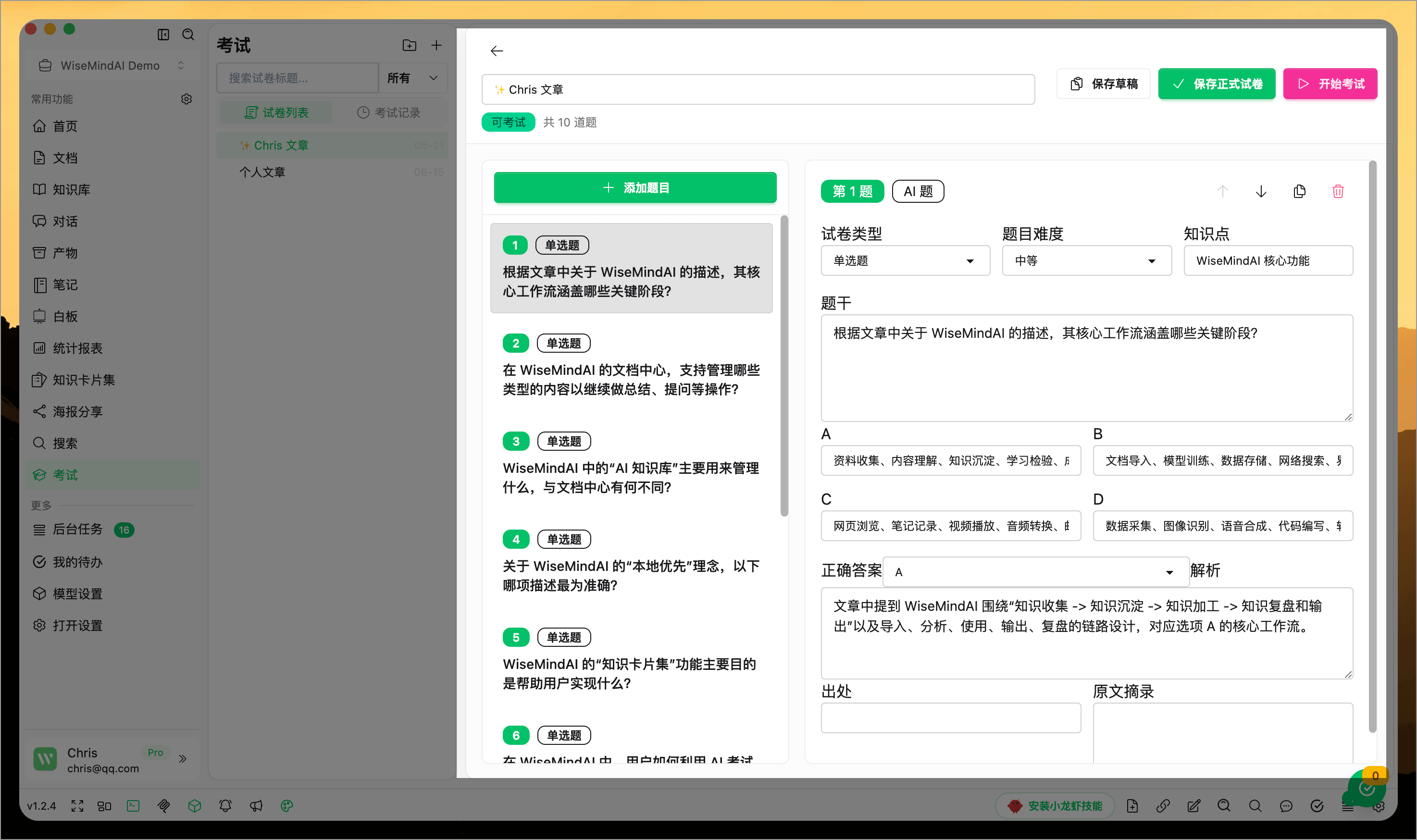
Generated exams can also continue to be edited. If a question doesn't align with your learning goals, you can modify the stem, options, answer, or explanation, or delete unwanted questions. This allows AI-generated papers to be refined iteratively rather than being used only once.
Method 2: Creating Exams from Knowledge Card Sets
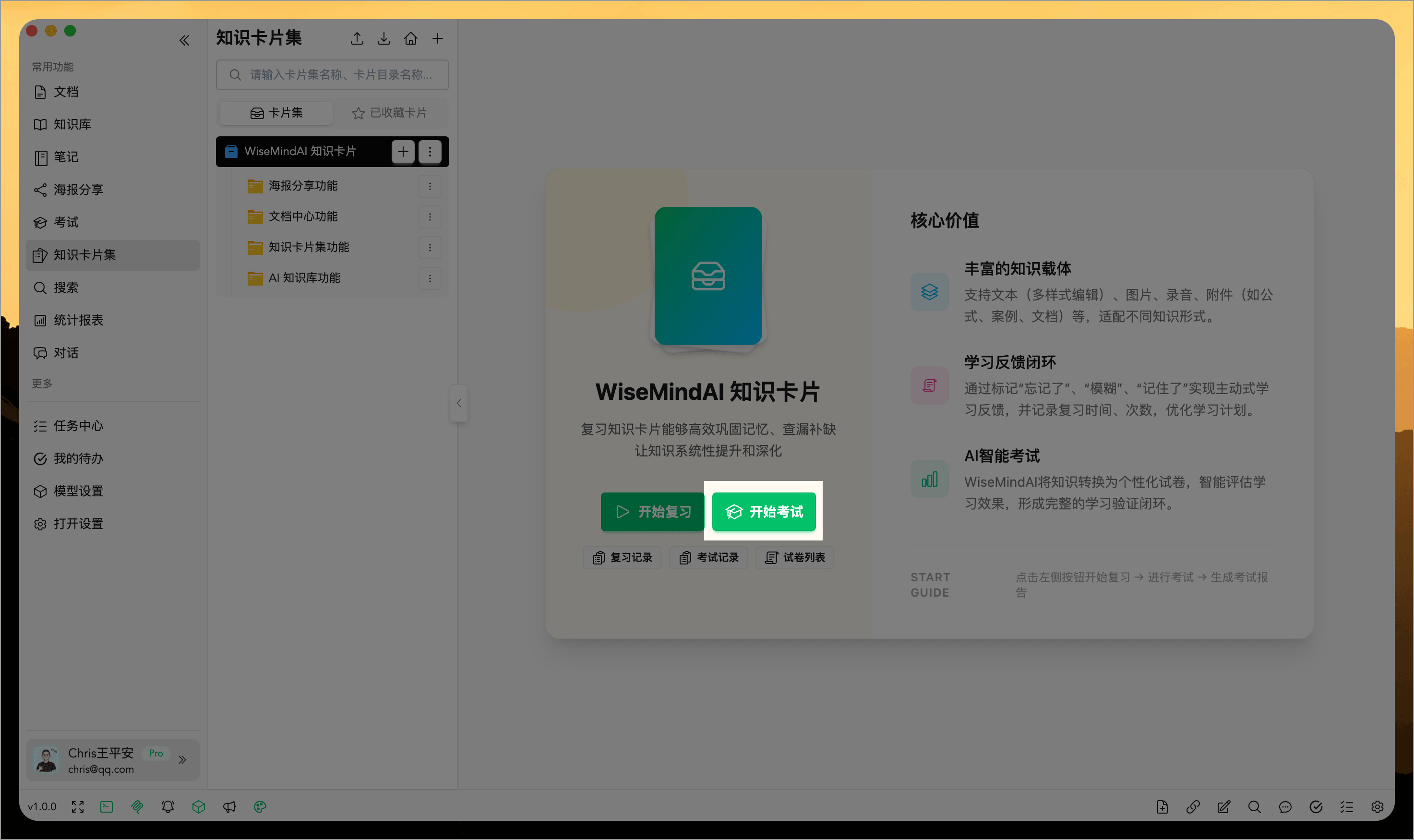
If you are reviewing a specific knowledge card set, you can create an exam directly from the card set page.
Steps
- Open the "Knowledge Card Set" page
- Select or open a knowledge card set
- Locate the "AI Smart Exam" feature on the card set page
- Click the "Start Exam" button
- The system will automatically use content from the current card set; you only need to configure question type and count
Method 3: Creating Exams from Documents
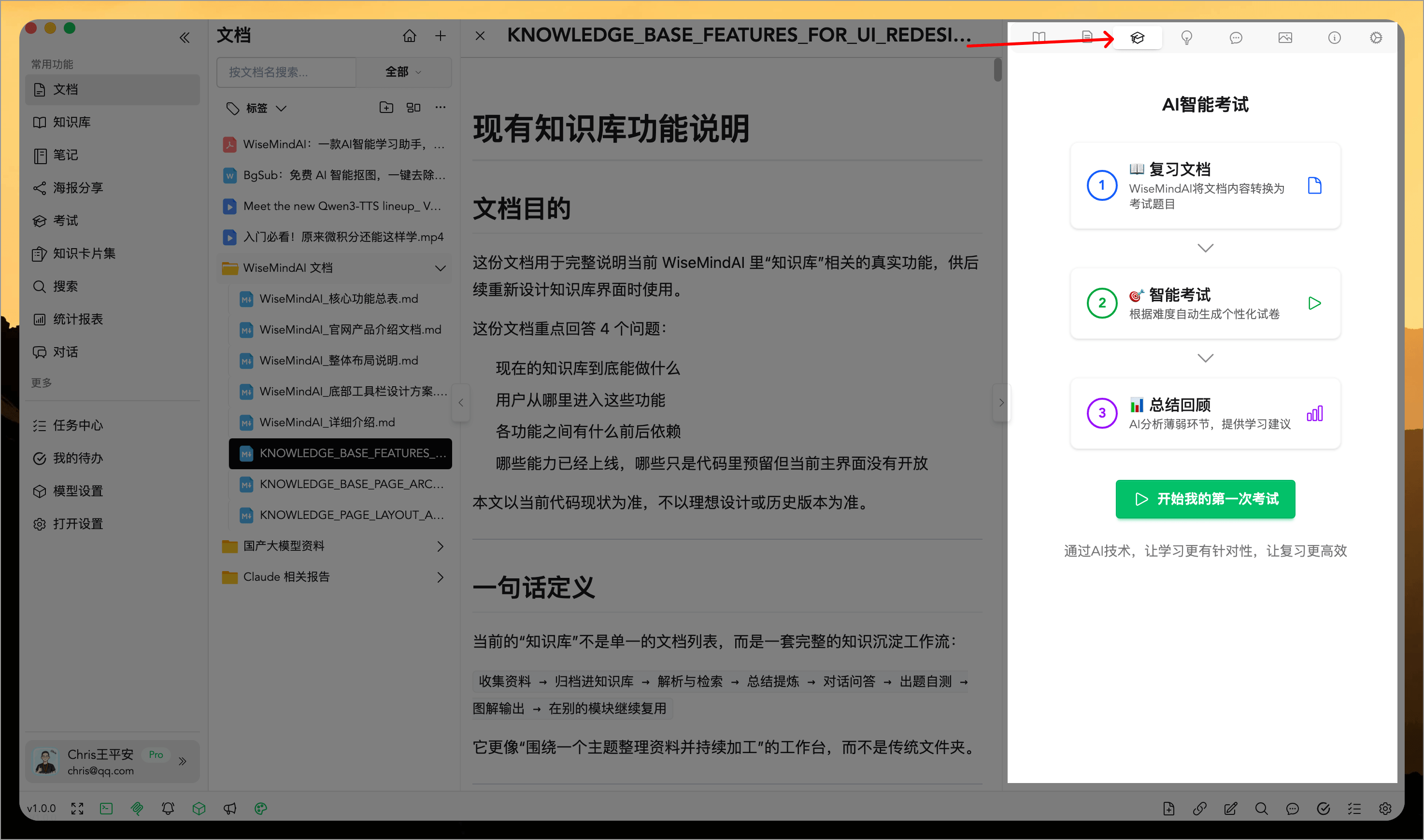
If you are reading a specific document, you can create an exam directly from the document page.
Steps
- Open the "Document" page
- Select or open a document
- Find the "AI Exam" feature in the document sidebar or action menu
- Click the "Create Exam" button
- The system will automatically use content from the current document; you only need to configure question type and count
Method 4: Creating Exams from Knowledge Bases
If you have a knowledge base, you can create an exam directly from the knowledge base page.
Steps
- Open the "Knowledge Base" page
- Select or open a knowledge base
- Find the "AI Exam" feature on the knowledge base page
- Click the "Create Exam" button
- The system will automatically use all documents within the selected knowledge base; you only need to configure question type and count
📝 Taking Exams
Click an exam in your list to view its details on the right side (question count, difficulty level, source, etc.), then click "Start Exam"
The system offers two exam modes:
- Standard Mode: Popup format suitable for quick answering; you can switch back and forth with other content at any time.
- Full-screen Mode: Right panel displays full screen, focusing on the test to minimize distractions—ideal for serious examination conditions.
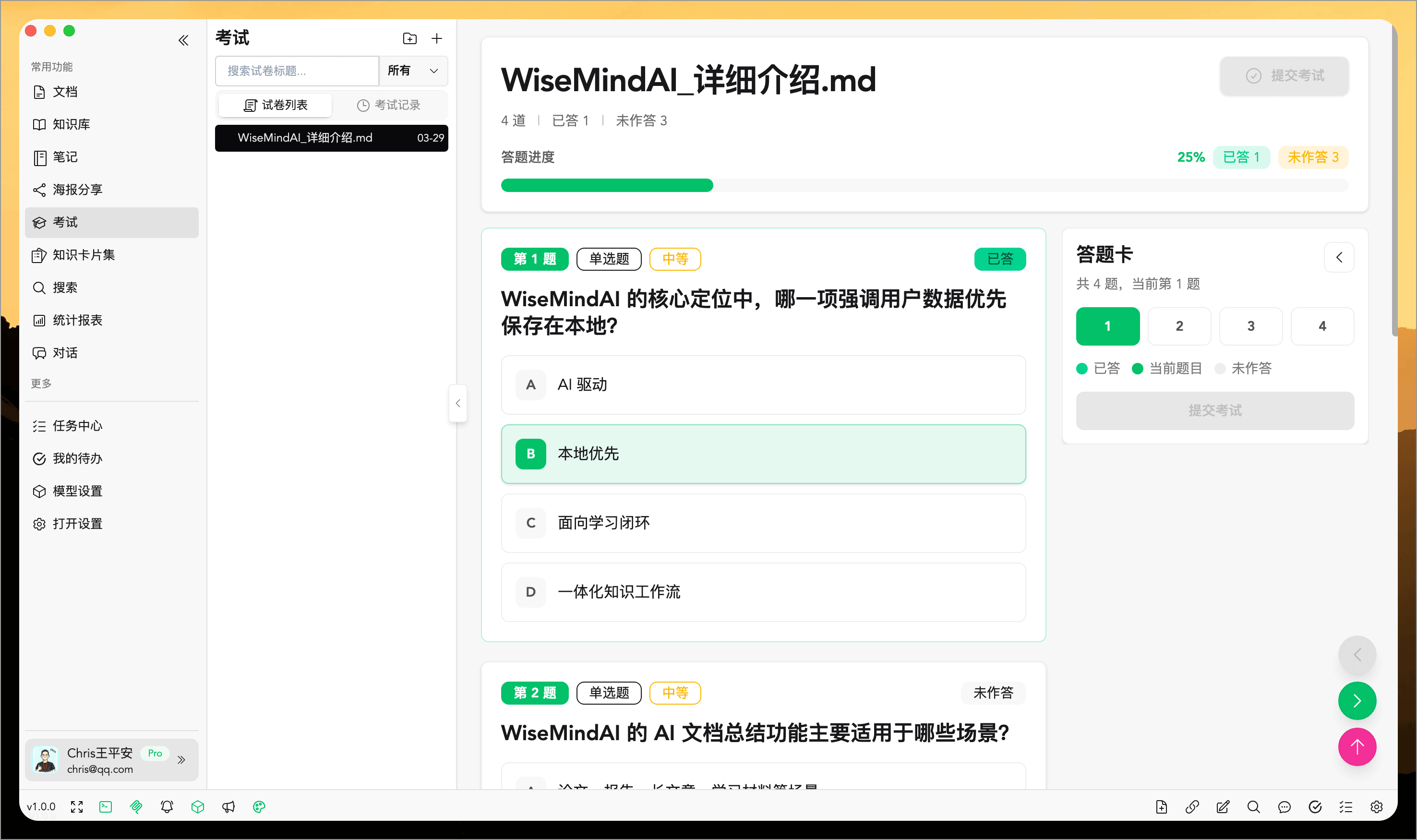
After completing all questions, click the "Submit Exam" button.
📊 View Analysis Report
Report Content
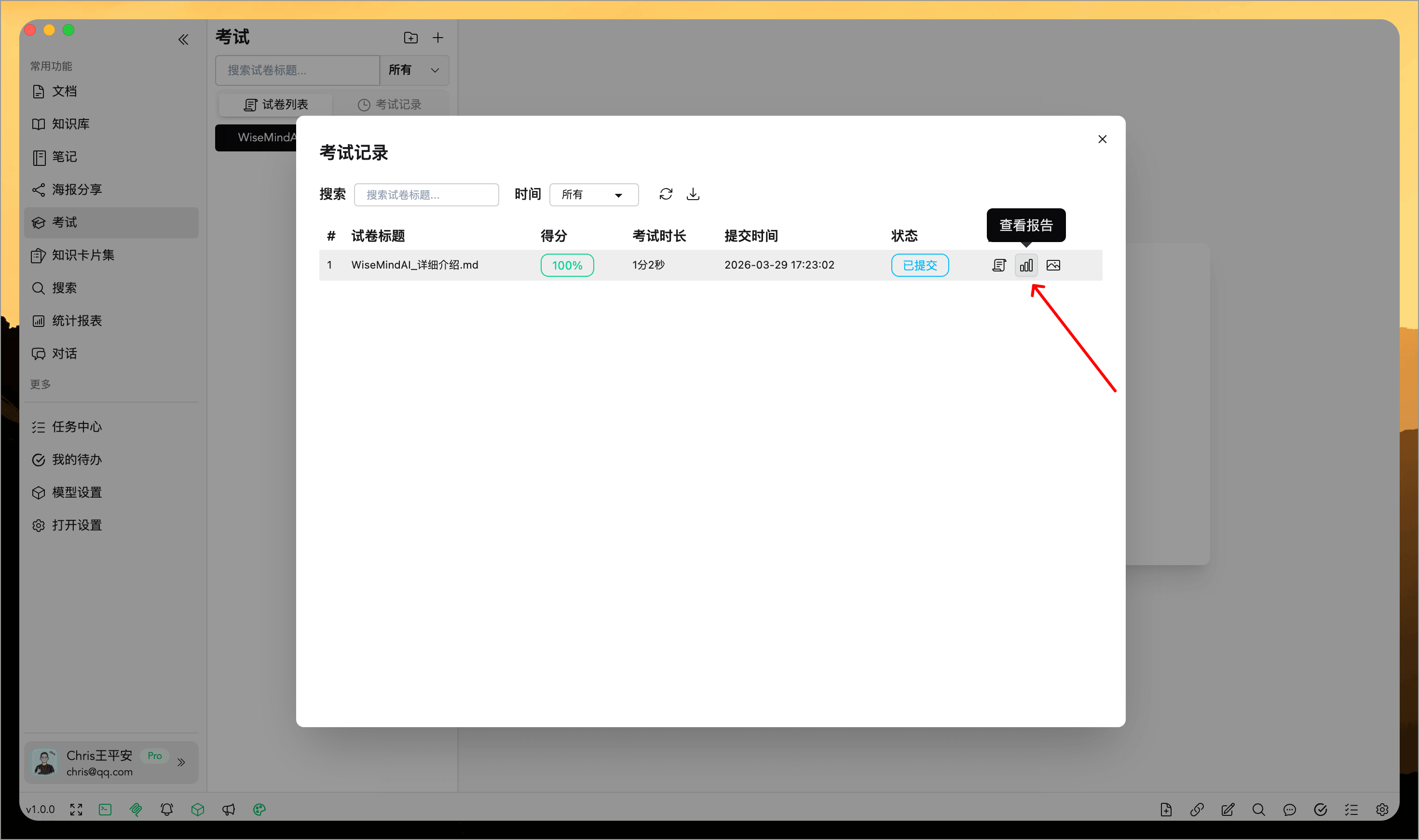
Once you submit your exam, use AI to generate a detailed analysis report. Click "View Report" in the exam records:
The report includes:
- Basic Data: Score, number of correct answers, incorrect answers, and unanswered questions
- Overall Evaluation: AI assessment of your understanding depth and learning performance
- Problem Analysis: Identification of knowledge gaps, weak areas, and answering technique issues
- Improvement Suggestions: Targeted study recommendations and action steps
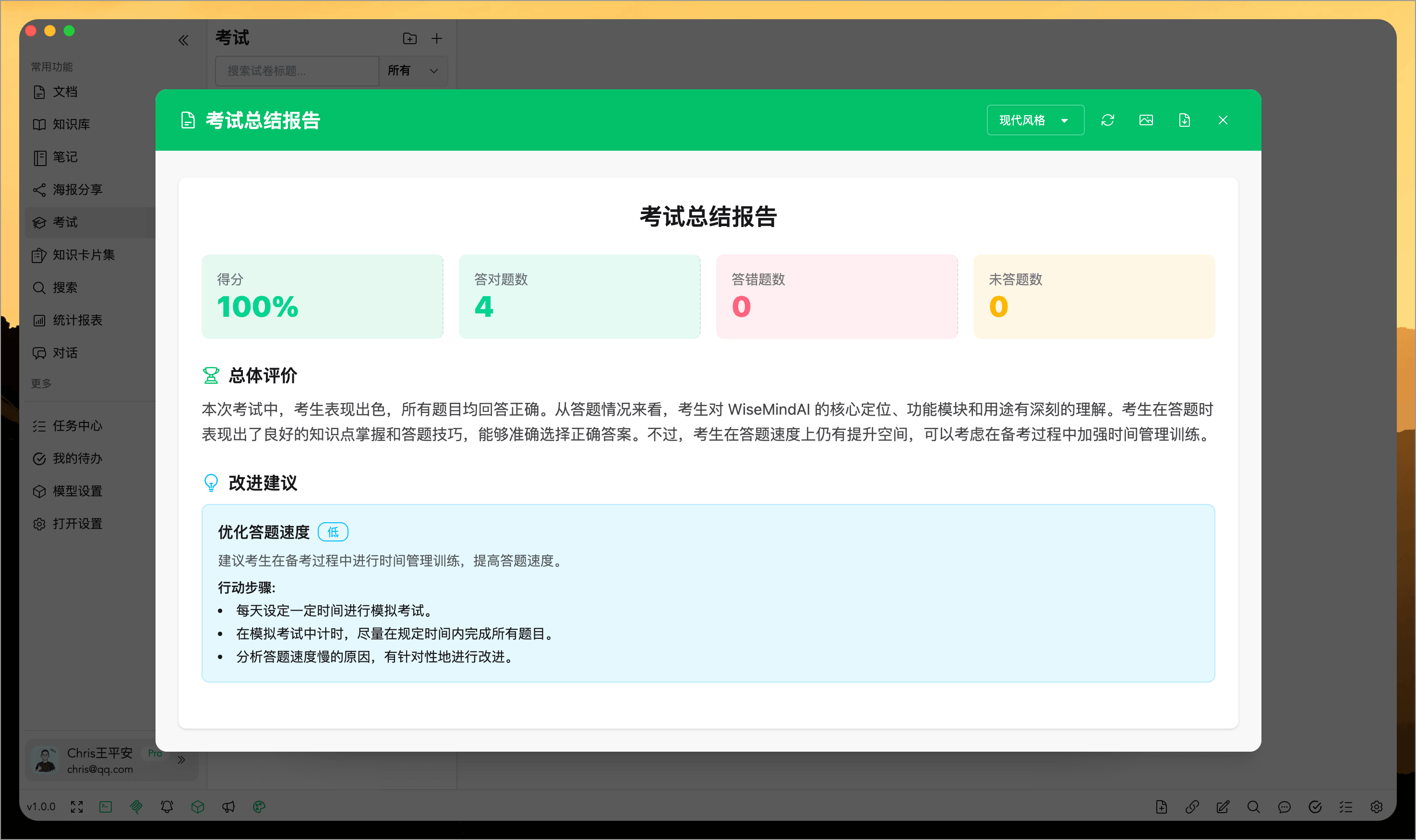
You can also switch between different report styles and export them as images or PDFs.
🔄 Complete Learning Loop
The AI exam is the core component of WiseMindAI's "Learn → Test → Evaluate" learning loop:
- Learn: Study using knowledge bases, document summaries, knowledge cards, etc.
- Test: Use the AI exam feature to generate quizzes and answer questions
- Evaluate: Review the AI analysis report to understand your performance and improvement areas
- Improve: Revisit content based on recommendations for targeted review
This loop helps you:
- Shift from passive learning to active verification
- Move from vague feelings to quantitative assessment
- Transition from blind reviewing to precise improvements
The AI exam feature will continue to be optimized and expanded with:
- More question types: Multiple choice, short answer, essay questions, etc.
- More sources: Notes, conversation logs, etc.
- Exam modes: Timed exams, mock exams, etc.
- Statistical analysis: Historical comparison of past exams, mastery trends by topic, etc.
- Smart recommendations: Suggest review content based on weak areas
🌈 Generate Score Sheet for Sharing
After completing an exam, WiseMindAI supports generating a structured score sheet containing key information such as the score, quiz name, and grade level. You can also share it with one click, making it easy to review, discuss, or showcase your learning results.
WiseMindAI includes over 20 built-in score sheet styles for you to choose from and download:
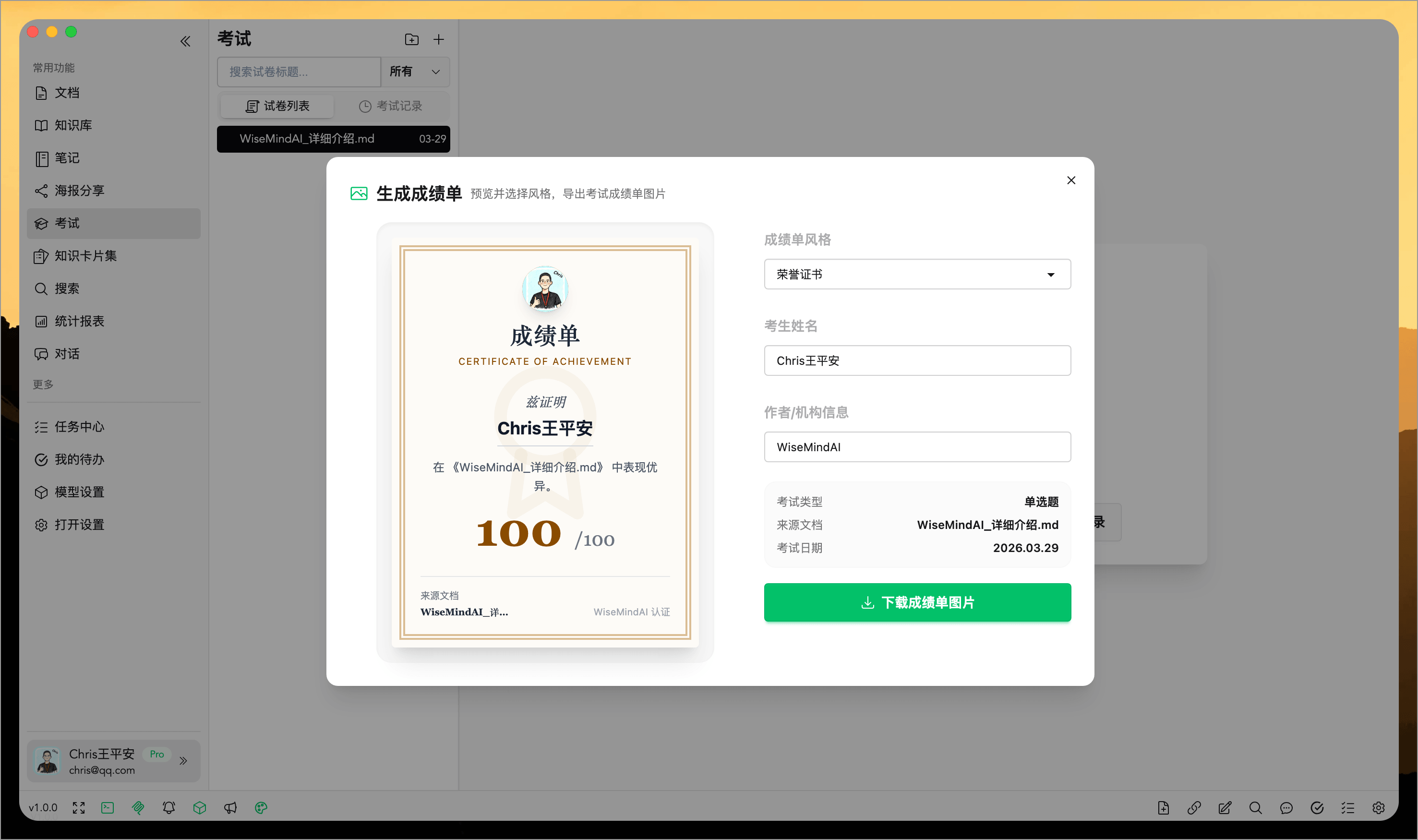
You can also generate a score sheet for any past exam record by opening the specific exam.
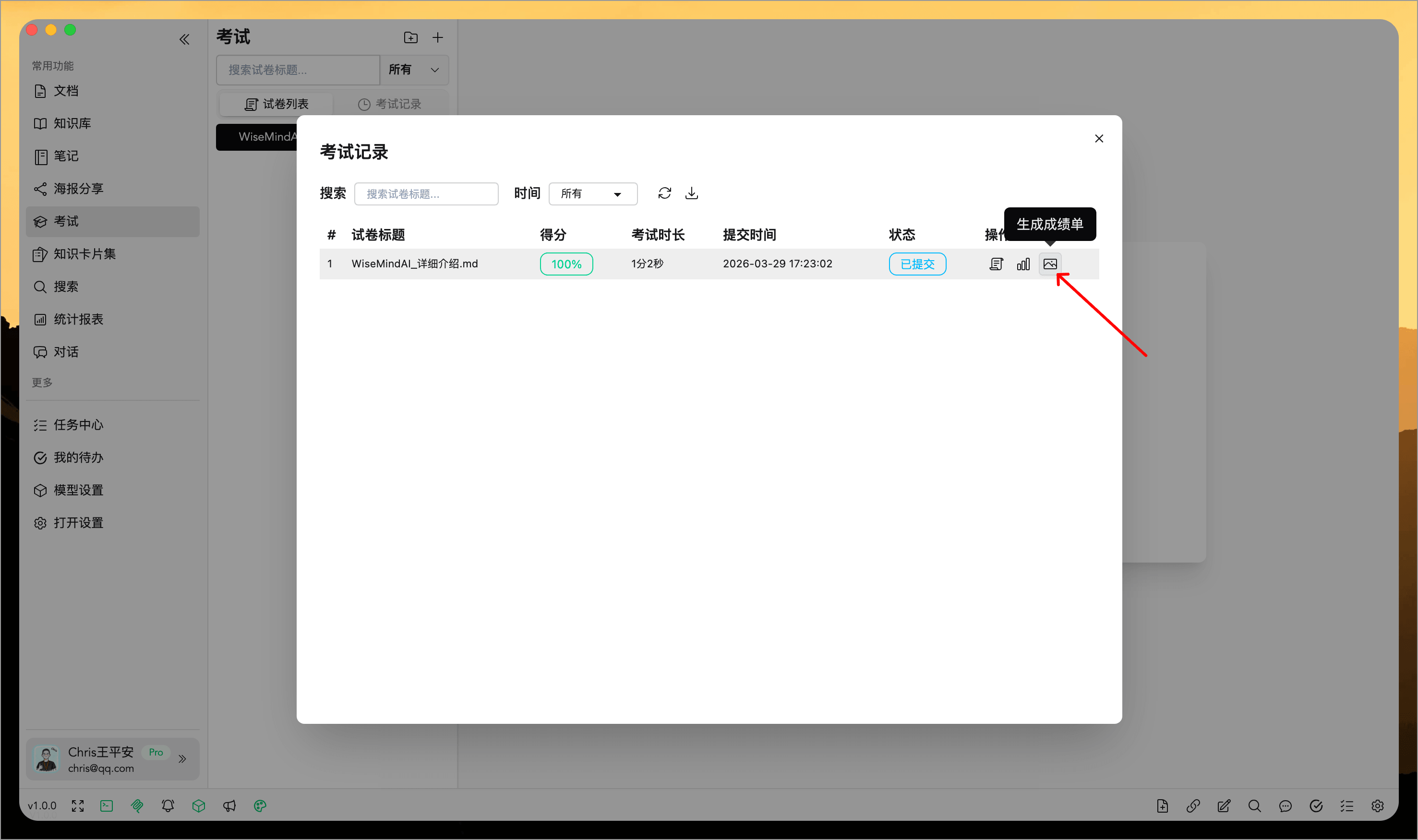
Your learning results are no longer just your own; you can clearly share and review them with others.
🎯 Usage Tips
1. Regular Exams
It is recommended to create an exam immediately after finishing a knowledge point or chapter for verification. This allows you to:
- Identify knowledge gaps in time
- Reinforce recently learned content
- Improve learning efficiency
2. Progressive Difficulty
- At the beginning of your study, use "Easy" difficulty single-choice or true/false questions
- After mastering basics, switch to "Medium" difficulty mixed question types
- For deep diving into topics, utilize "Hard" difficulty comprehensive tests
3. Focus on Reports
Carefully review the analysis report after every exam:
- Pay special attention to the "Knowledge Gaps" section
- Follow up with reviews based on "Improvement Suggestions"
- Compare multiple exams to track progress over time
4. Review Mistakes
For incorrect questions, you can:
- View detailed explanations to understand why they were wrong
- Return to original content (documents, cards, etc.) for re-study
- Retake the exam after a few days to verify mastery
5. Edit Quizzes
After AI generates a quiz, it is recommended to quickly review all questions first. If you find unclear phrasing, inaccurate emphasis, or unsuitable options, edit them before starting your actual test. This step is especially useful for formal reviews or sharing quizzes with others.
❓ FAQ
Q: How good are the generated question quality?
A: AI generates high-quality questions based on provided content, including:
- Clear and unambiguous questions
- Reasonably designed options
- Detailed answer explanations
- Difficulty levels matching your settings
Q: Can I retake the same quiz multiple times?
A: Yes! You can take any generated quiz as many times as you like. Each attempt creates a new exam record and report, allowing you to:
- Verify review effectiveness
- Track learning progress over time
- Reinforce memory retention
Q: Can I modify questions after generation?
A: Yes. Generated quizzes support further editing; you can change the question stem, options, answers, or explanations, as well as delete unwanted items.
Q: Can I generate questions focusing only on certain key points?
A: Yes. When creating an exam, select core content points and combine them with desired difficulty levels, purpose, and scope to make the output more focused.
Q: Can I export exam reports?
A: Pro users can export exam reports as images or PDFs for easy saving and sharing.
Q: What are the limitations for free users?
A: Free users are limited to a maximum of 3 exams per day, with each quiz containing up to 10 questions in single-choice format only. Upgrading to Pro unlocks all features.