
📒 Cross-Platform Note Publishing
This document explains how to configure the cross-platform publishing feature for WiseMindAI. To use it, simply select your desired platform from the menu below the note editor:
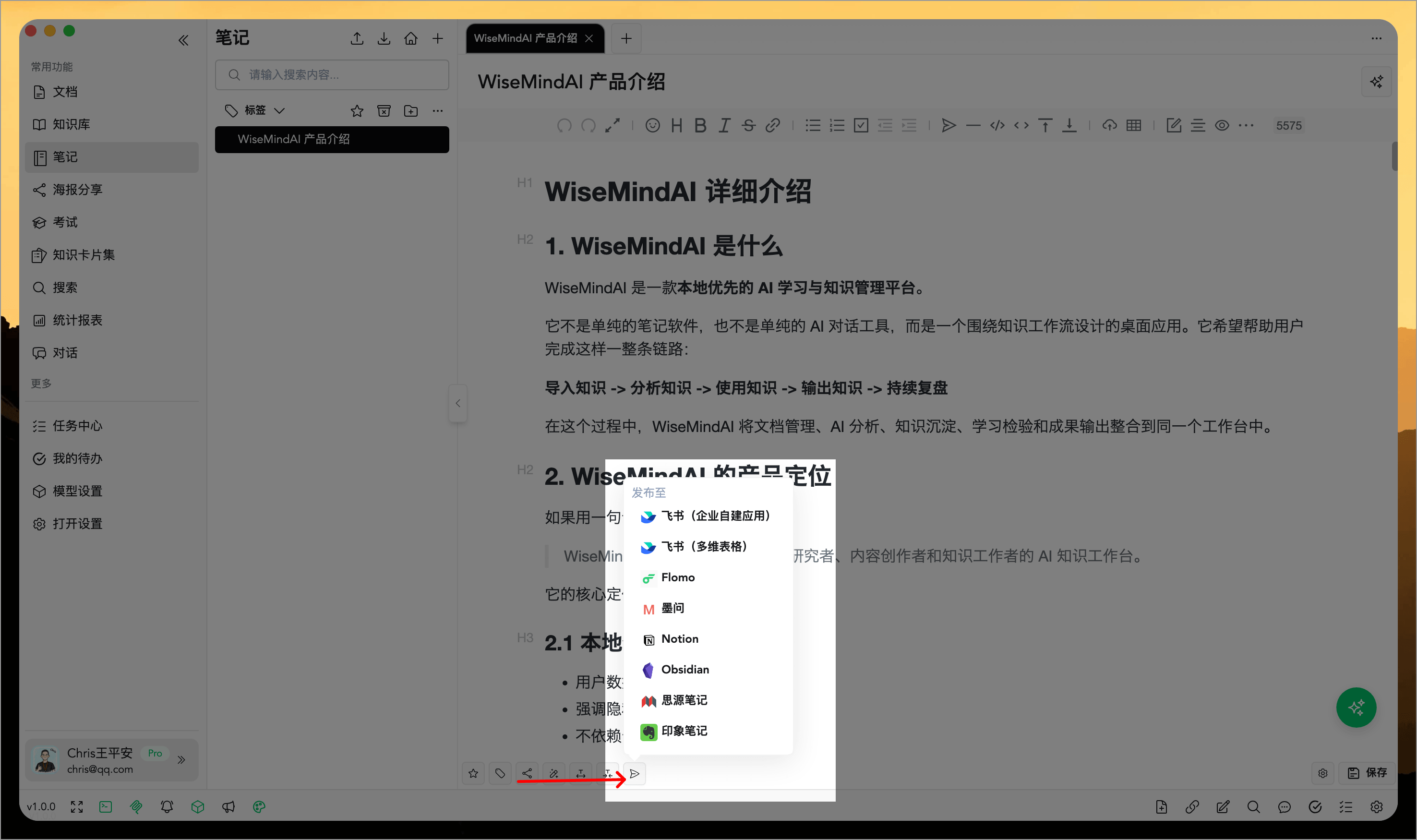
You can configure settings according to the platforms you wish to publish notes to:
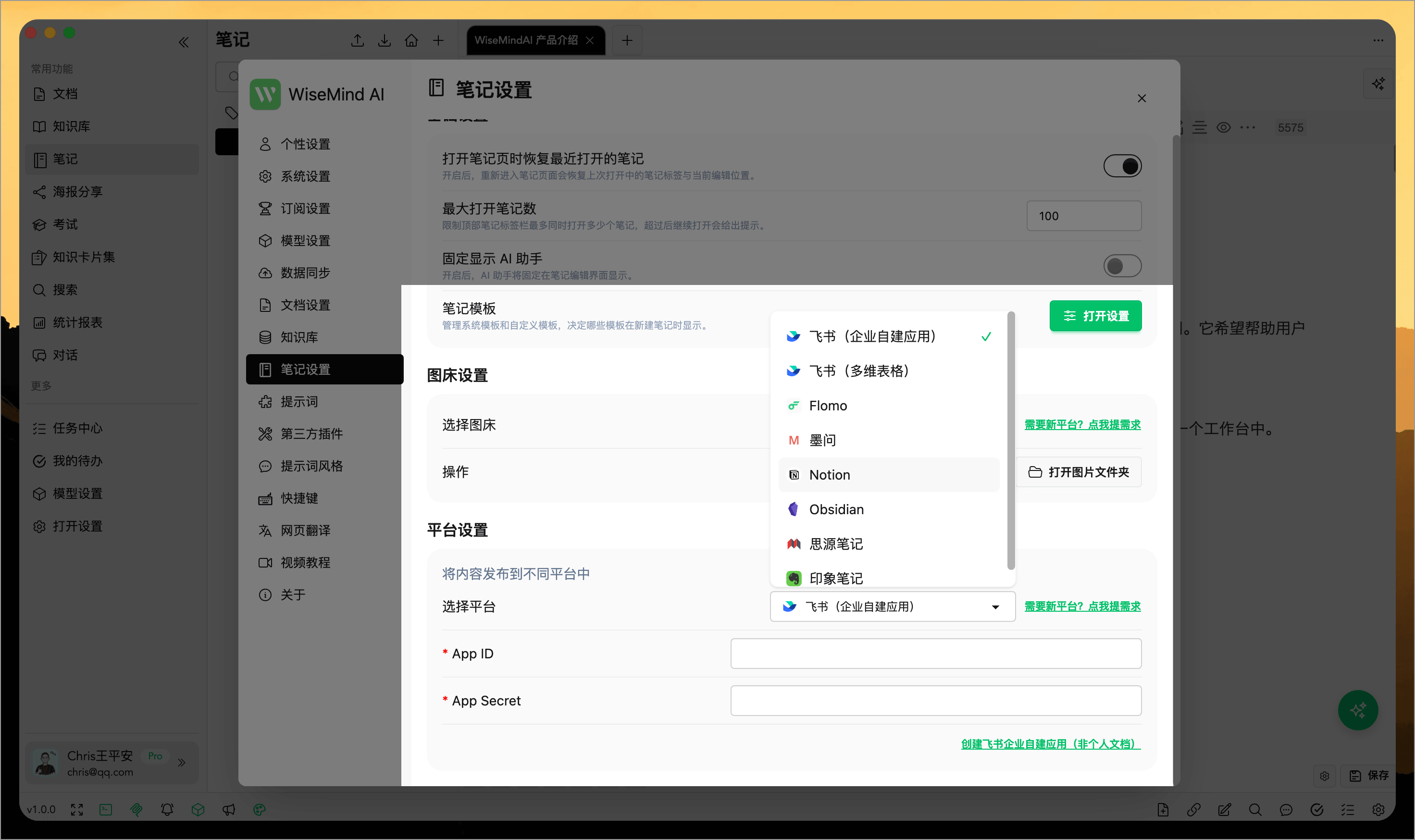
If you need support for other platforms, please submit a request via 《WiseMindAI Note Content Sync Platforms》.
1. Flomo
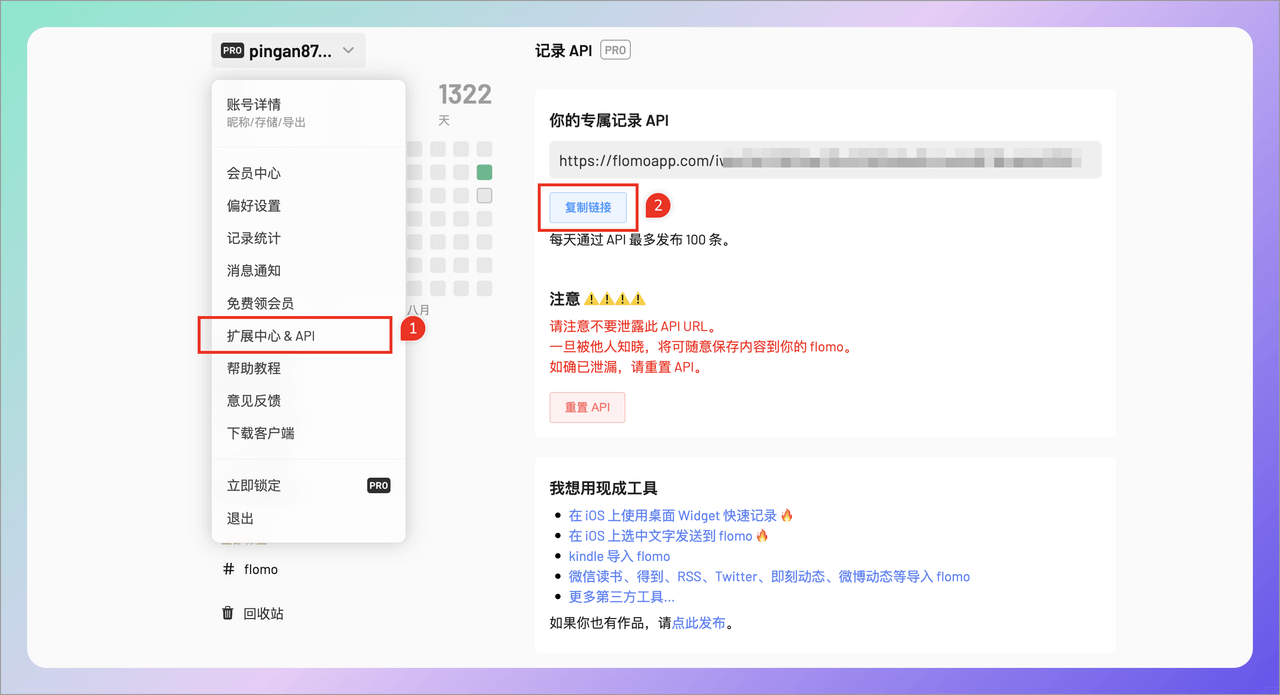
- Open the official Flomo website and select "Extension Center & AIP" from the top-left menu.
- Copy your exclusive Record API key.
- Note: This feature requires a Pro membership.
2. Notion
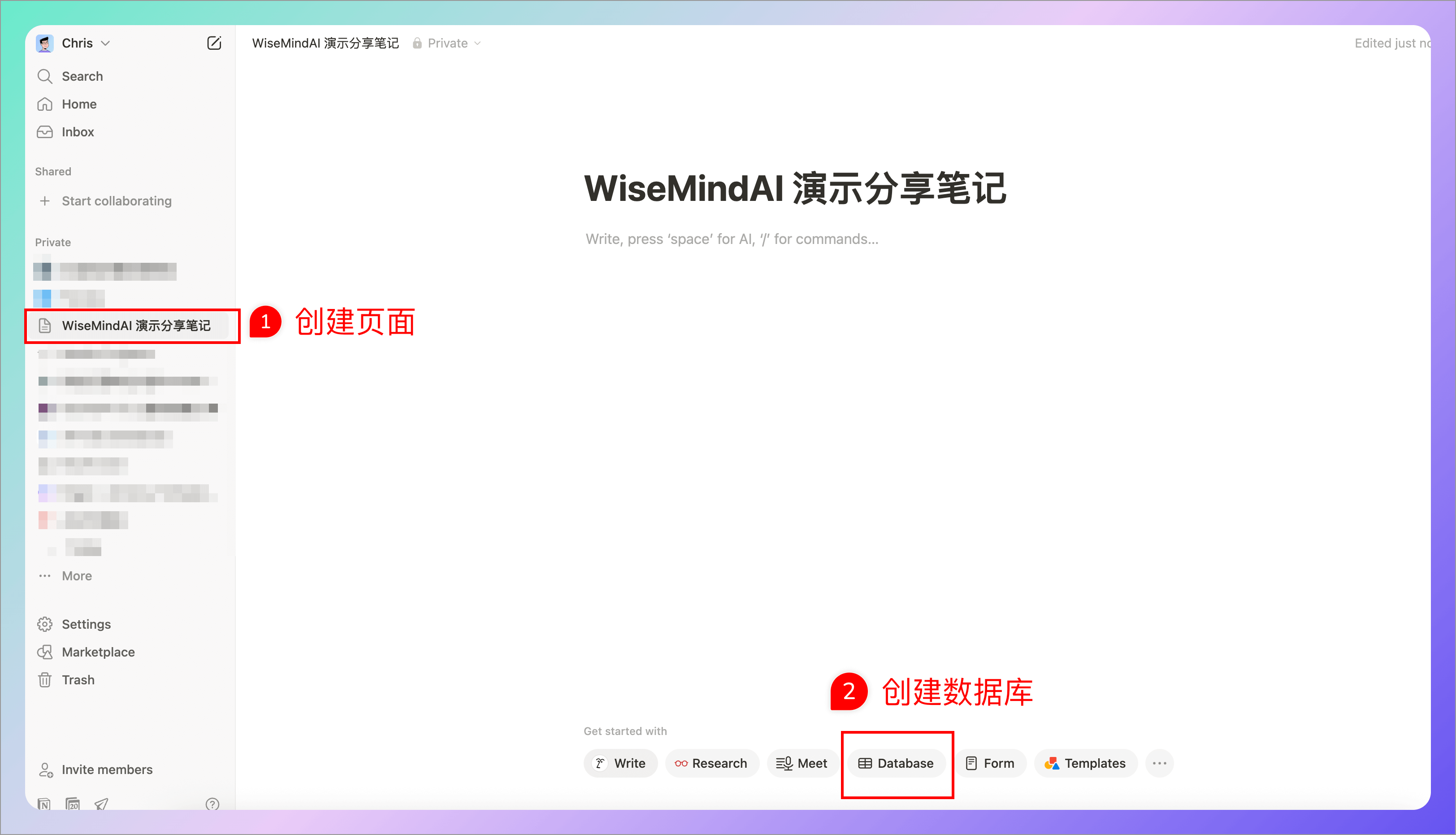
2.1 Create New Page and Database
First, create a new page and database in Notion for synchronization purposes.
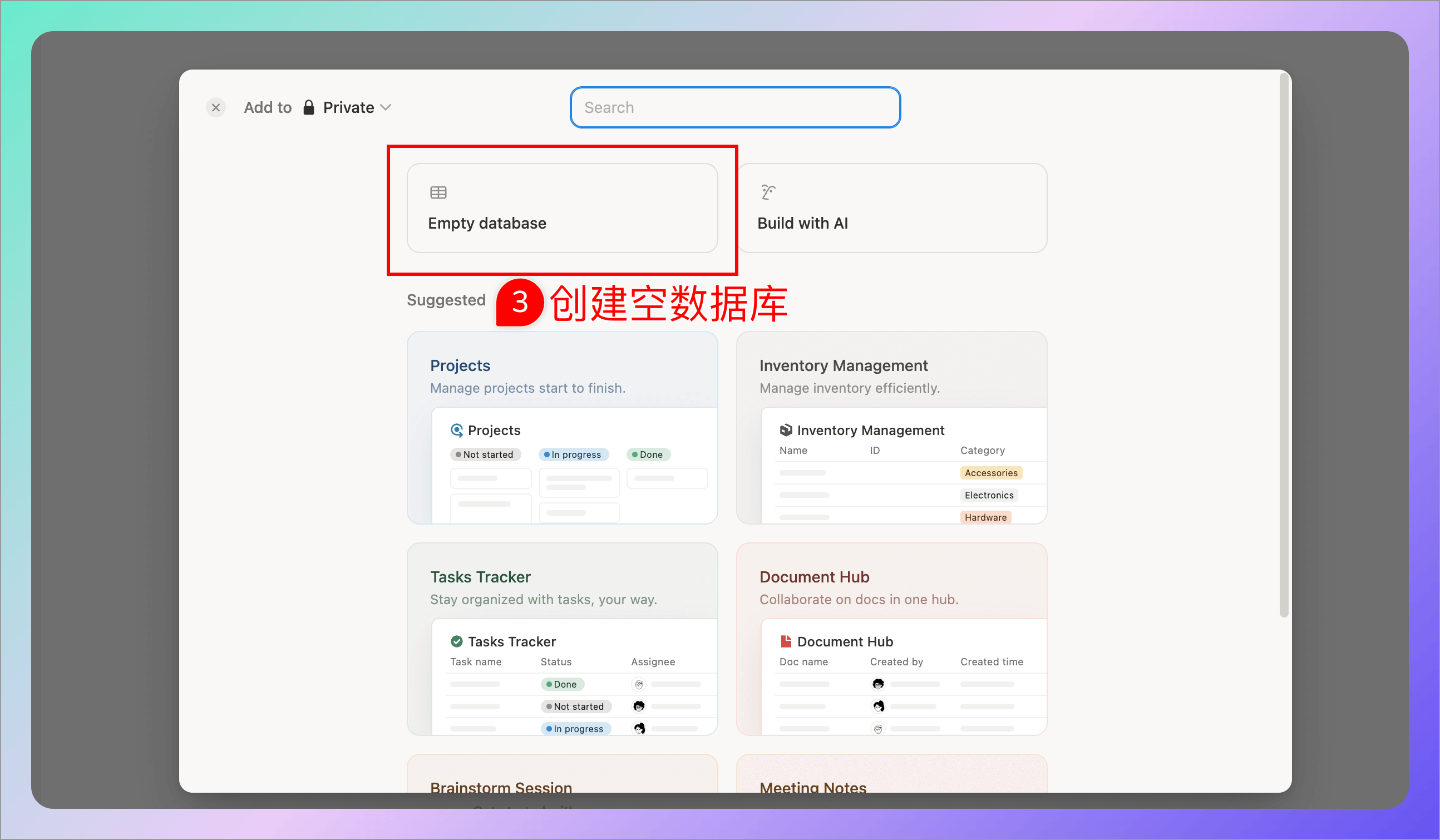
2.2 Generate Integration Token
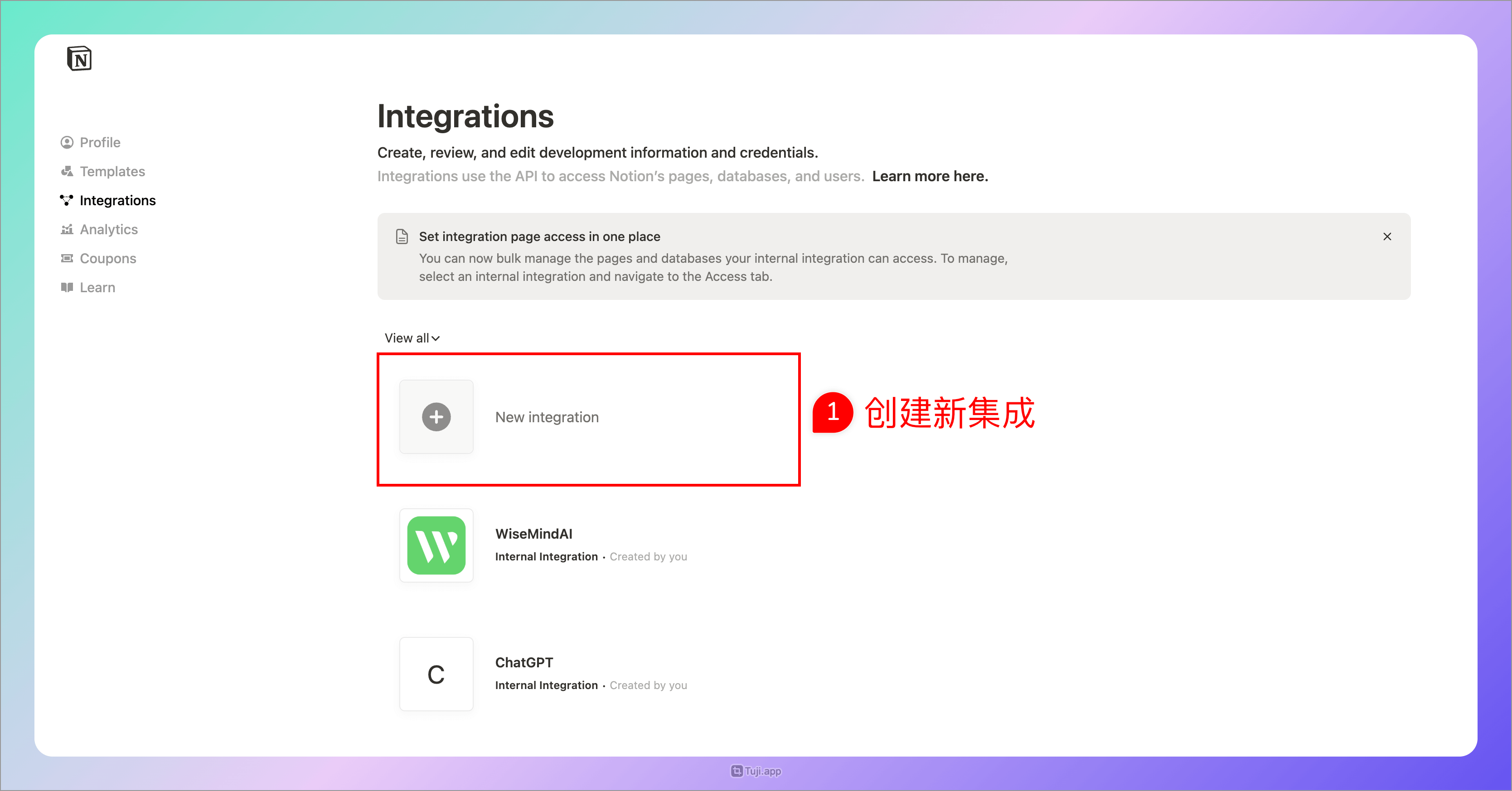
- Open the Notion Integrations page
- Create a new integration
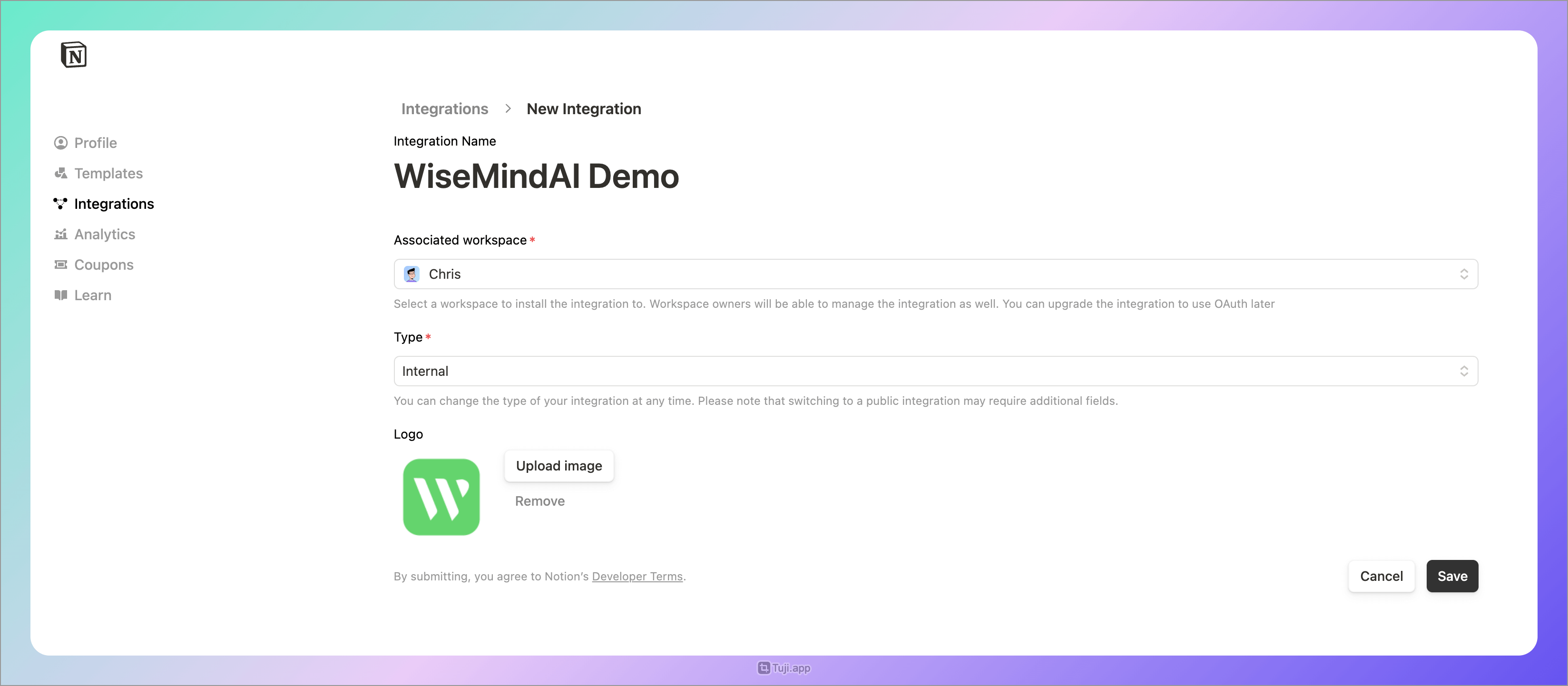
- Fill in the integration details:
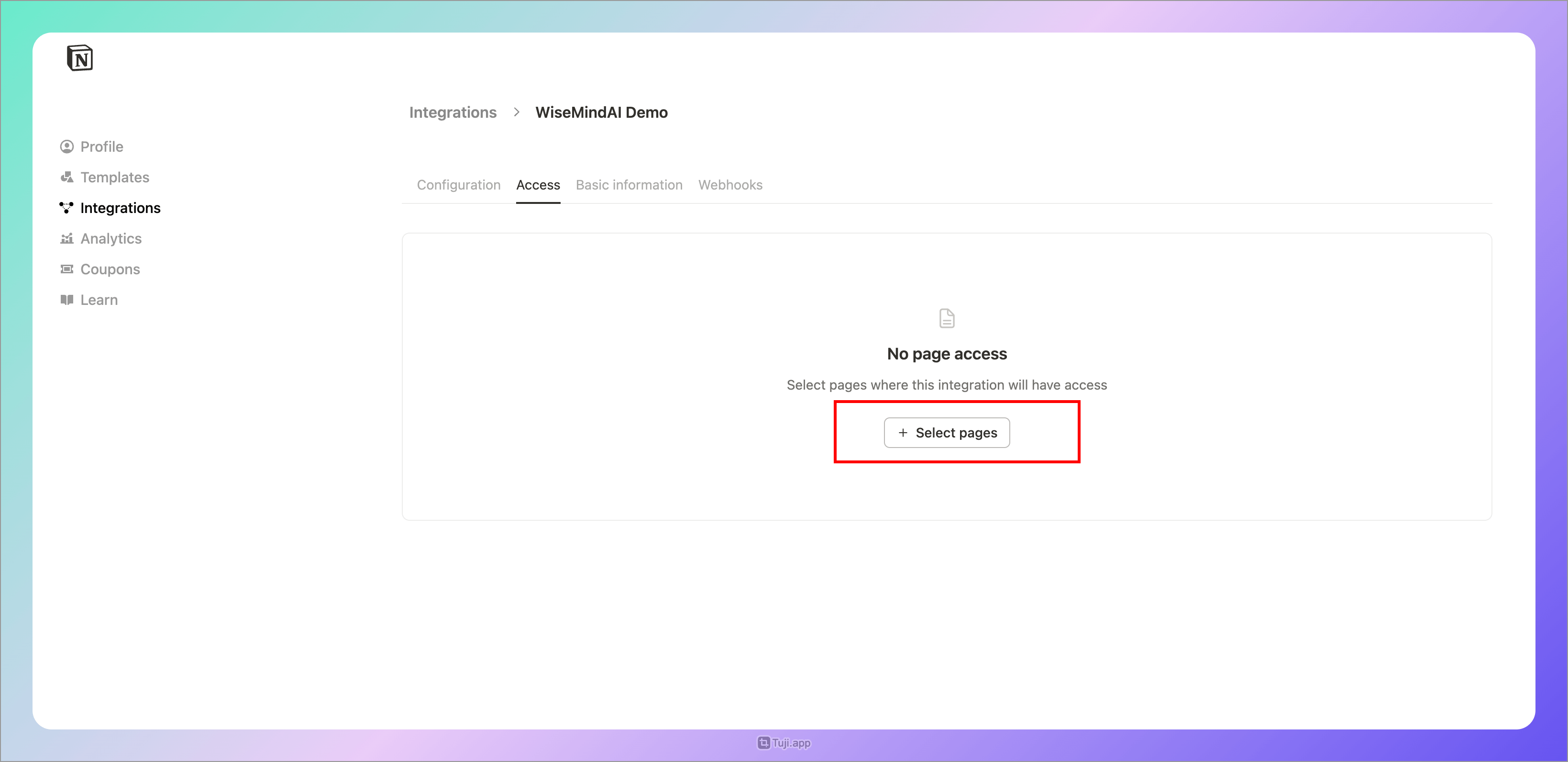
- Set the Integration Access Content and select the page created earlier:
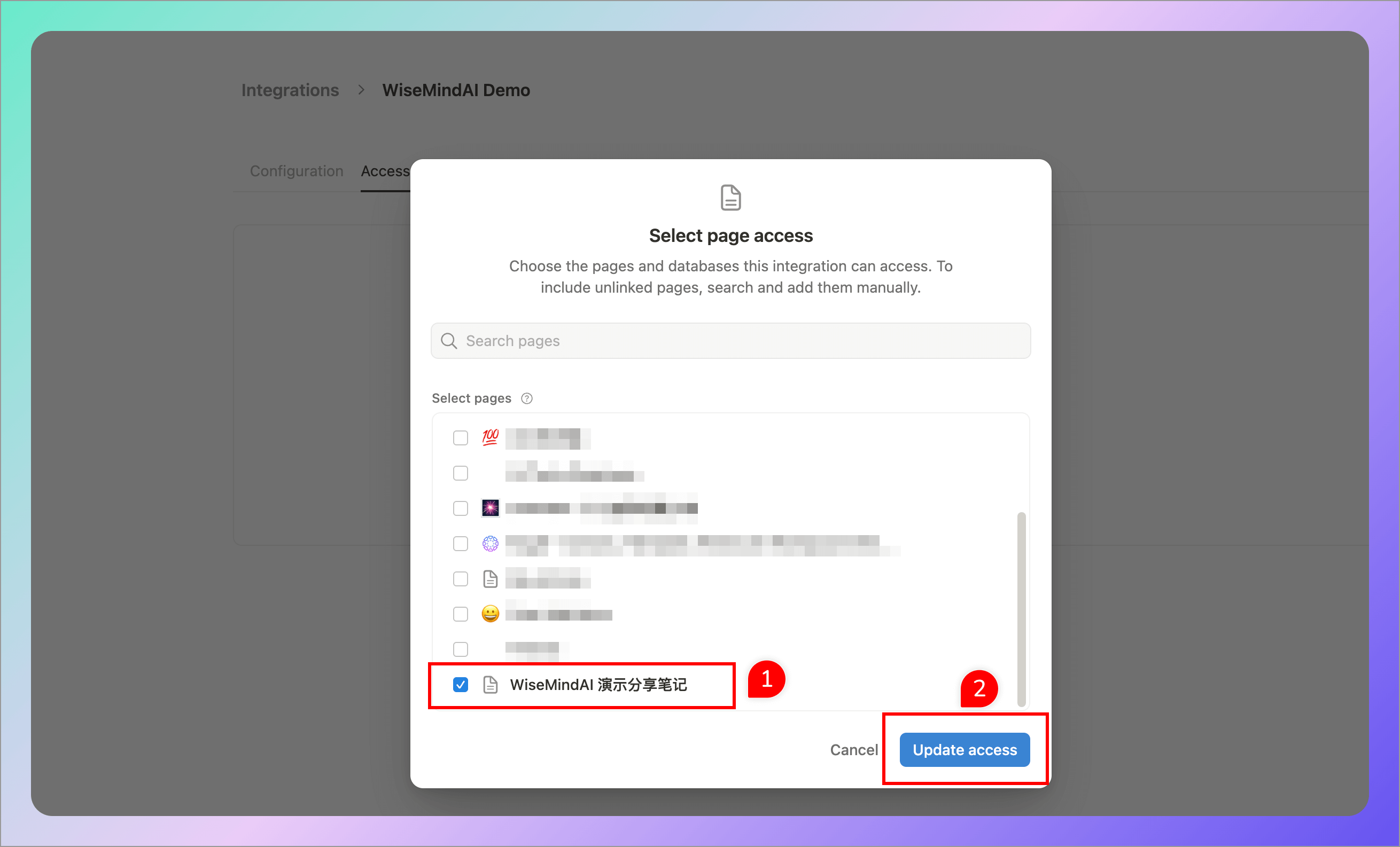
- Copy the Integration Token and paste it into WiseMindAI:
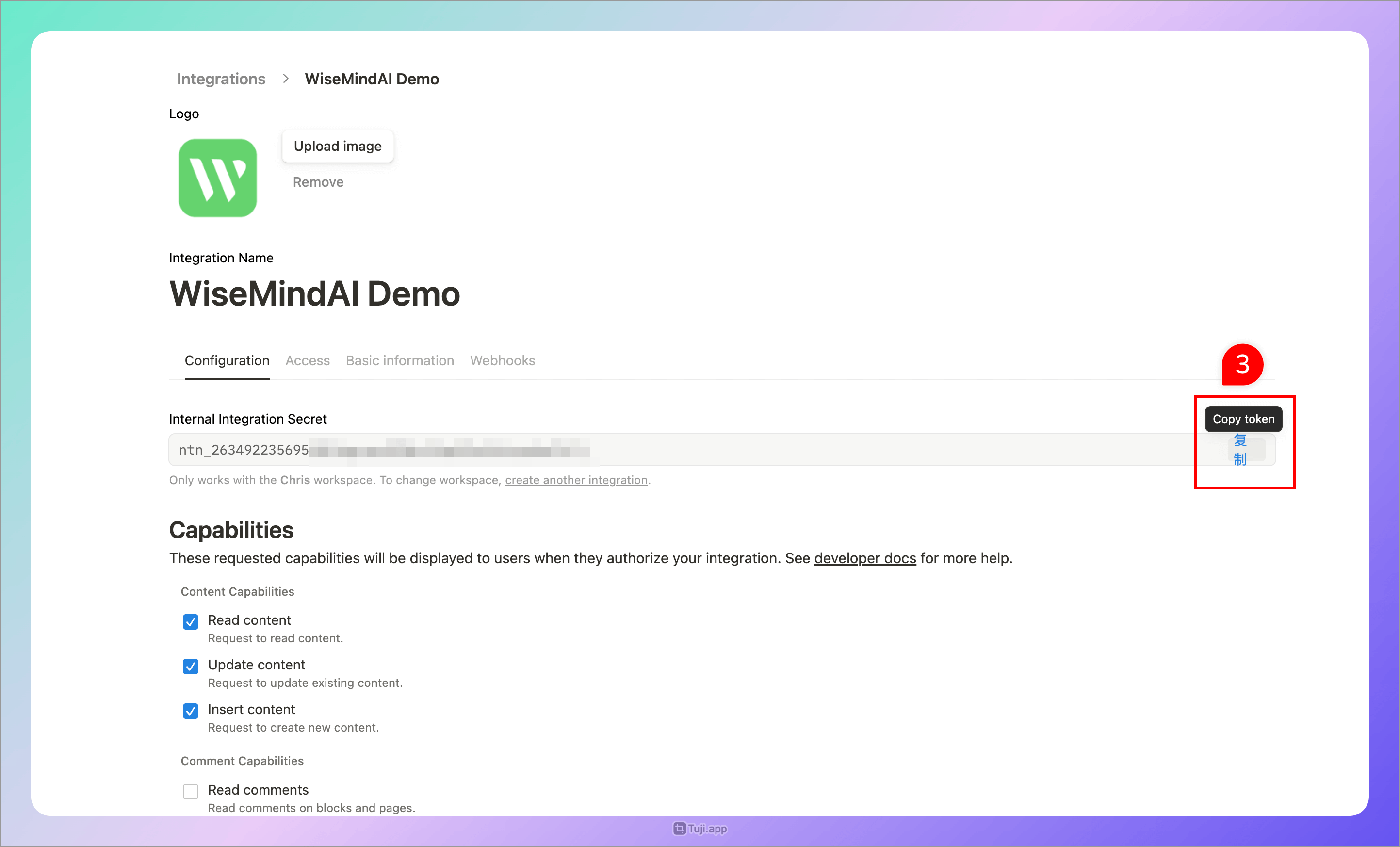
2.3 Copy Database ID
- Open your Notion database page
- Click the share button in the top-right corner and select "Copy Link"
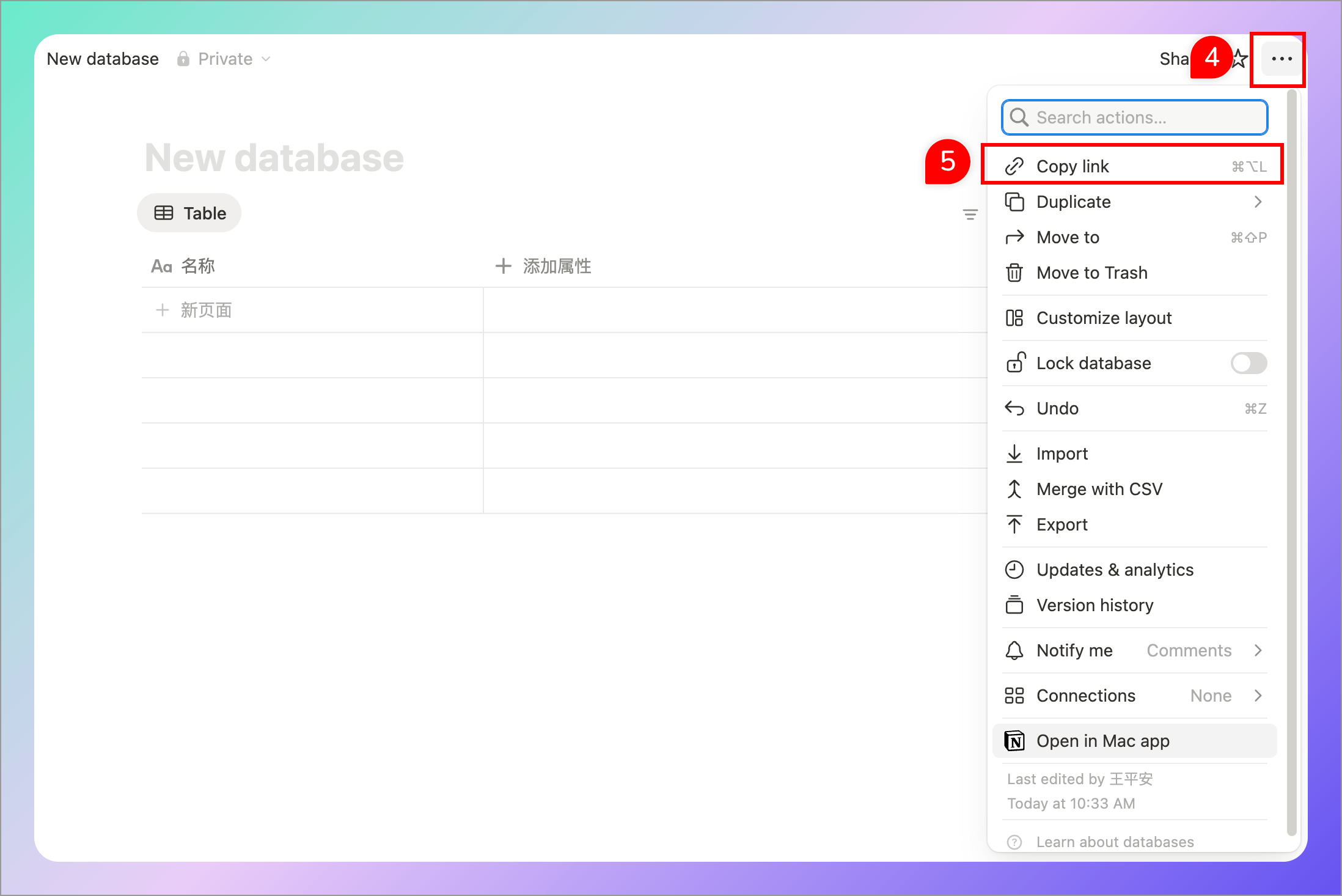
- Extract the Database ID from the link (the part before
v=) - Paste the Database ID into WiseMindAI's "Database ID" field:
Example: https://www.notion.so/chris1993/?v=255622893e91809d8060000cf359ce00 The Database ID is the text in red within the link.
3. Obsidian Notes (SiYuan)
- Open SiYuan/Obsidian settings and find "API token" under the "About" menu:
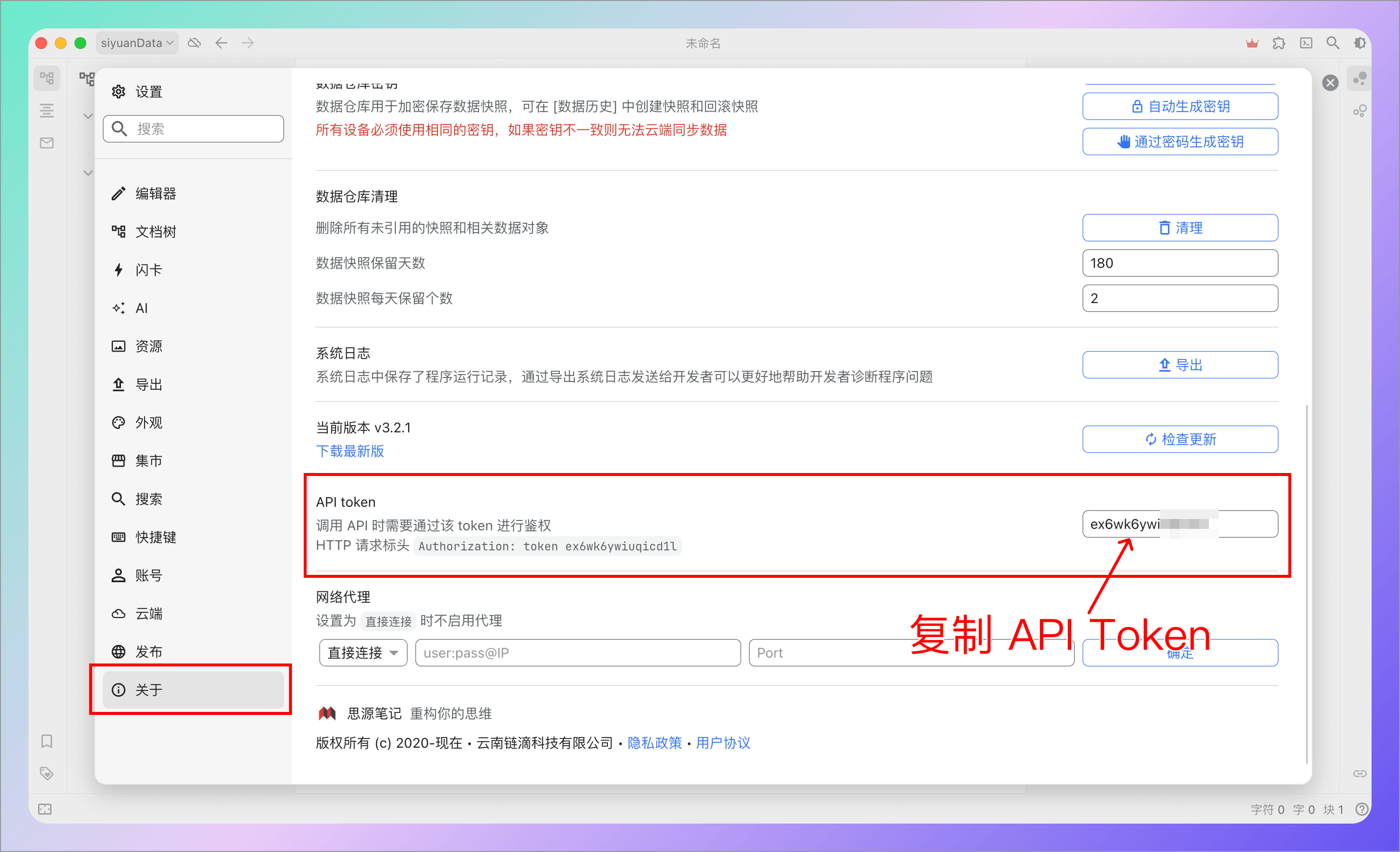
- Copy the API Token on the right side and paste it into WiseMindAI settings
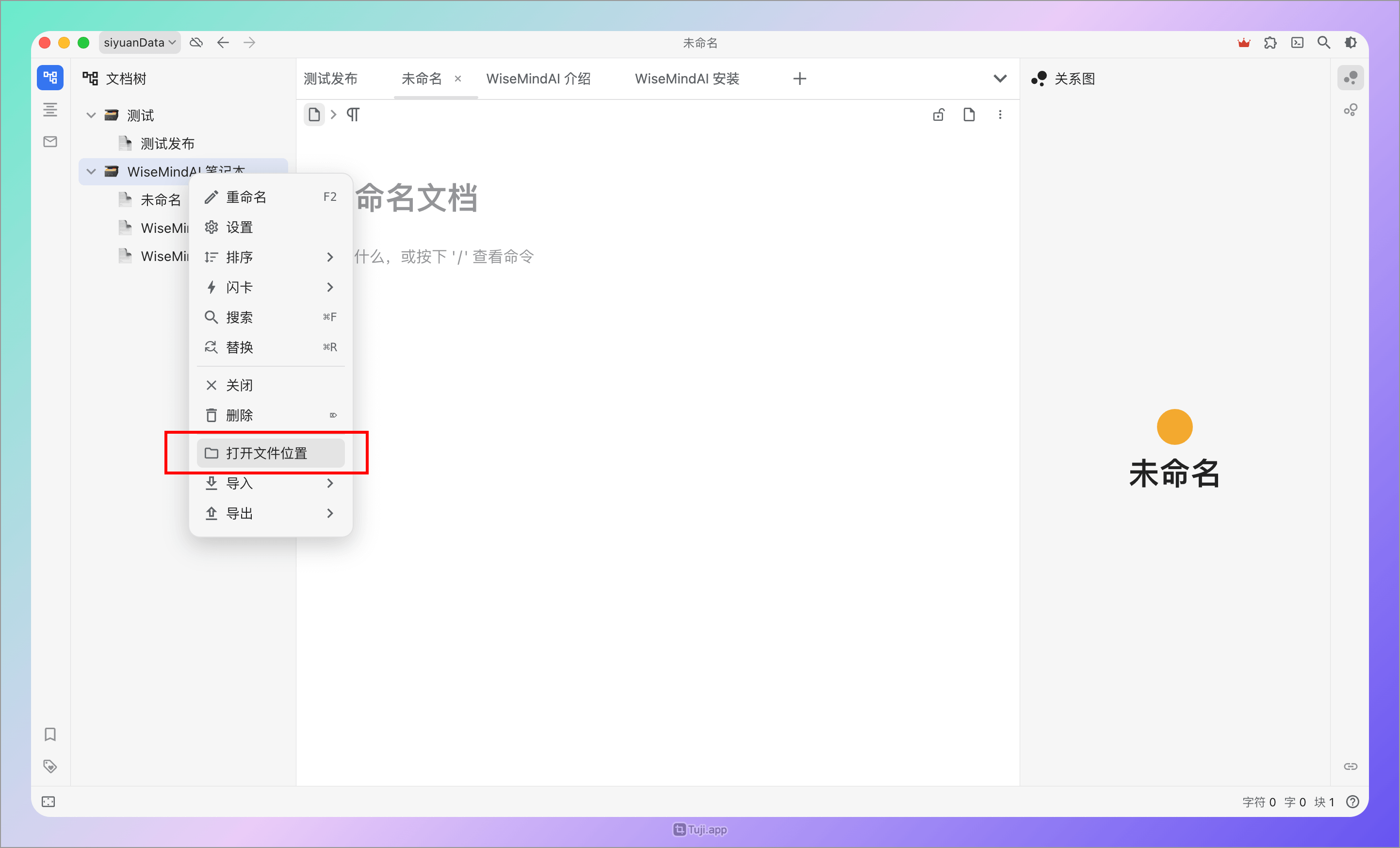
- Copy your Notebook ID:
Right-click a target notebook in SiYuan/Obsidian list and select "Open Folder Directory":
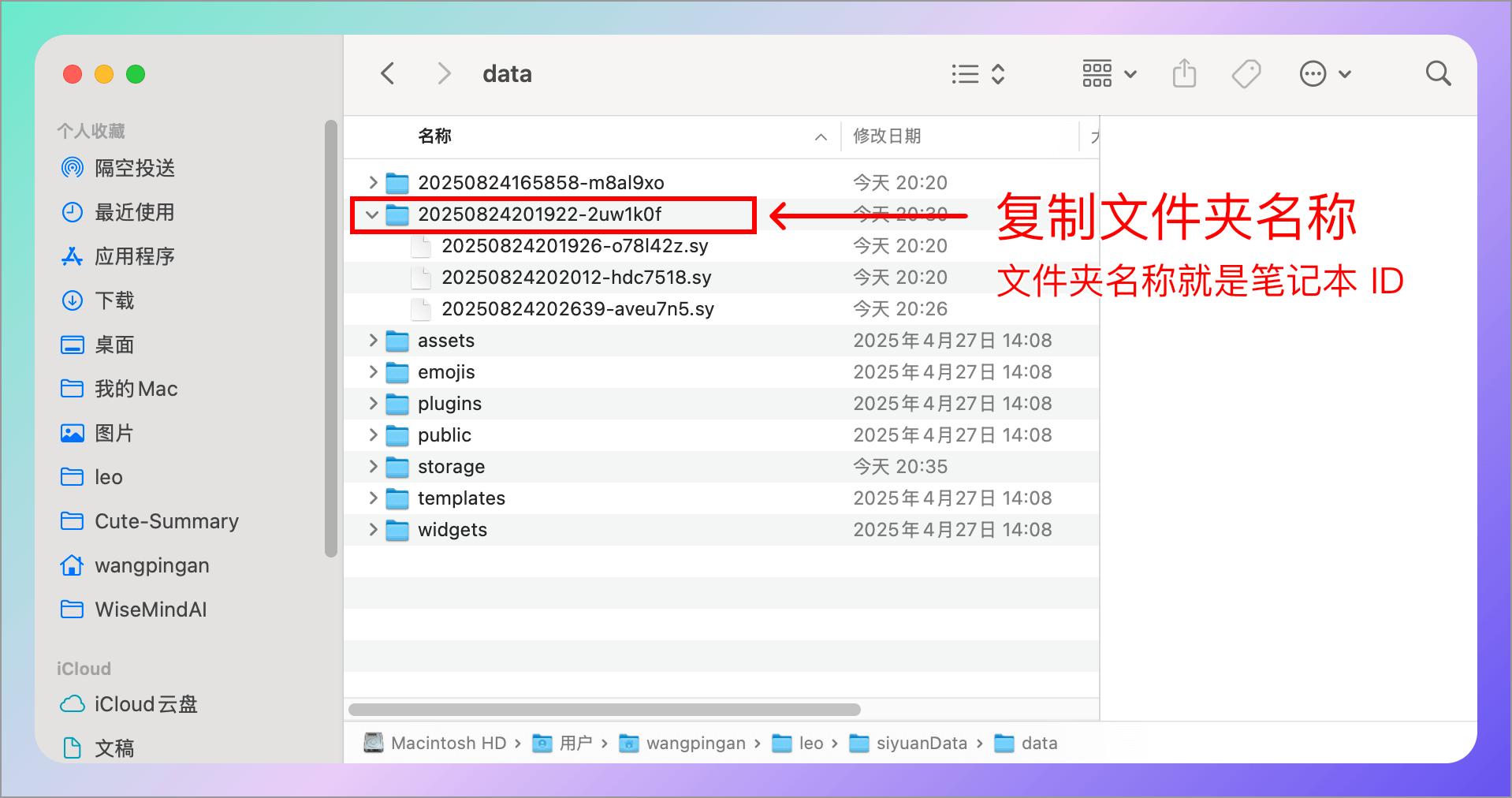
- Copy the folder name (which is your Notebook ID) and paste it into WiseMindAI:
4. Feishu (Enterprise Self-Built App)
Due to the complexity of authorizing personal knowledge base documents, WiseMindAI currently does not support them. We first support publishing via "Enterprise Self-Built Apps", allowing you to publish documents under your enterprise self-built app.
Required parameters:
- App ID
- App Secret
4.1 Create an Application
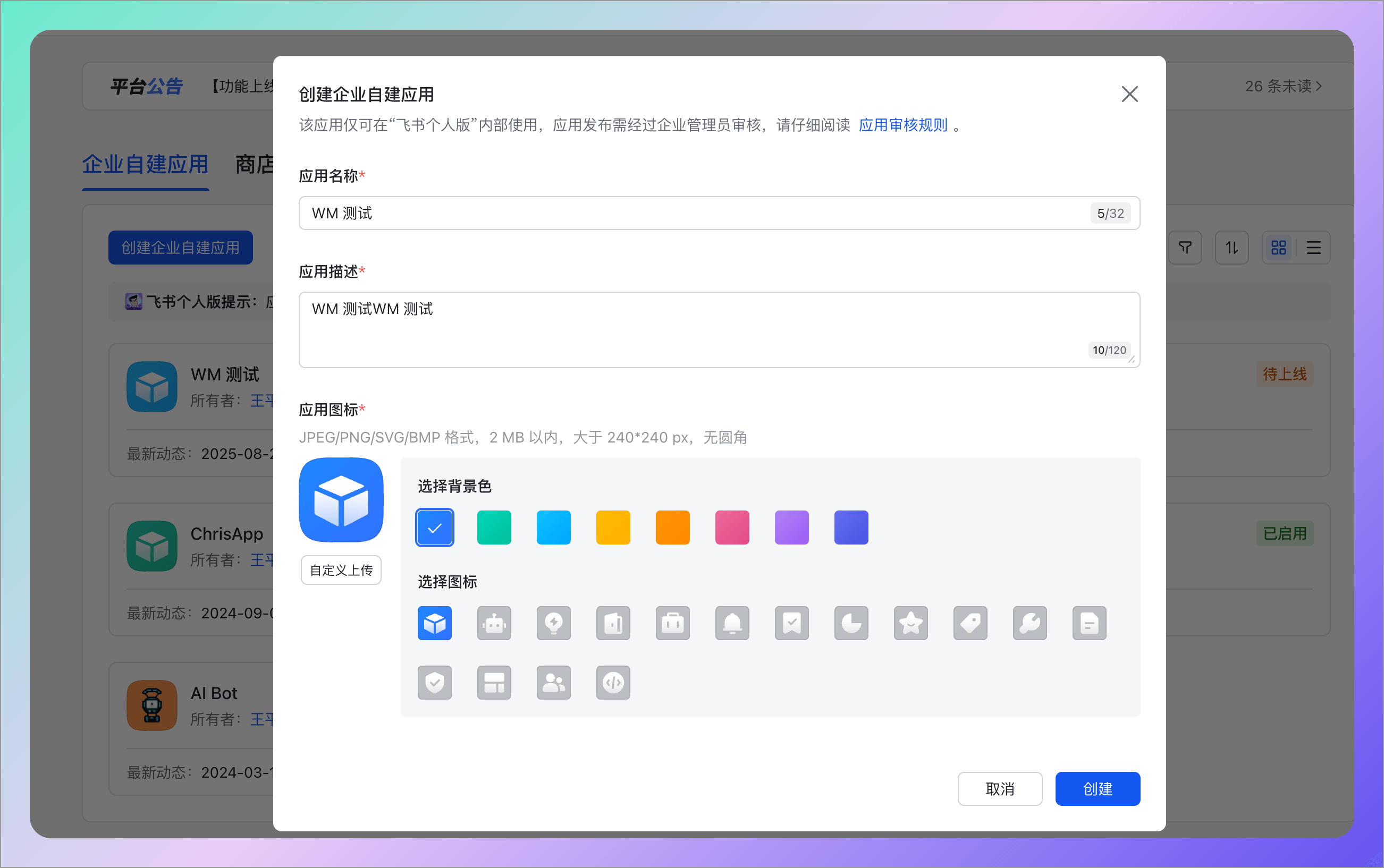
- Go to the Feishu Open Platform and create a new application:
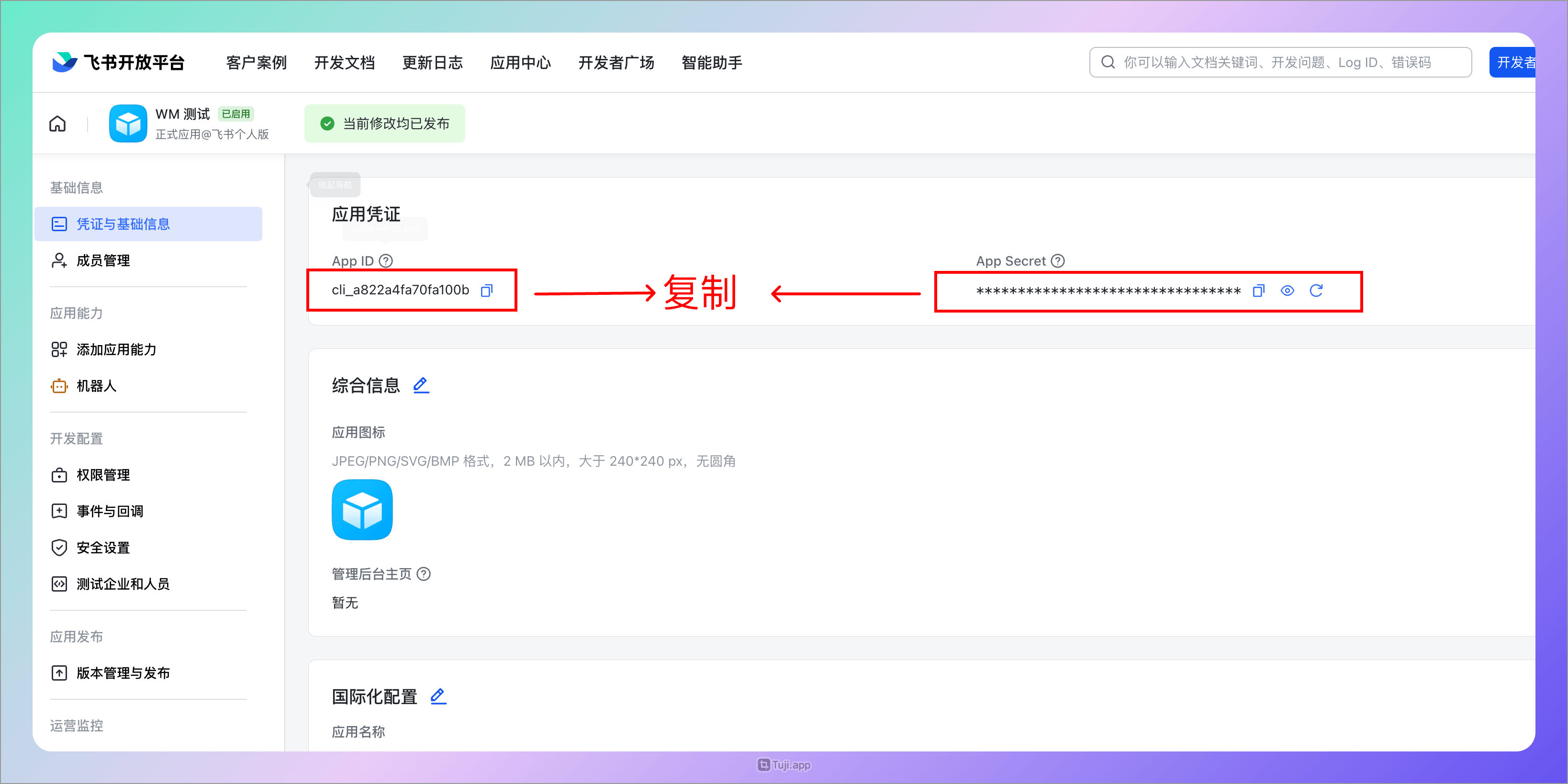
2. Copy App ID and App Secret
3. Paste it into WiseMindAI
4.2 Configure Permissions
Configure the following permissions in your Feishu application:
- Create and edit new documents
docx:document - Convert text content to cloud document blocks
docx:document.block:convert
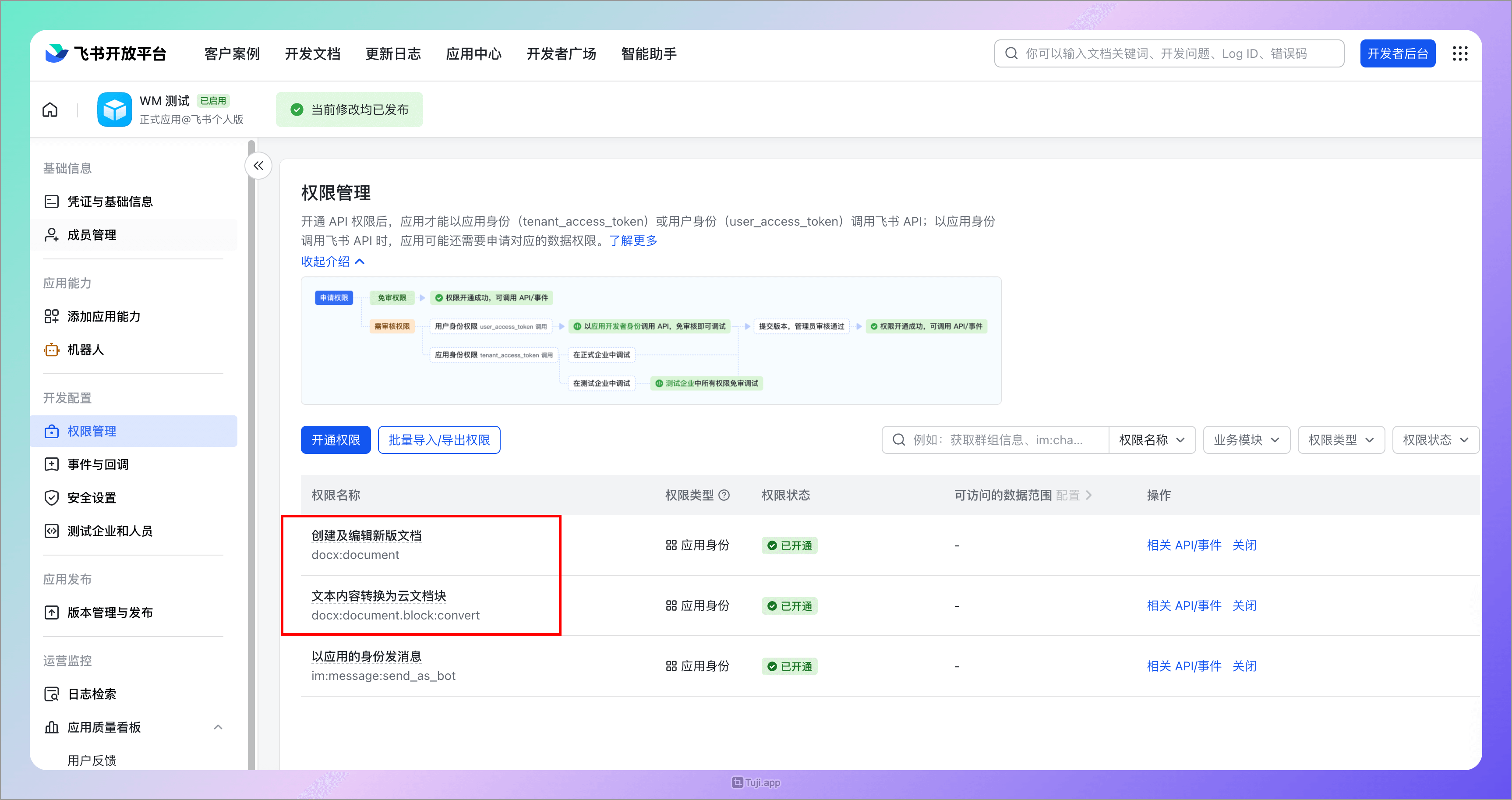
Don't forget to publish the application after configuration.
5. Feishu (Multi-dimensional Tables)
Since setting up a personal knowledge base document in Feishu requires authorization and other complex steps, there is currently no good solution for this within WiseMindAI; therefore, we first support adding data via applications to multi-dimensional tables. Adding new records to the table is done by applying as an application role. Required parameters:
- App ID
- App Secret
- App Token
- Multi-dimensional Table ID
- Title field name
- Content field name
5.1 Create Application
First, go to https://open.feishu.cn/app to create an application:
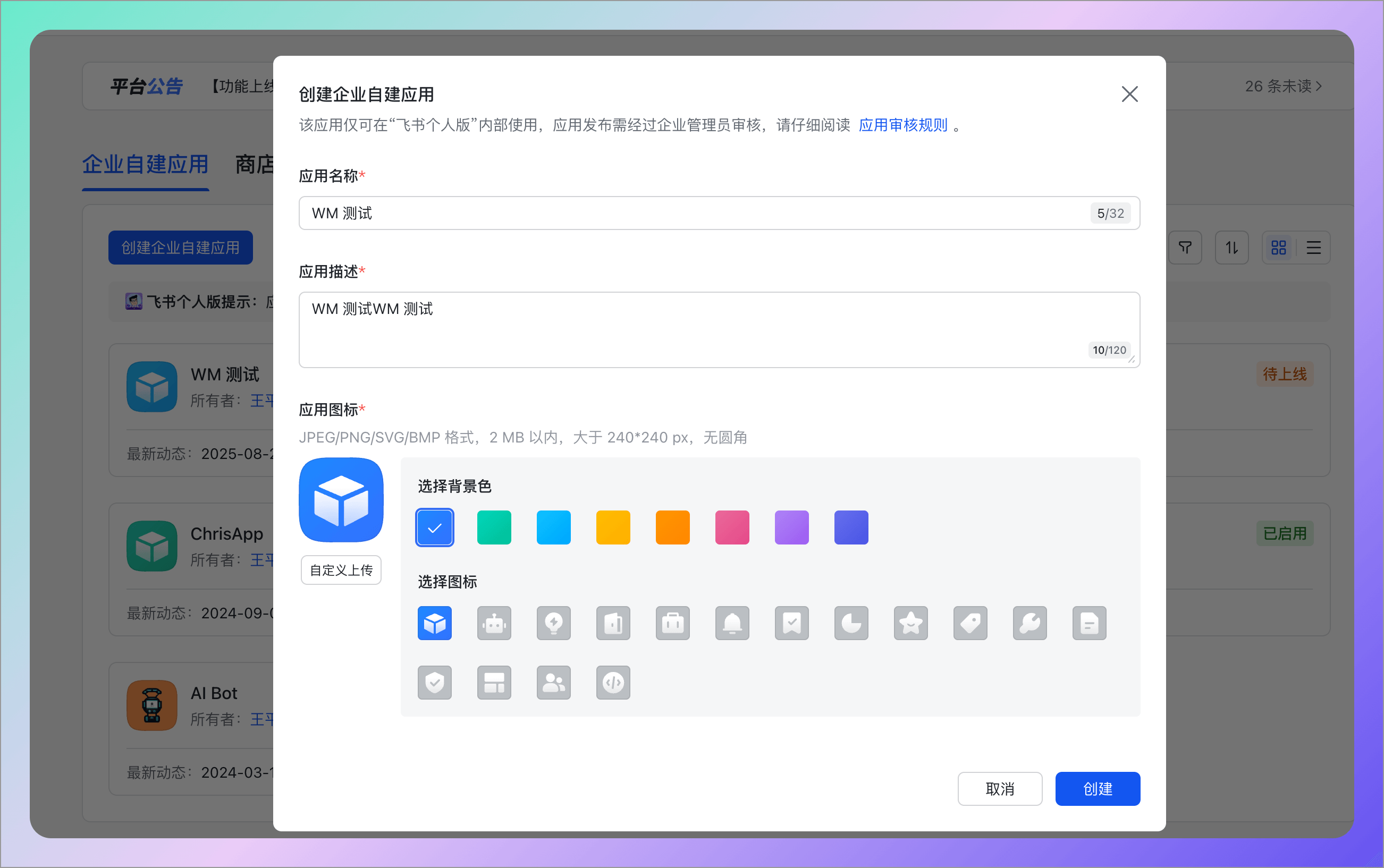
Then copy the App ID and App Secret:
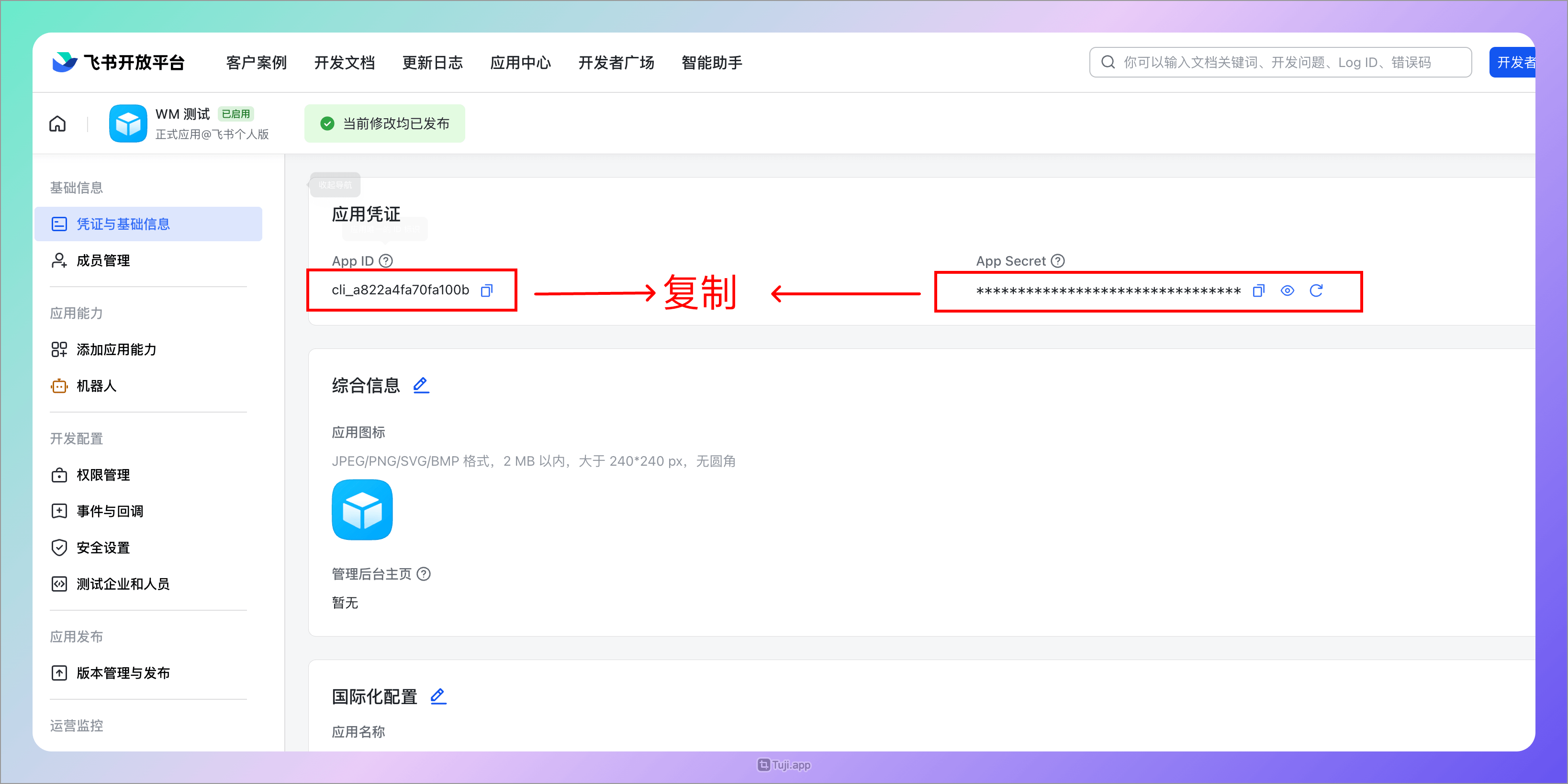
and paste them into WiseMindAI:
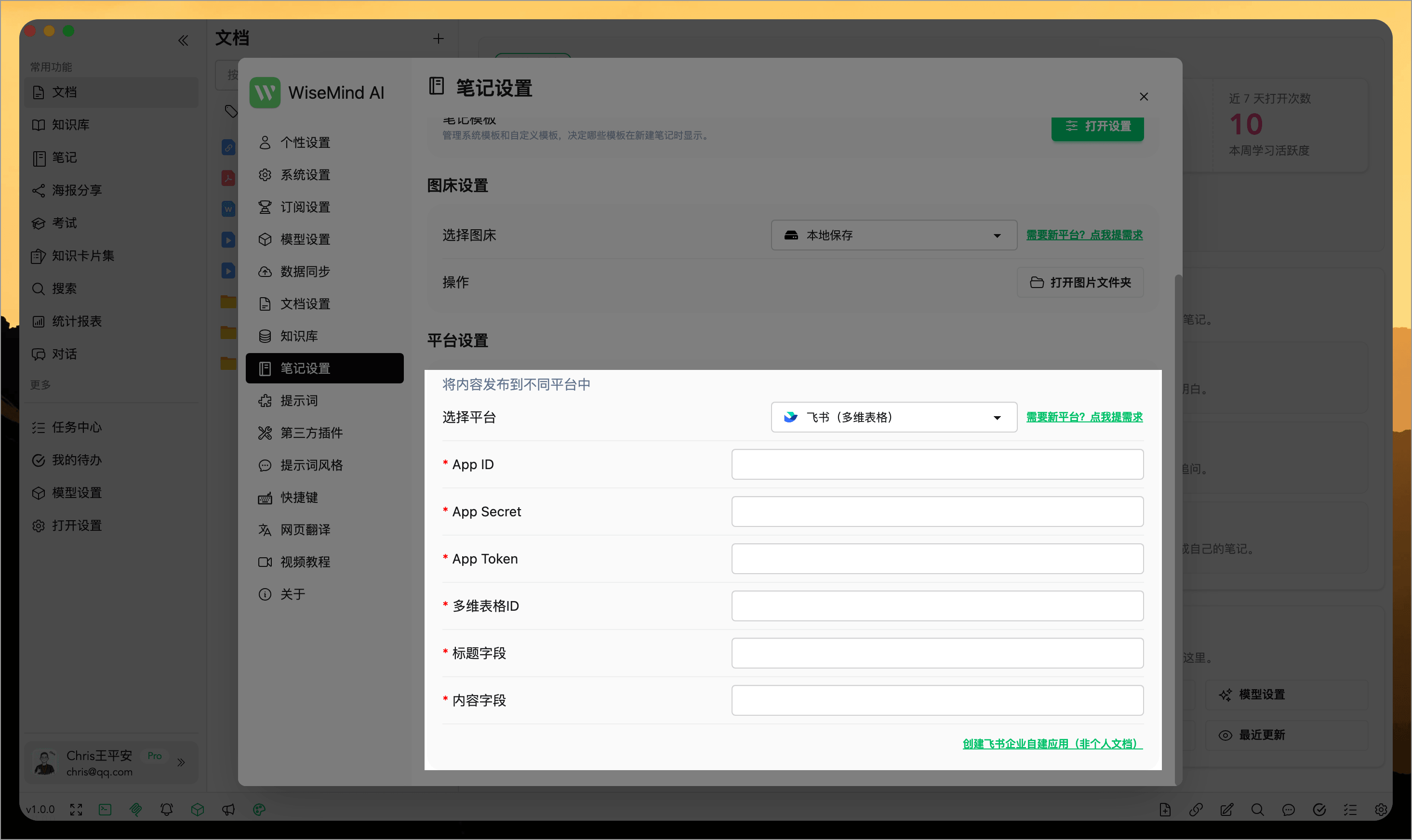
5.2 Configure Permissions
Additionally, you need to configure permissions in the Feishu application created above:
- Create records
base:record:create - View, comment on, edit, and manage multi-dimensional tables
bitable:app
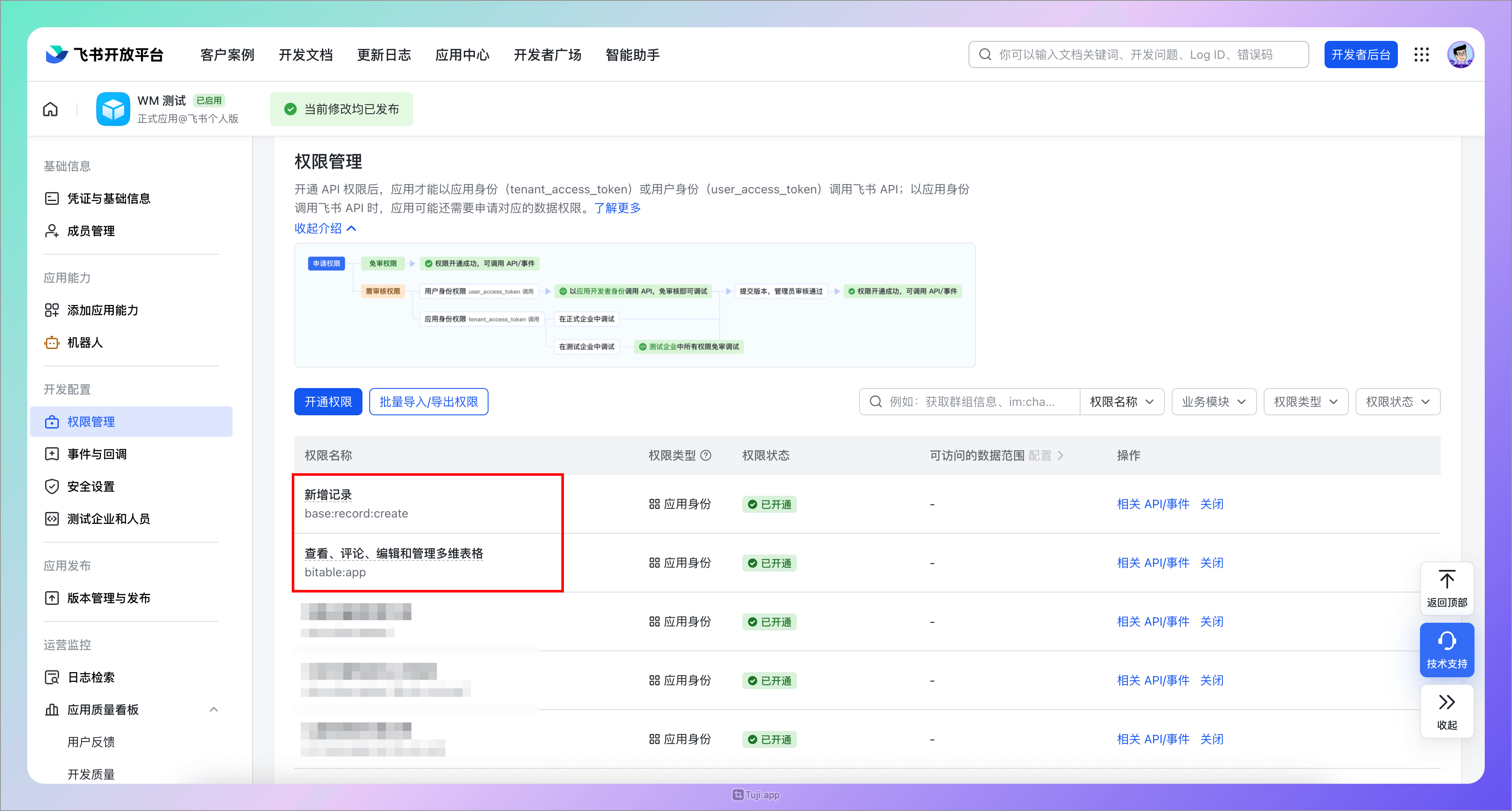
Don't forget to publish the application at the end.
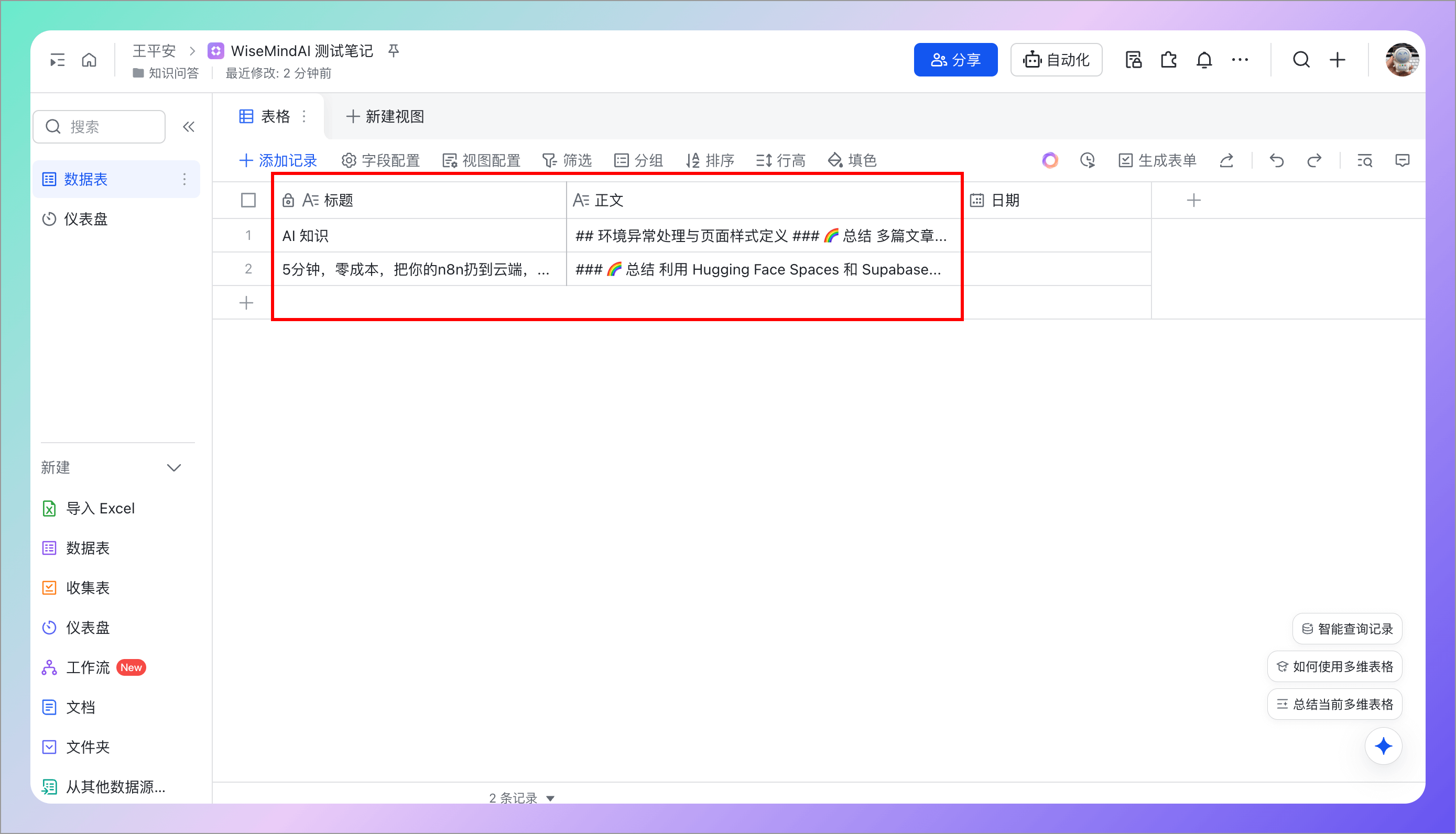
5.3 Create Multi-dimensional Table and Fields
Next, create a multi-dimensional table and set up fields for saving title and body content—for example, Chris creates a "Title" field to store titles and a "Body" field to save the main text content. Then enter these field names into WiseMindAI settings under "Title Field" and "Content Field".
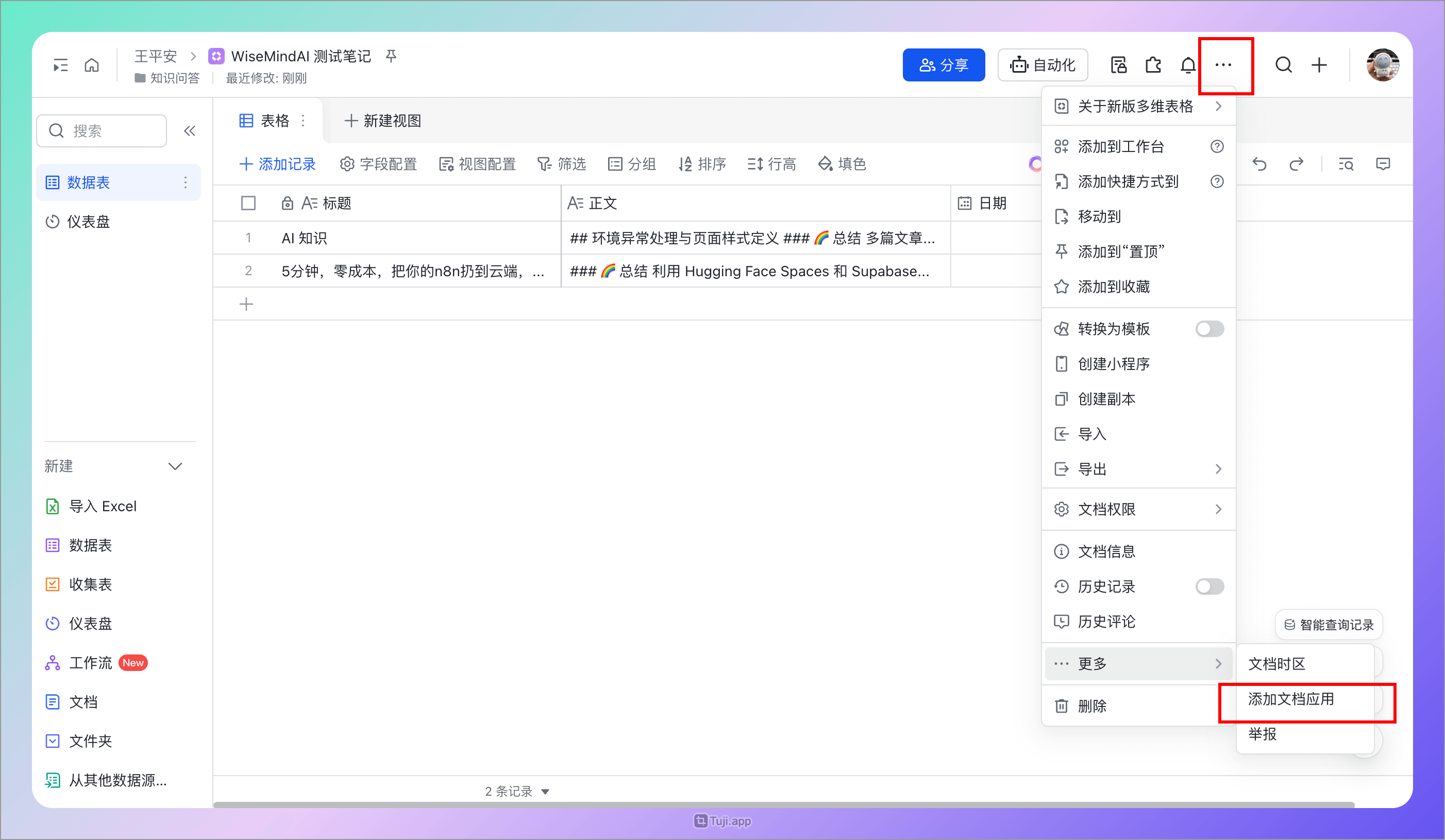
5.4 Add Application to Multi-dimensional Table
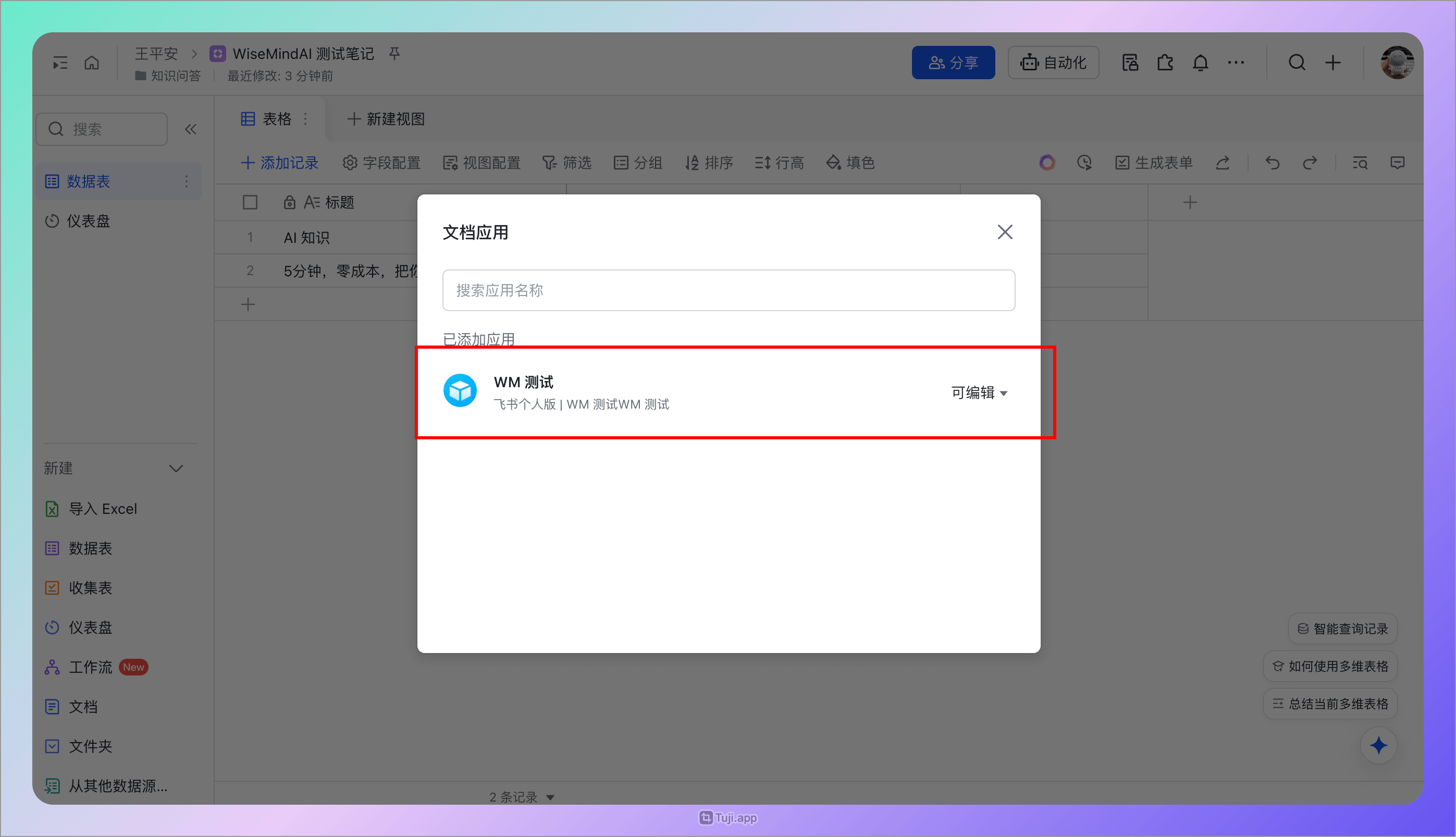
Next, add the document application to your multi-dimensional table by clicking the "..." button in the top-right corner, opening "More", then selecting "Add Document App". Search for and select the previously created application to add it.
5.5 Copy App Token and Multi-dimensional Table ID
Next, copy the multi-dimensional table URL from your browser address bar (format: https://wisemindai.feishu.cn/base/{AppToken}?table={Multi-dimensionalTableID}&view=vew8vvaaa), then extract:
- App Token
- Multi-dimensional Table ID
and fill them into WiseMindAI configuration.
6. Mo Wen
The Mo Wen platform is primarily used via mini-programs and requires a Pro membership to support API calls:
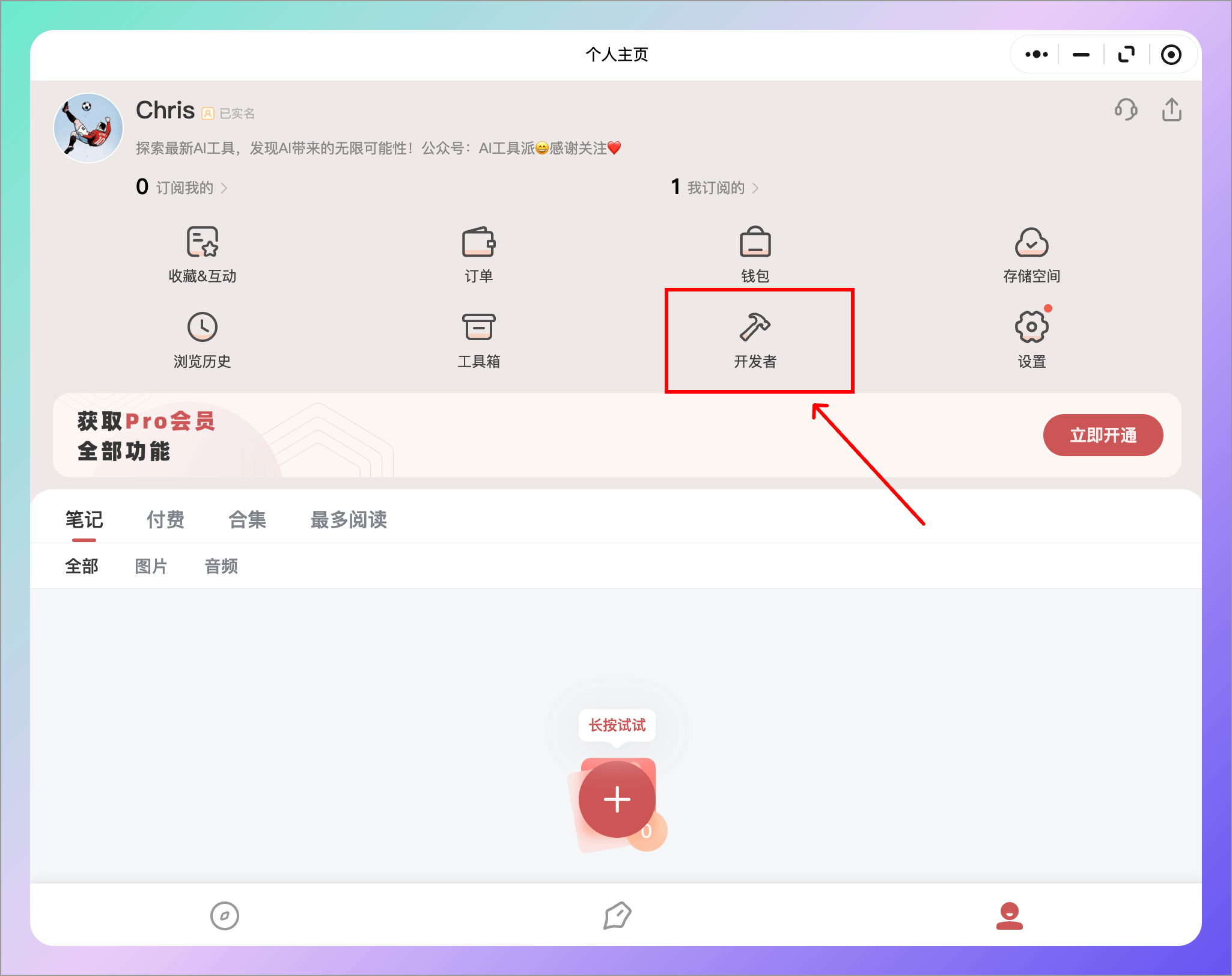
- Open the "Developer" menu in the mini-program
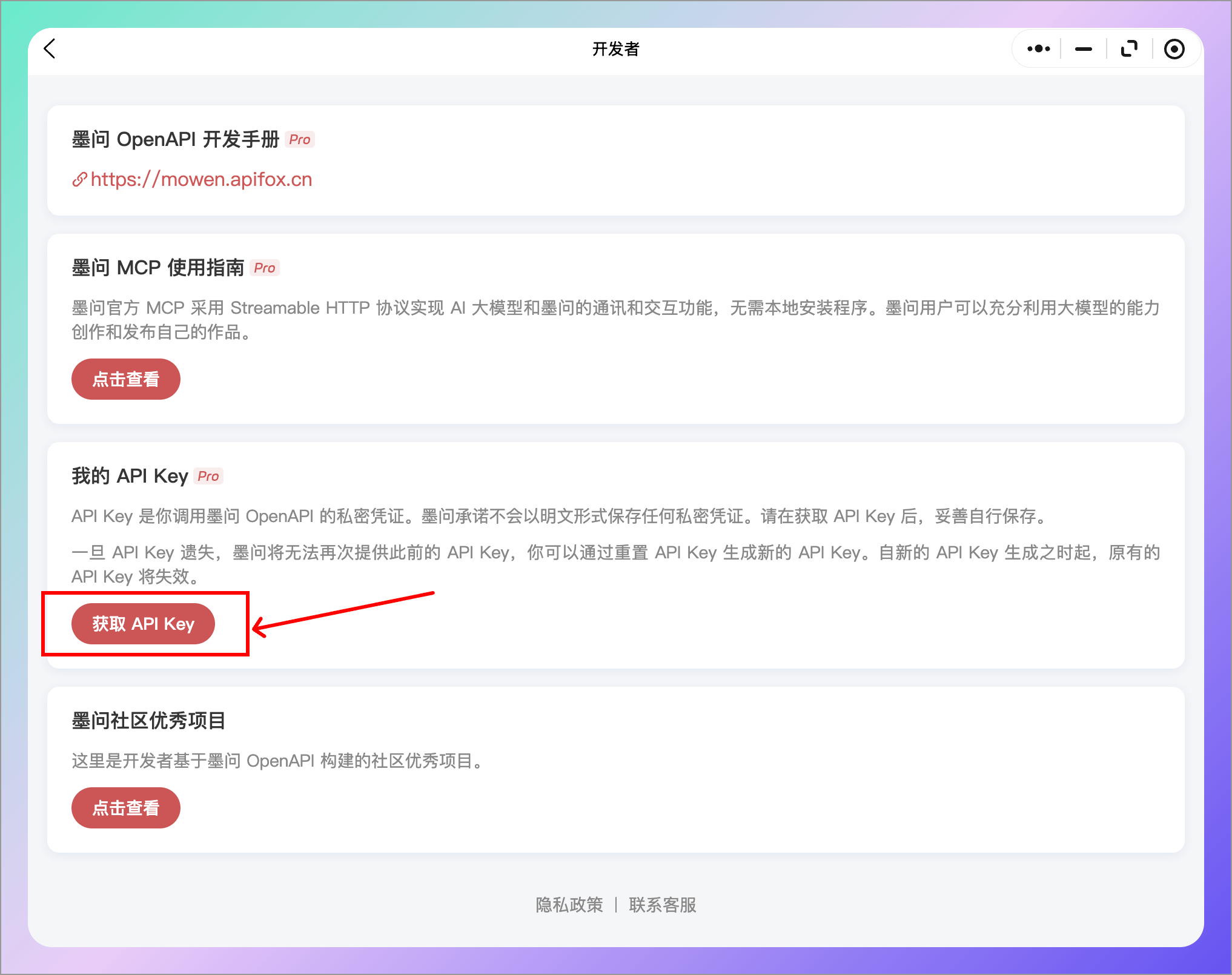
- Click "Get API Key"
7. Evernote
- Open the Evernote Developer Page
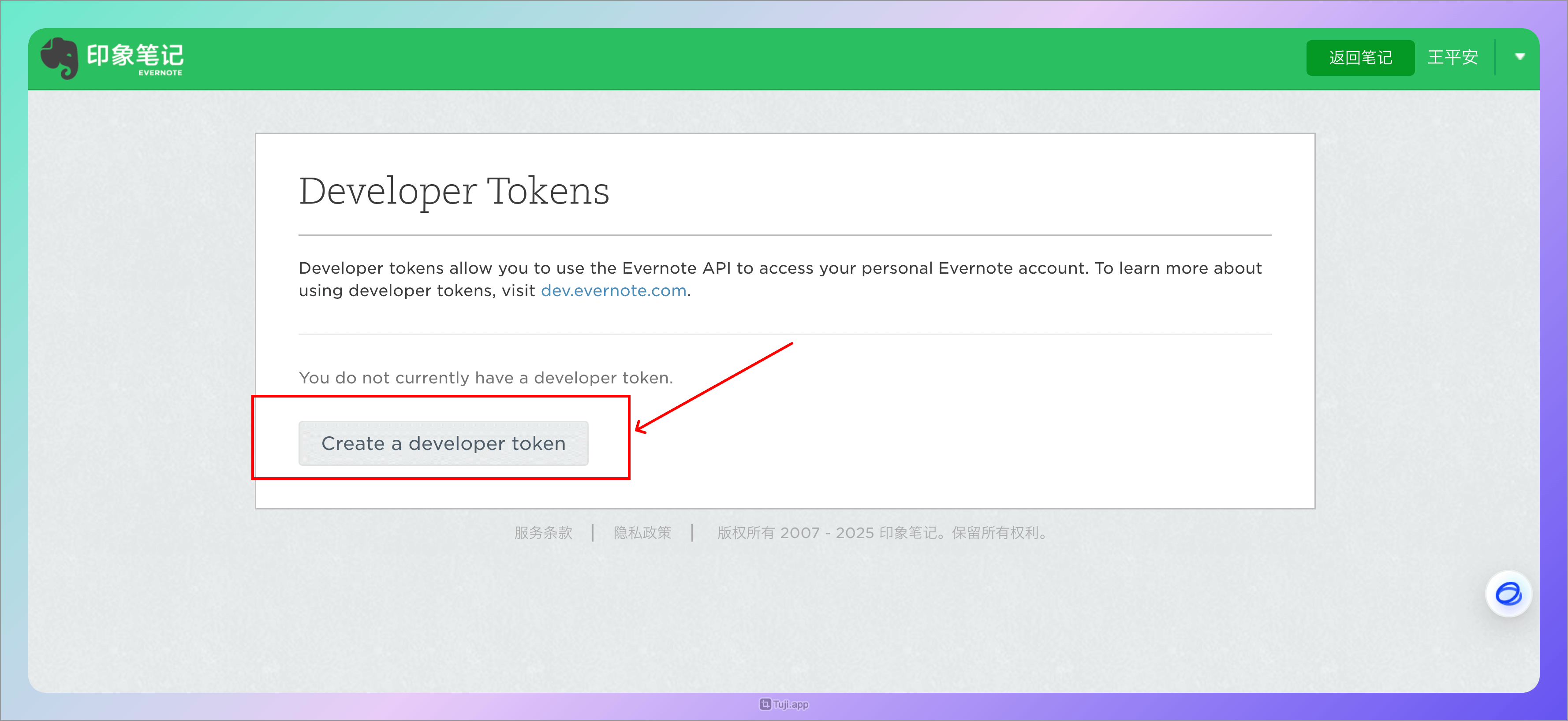
- Create a Developer Token
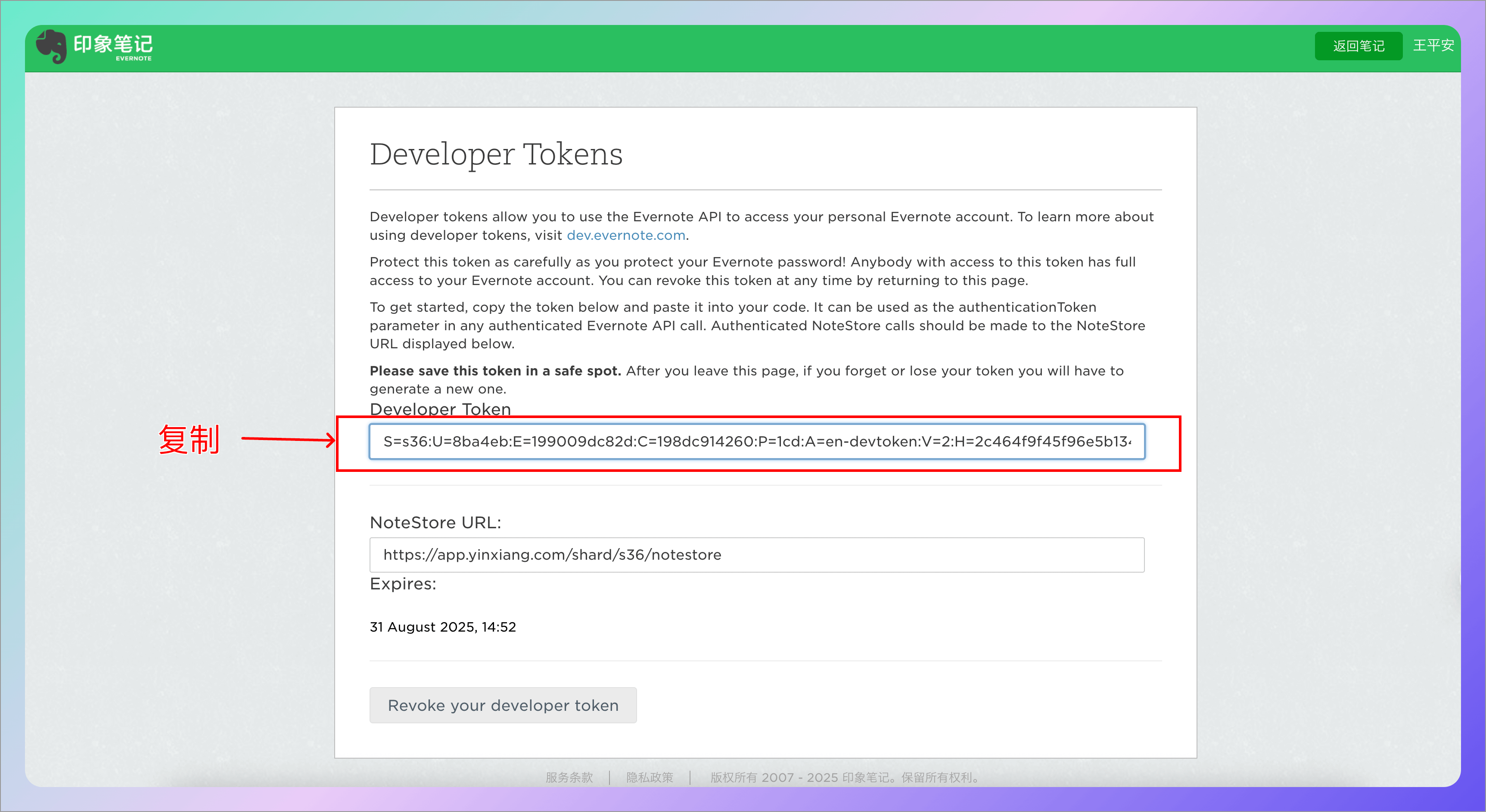
- Copy the Developer Token and paste it into WiseMindAI