
📁 Document Center
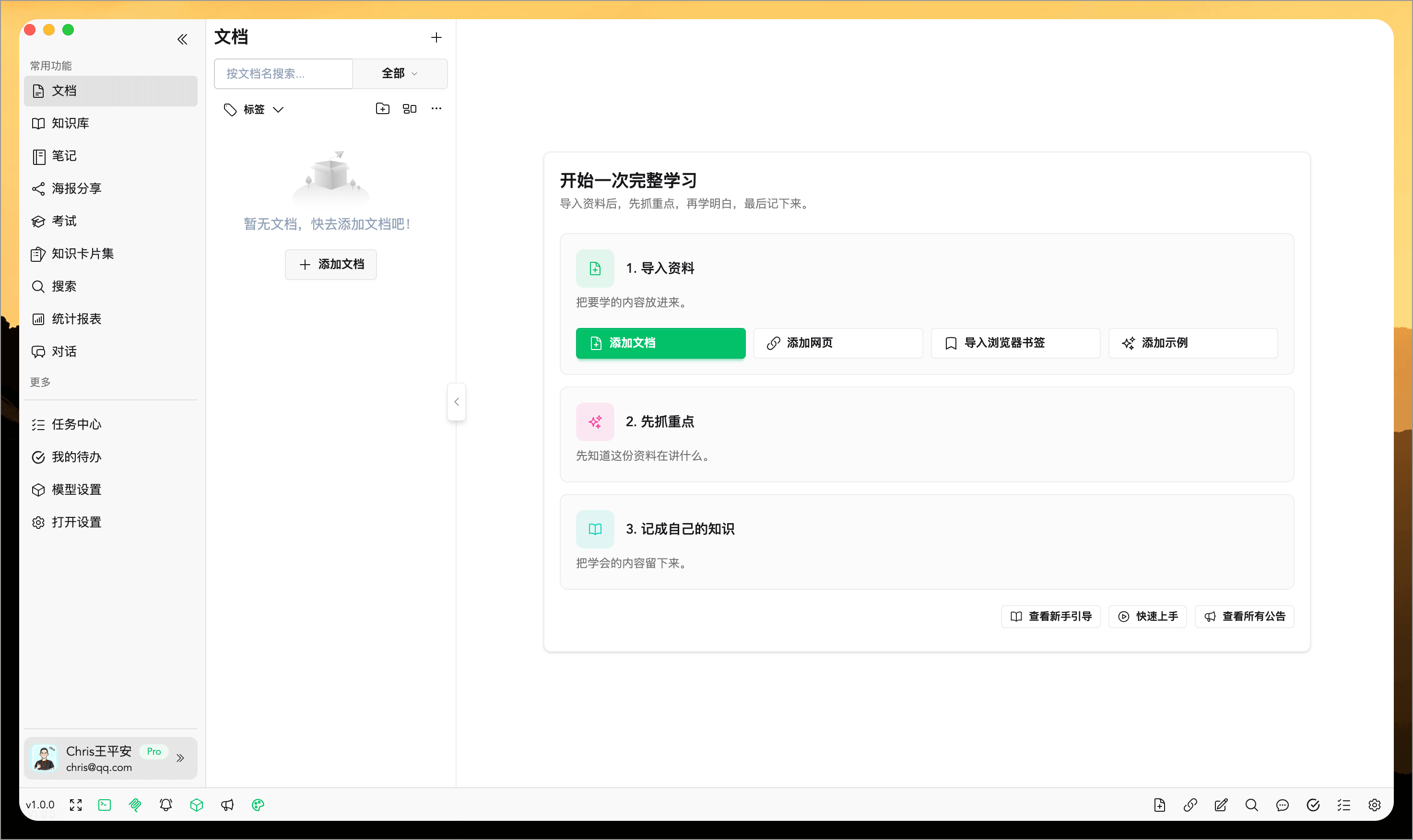
The Document Center serves as WiseMindAI's main hub for processing learning materials. Whether you are dealing with PDFs, Word documents, Markdown, HTML, TXT files, web links, local folders, images, or audio/video content, these resources typically enter the Document Center first before undergoing subsequent operations like summarization, dialogue generation, note-taking, quiz creation, and infographic design.
Basic Configuration
- Before using features such as Document Summaries or Knowledge Cards, please configure your Large Language Model API Key.
- Before using features like Document Chat, please configure your Embedding API Key to perform vectorization analysis on documents.
💡 Feature Overview
The core capabilities of WiseMindAI are:
- Collect Knowledge: Consolidate documents, links, folders, images, web pages, and audio/video materials into the Document Center.
- Organize Knowledge: Store relevant information in your AI knowledge base, note center, or knowledge card sets.
- Process Knowledge: Deepen understanding through capabilities like the AI Workspace, single-document chat, knowledge-base dialogue, AI search, and translation.
- Review & Output: Assess comprehension with an AI quiz and learning statistics, then output results as notes, posters, infographics, or other shareable content.
The Document Center allows you to perform all these operations seamlessly.
📖 Usage Guide
1. Collect Knowledge
Import the documents, links, folders, or other materials you need to process into the Document Center to form a unified list of resources.
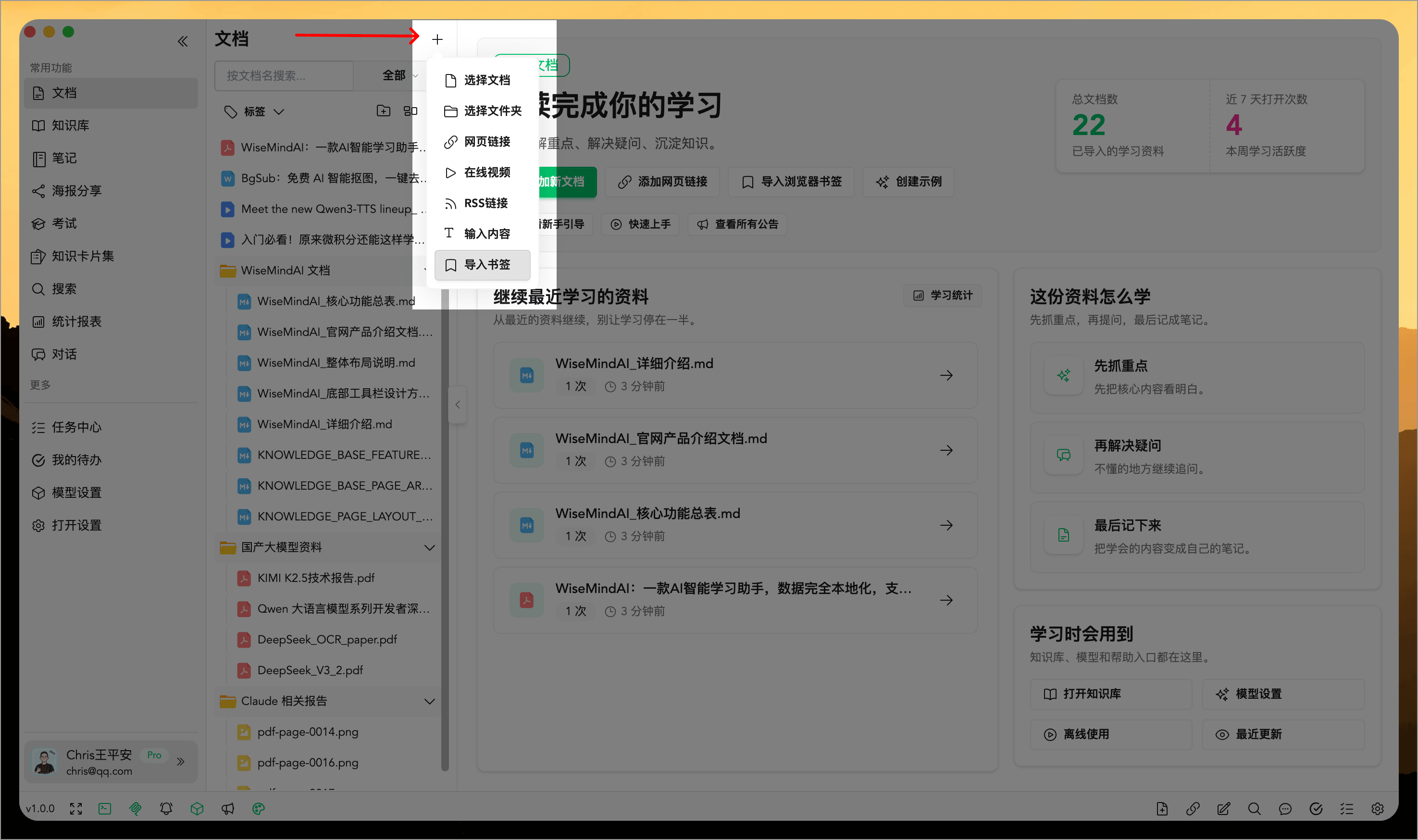
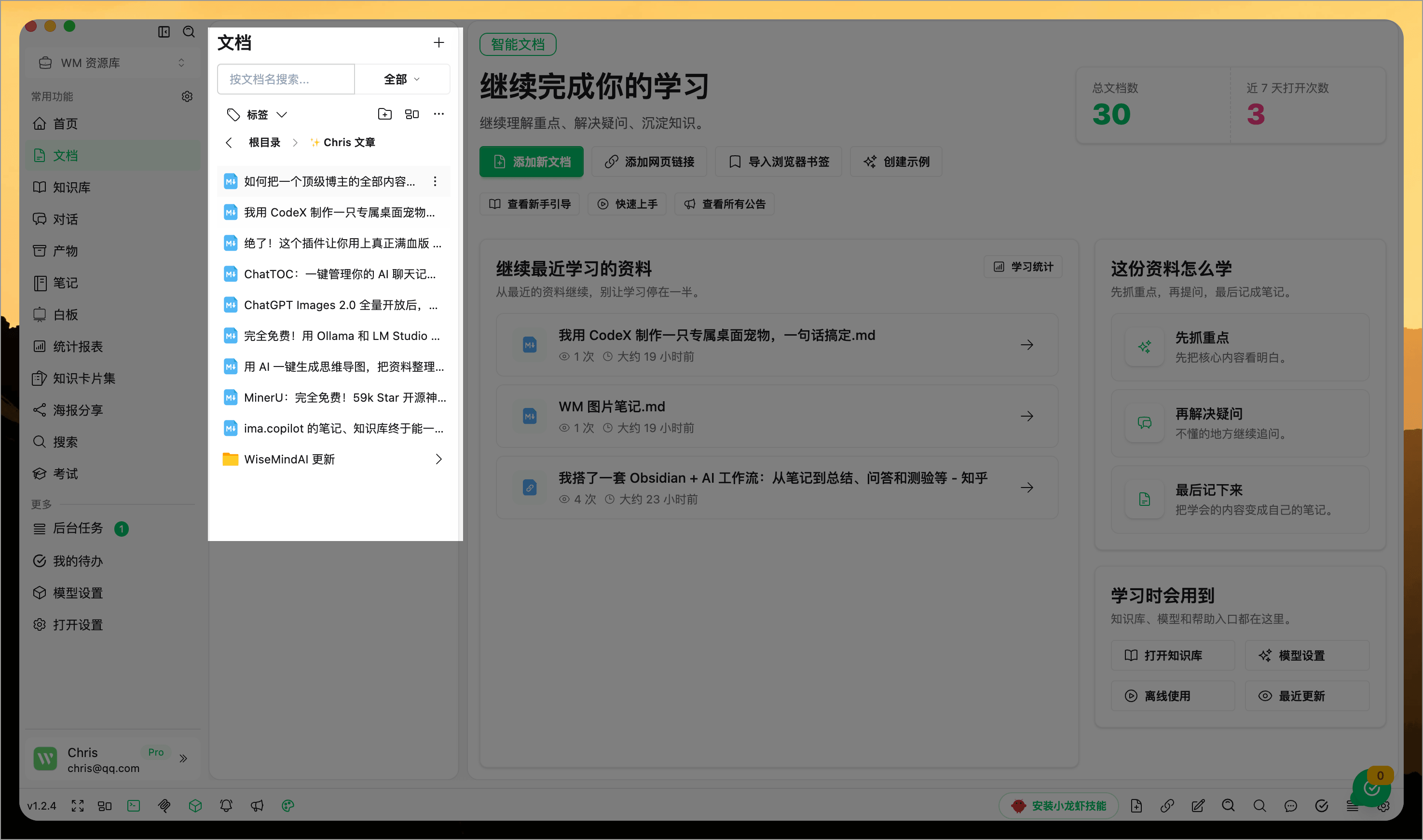
The Document Center supports direct import from local folders while preserving multi-level directory structures. For example, if your course materials, project documents, or thesis files are already organized by folder, they can be imported without needing to manually reorganize them.
If you have already organized resources within a specific folder, you can continue importing new local folders directly into that current folder, placing the new materials in their corresponding locations.
2. Organize Knowledge
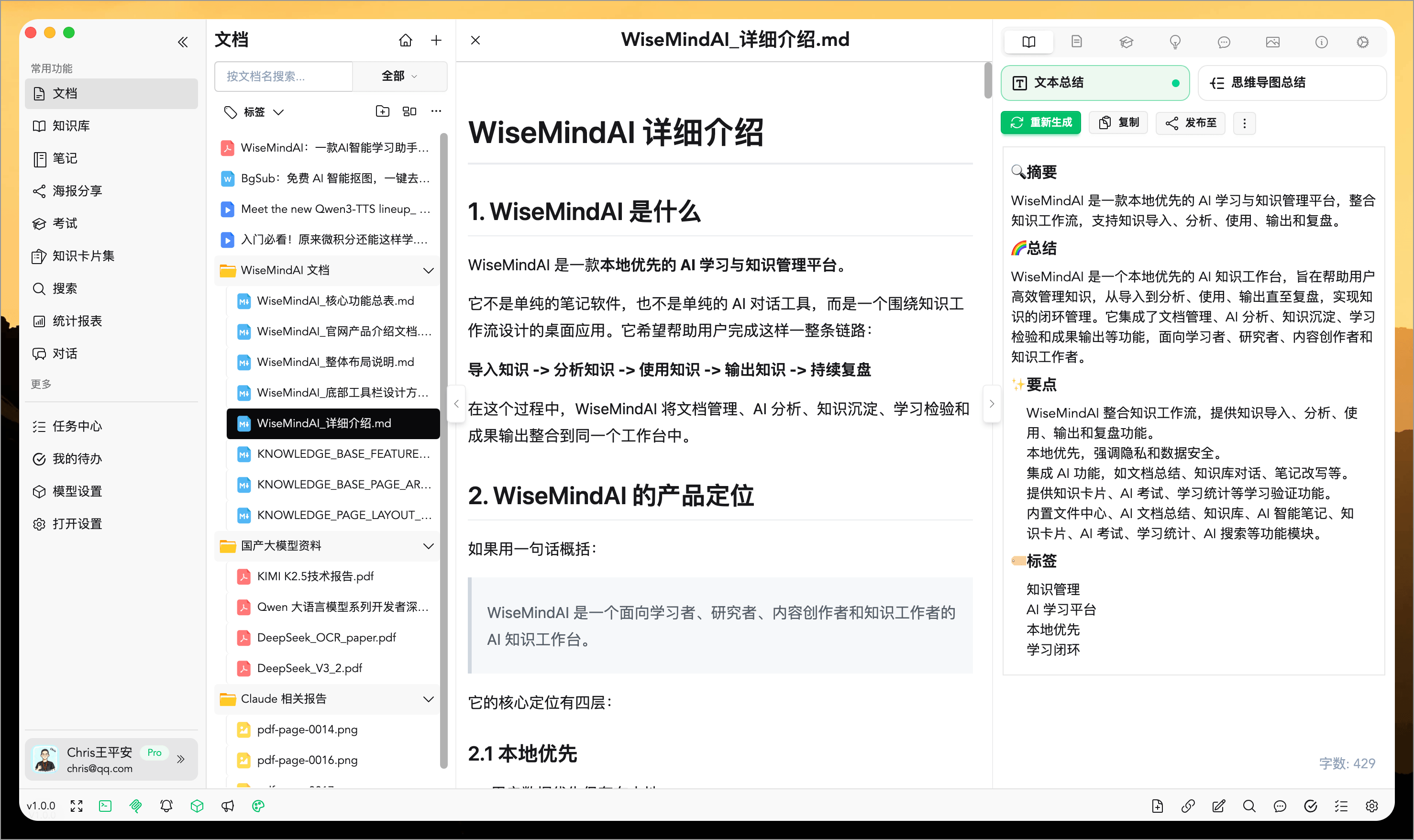
After opening any learning material from the list, you can first view its original content and then perform common operations on it:
- Generate a Document Summary
- Generate a Mind Map
- Save as an AI Note
3. Process Knowledge
You can continue with the following operations to deepen your understanding of your learning materials:
- Initiate a Single-Document Chat
- Generate Knowledge Cards based on the document content
- Create an Infographic using current content
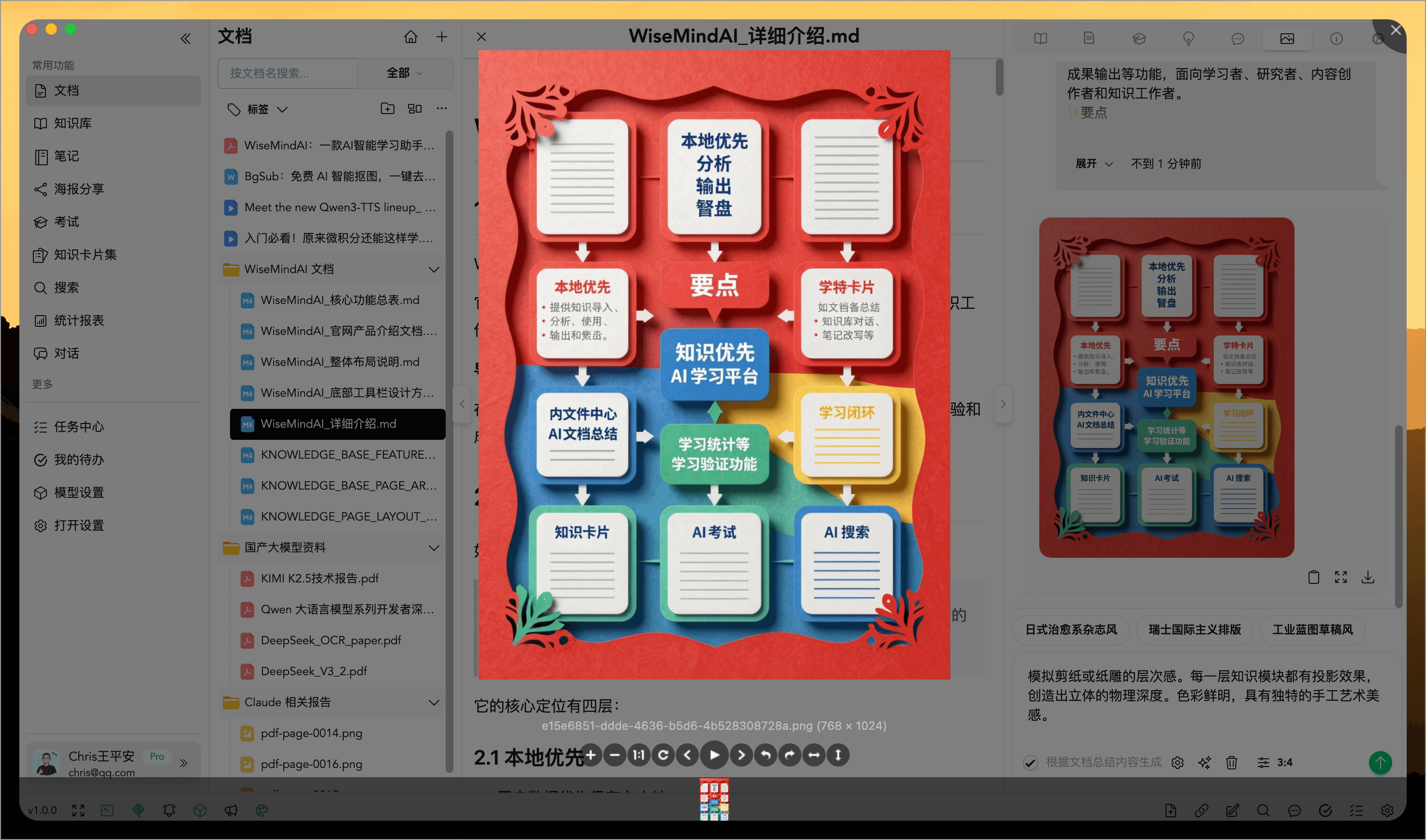
4. Review & Output
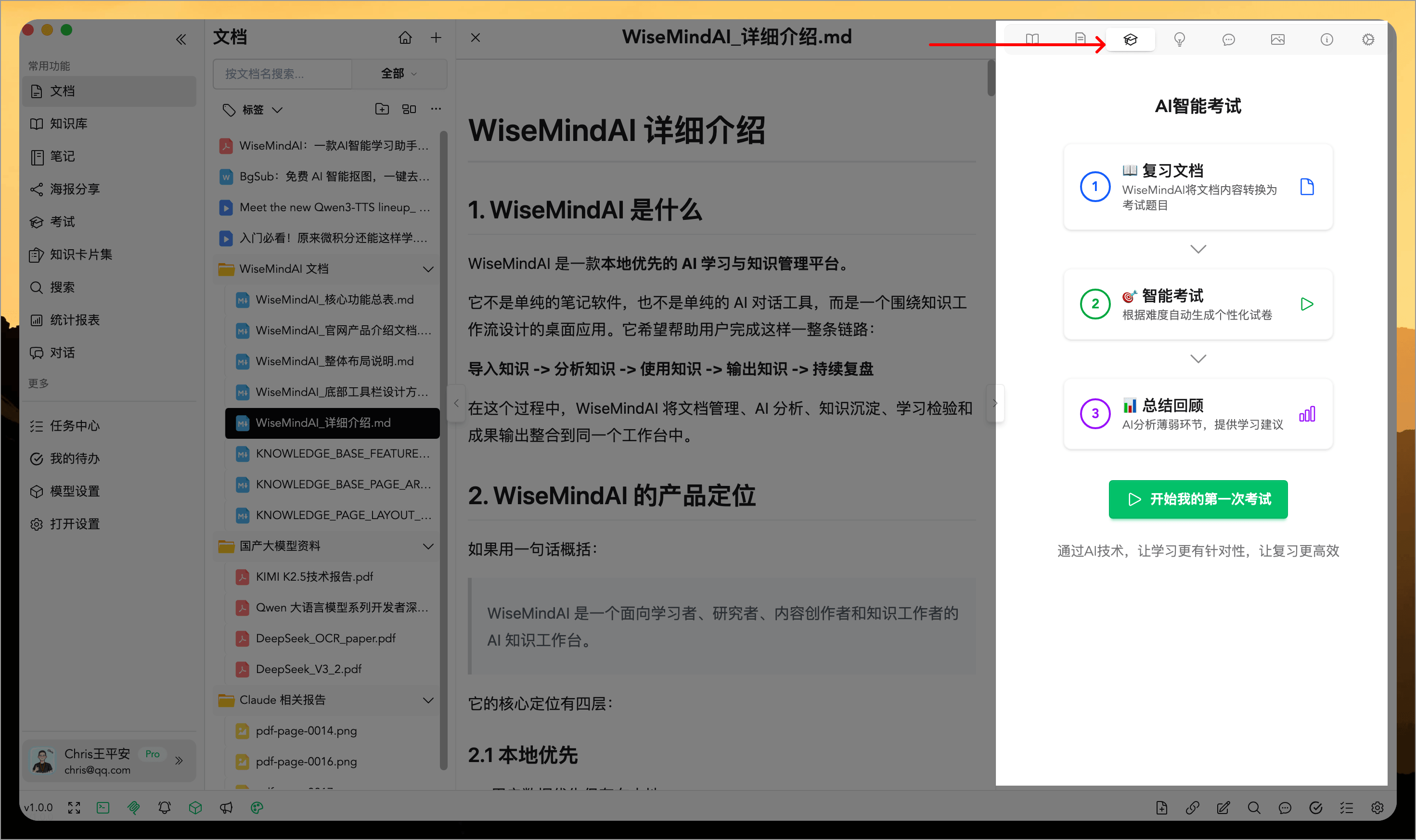
After gaining a comprehensive understanding of the document, you can perform further operations to review and output your learning results:
- Generate an Exam based on the current document
- Share generated infographics
- Create shareable posters
- Sync notes to platforms like Feishu (Lark)
📚 Document Preview & Editing
The Document Center is not just a resource list; it also allows you to read and process various document formats directly.
Markdown Documents
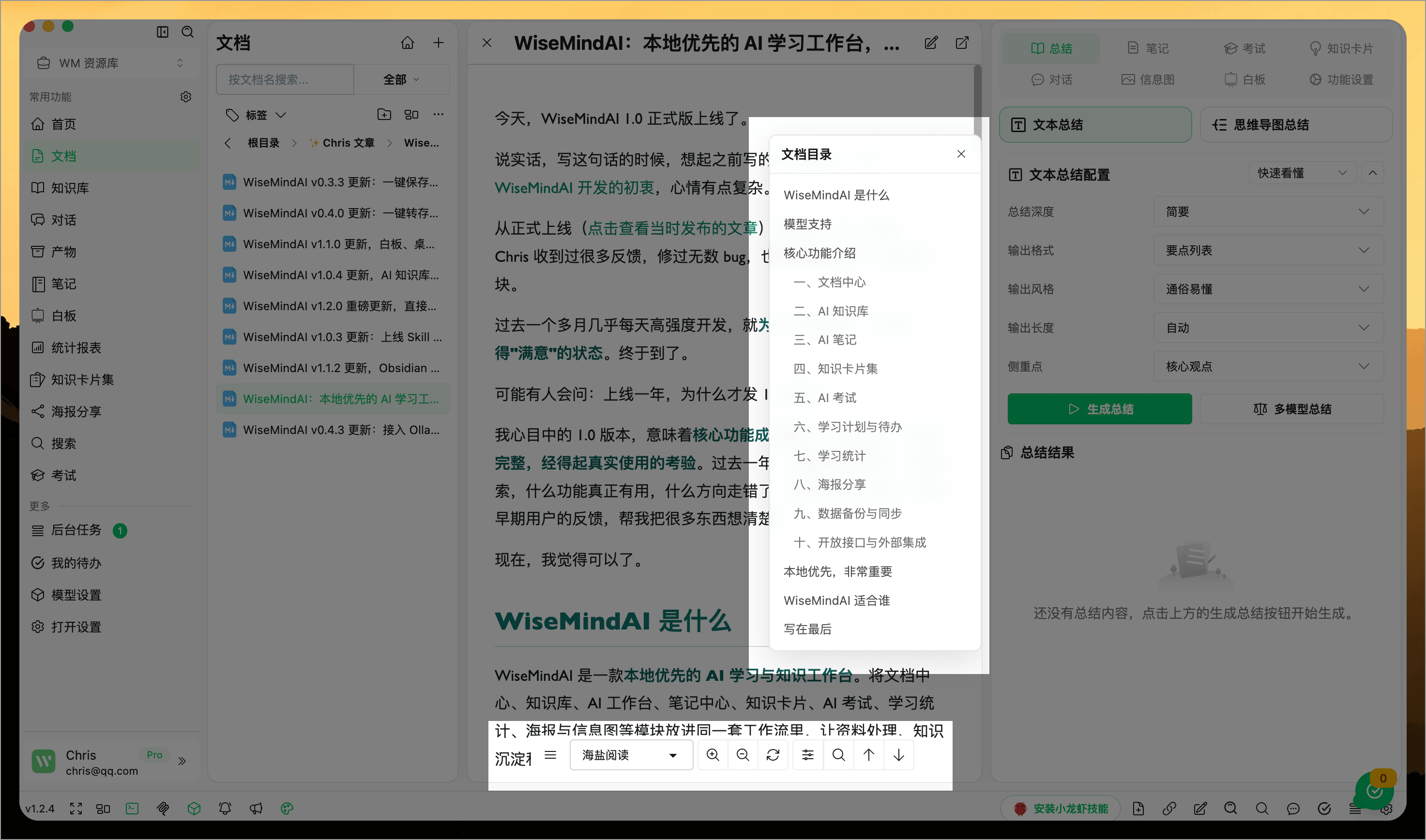
The Markdown reader supports local image display, theme selection, table of contents (TOC), internal search, and image preview. For long-form content such as Obsidian notes, technical documentation, or reading logs, this makes locating chapters and images easier during reading.
Markdown documents also support direct editing of the original files. Changes are written back to the local file upon saving, making it suitable for quickly correcting typos, adding notes, or reorganizing paragraphs.
TXT Documents
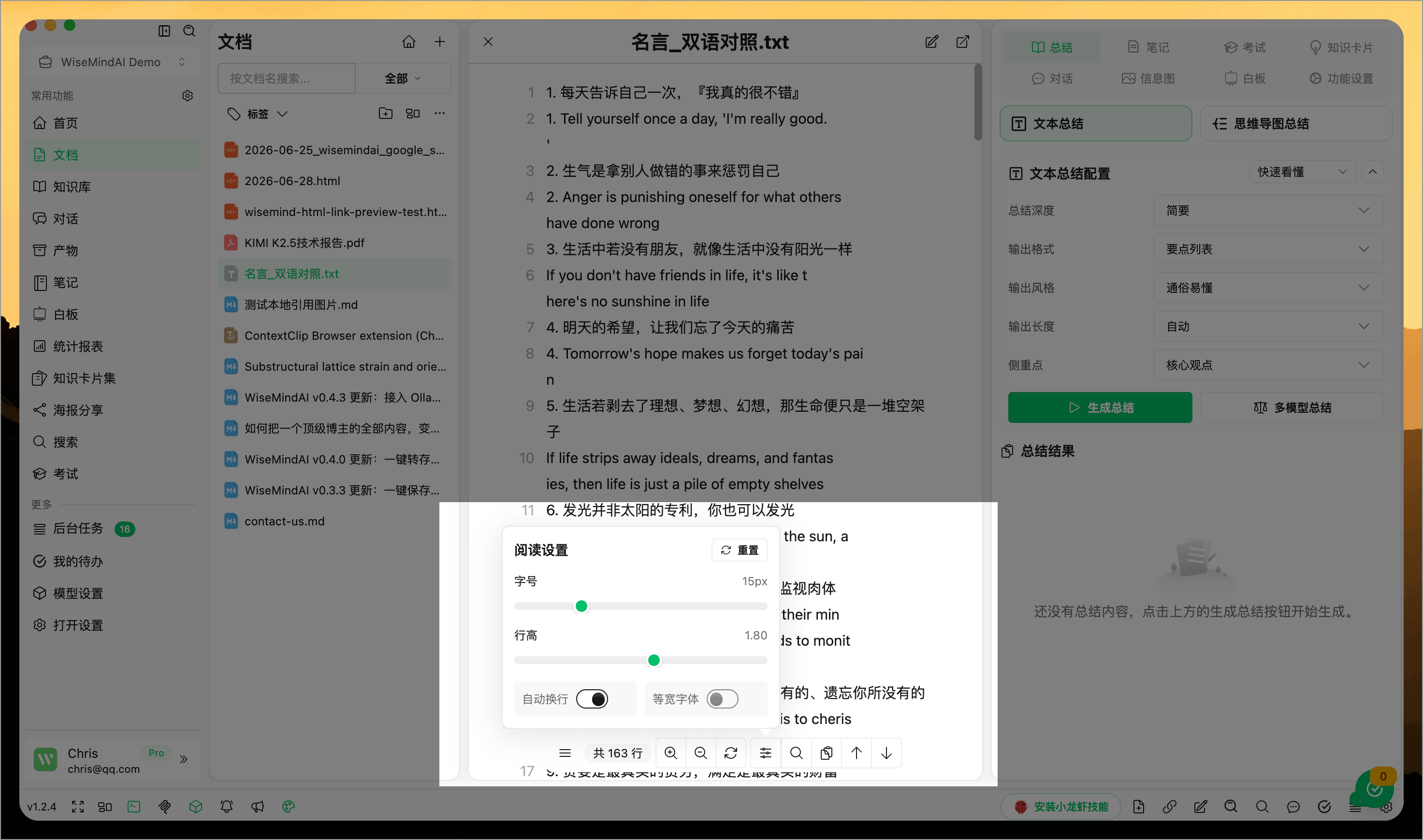
The TXT reader optimizes encoding handling, fonts, line numbers, zooming, internal search, and long-text reading experiences. Subtitles, exported text, e-book excerpts, and older materials can all be opened directly within WiseMindAI for reading.
TXT documents also support direct editing of the original files. You will receive a prompt when modifying an open file to confirm changes, and another confirmation is required before closing unsaved content to prevent accidental loss.
HTML Documents
The Document Center supports previewing HTML documents, which is ideal for viewing saved web pages, HTML reports, offline web resources, and visualization analysis results. Clickable links within HTML documents have been optimized; external links will open in a more natural manner.
PDF & Other Formats
When previewing PDFs, Markdown, TXT, or other formats, the zoom toolbar can be dragged to any convenient position. If reading tables, images, or long texts and the toolbar obstructs content, you can simply move it aside directly.
🧭 File Paths & Organization
The document list supports copying file paths. When navigating between system folders, external tools, and WiseMindAI, you can copy a path to avoid manually searching through layers of directories.
If folder paths contain special characters (e.g., #), the new version has optimized loading stability to reduce cases where folders get stuck when expanding.
🌈 Suitable Scenarios
- You have just imported a batch of materials and want to review and organize them uniformly first.
- You have a local course, project, or thesis folder and wish to preserve its complete directory structure.
- You only need to quickly summarize or ask questions about a single document.
- You prefer reading and editing Markdown, TXT, HTML, and similar files directly.
- You want to convert individual pieces of material into notes, quizzes, or infographics immediately.
- You aim to gradually feed scattered resources into your knowledge base for deeper learning and organization.
FAQ
What types of materials does the Document Center support?
The Document Center is designed to manage learning materials in PDF, Word, Markdown, HTML, TXT formats, web links, images, audio, video, and local folders. Once imported into the Document Center, you can continue generating summaries, engaging in conversations, creating notes, taking exams, or producing infographics for these diverse resources.
Can I directly import a folder?
Yes. You can select a local folder to import; WiseMindAI will attempt to preserve the original multi-level directory structure. If your materials are already organized within a specific folder, you can continue importing new folders from that same location.
Will Markdown and TXT editing modify the original files?
It depends on the format:
- Markdown (.md) and Text (.txt): Yes, saving these edits will write back to the local raw file. Please verify your content before saving; if you only wish to retain AI-generated results without altering the source, it is recommended to save them as notes instead.
Can HTML documents continue to be summarized and chatted with?
Yes. Once imported into the Document Center, HTML files can be read, summarized, and processed just like other materials. Whether a complete full-text body is available depends on the content structure of the HTML file itself.
What's the difference between the Document Center and AI Knowledge Base?
The Document Center acts more as an entry point for handling single documents or scattered resources. The AI Knowledge Base, conversely, is better suited for aggregating multiple materials around a specific theme to enable cross-document summarization, Q&A sessions, and review processes.
What should I do after importing documents?
- If you simply want to quickly understand the content: Use AI Document Summary.
- If you want to ask questions based on a document: Use AI Document Chat.
- If your materials belong to a long-term topic: Add them to an AI Knowledge Base.