🔌 Customize Your Own AI Prompts
WiseMind AI comes with 30+ built-in prompts and supports customizing them according to different scenarios. This allows users to flexibly create their own tailored prompts to meet diverse needs across various learning contexts.
Basic Setup
Please configure your Large Language Model API Key first.
💡 Features Overview
Users can enable different AI prompts for specific scenarios, such as creating an "Article Style Rewriting" prompt and applying it to the web text selection menu.
📖 User Guide
1. Built-in Prompts
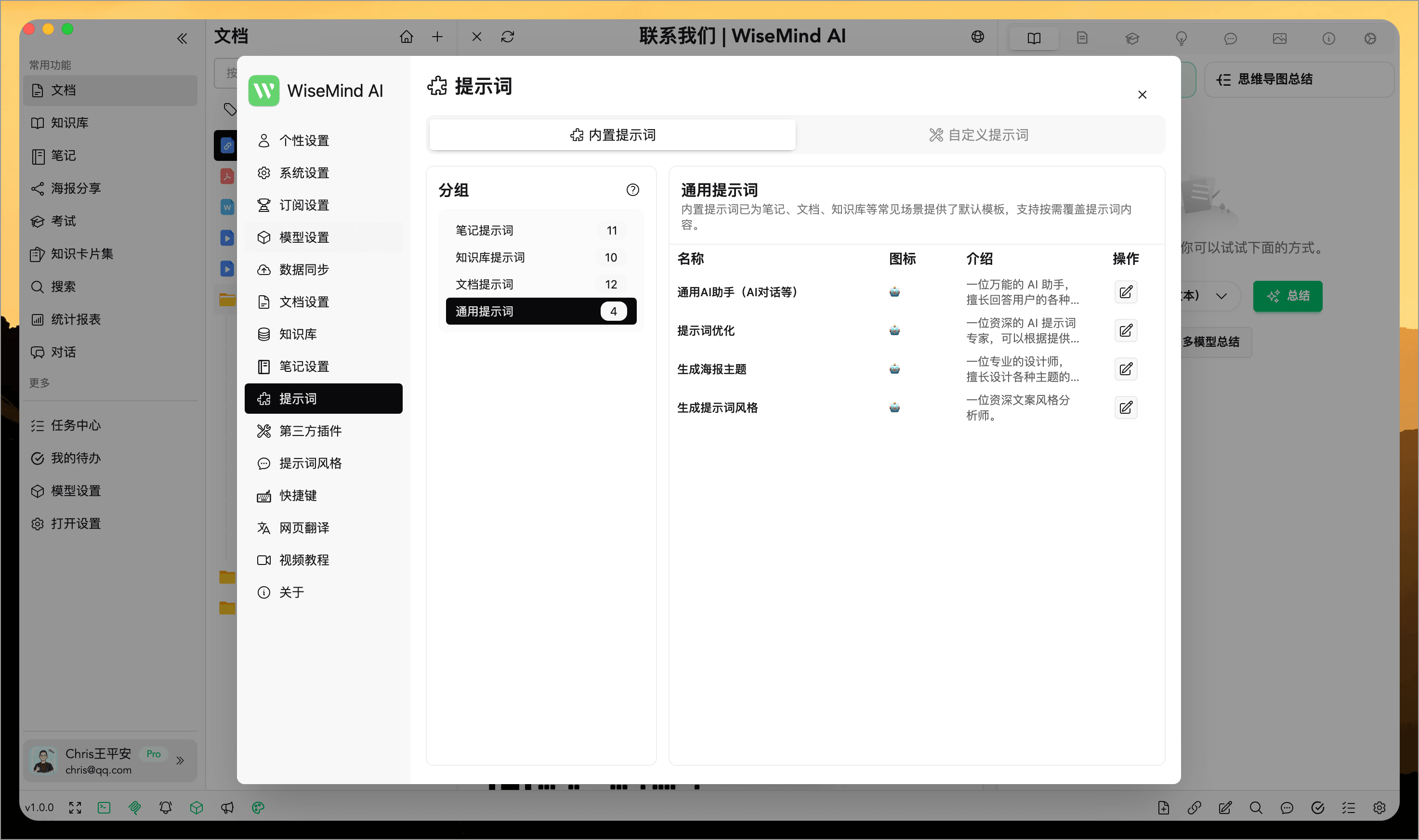
First, open the "Settings" dialog box, click on "Prompts," and you will see all available built-in prompts under the "Built-in Prompts" tab:
2. Custom Prompts
You can also open the "Custom Prompts" tab to view existing custom prompts:
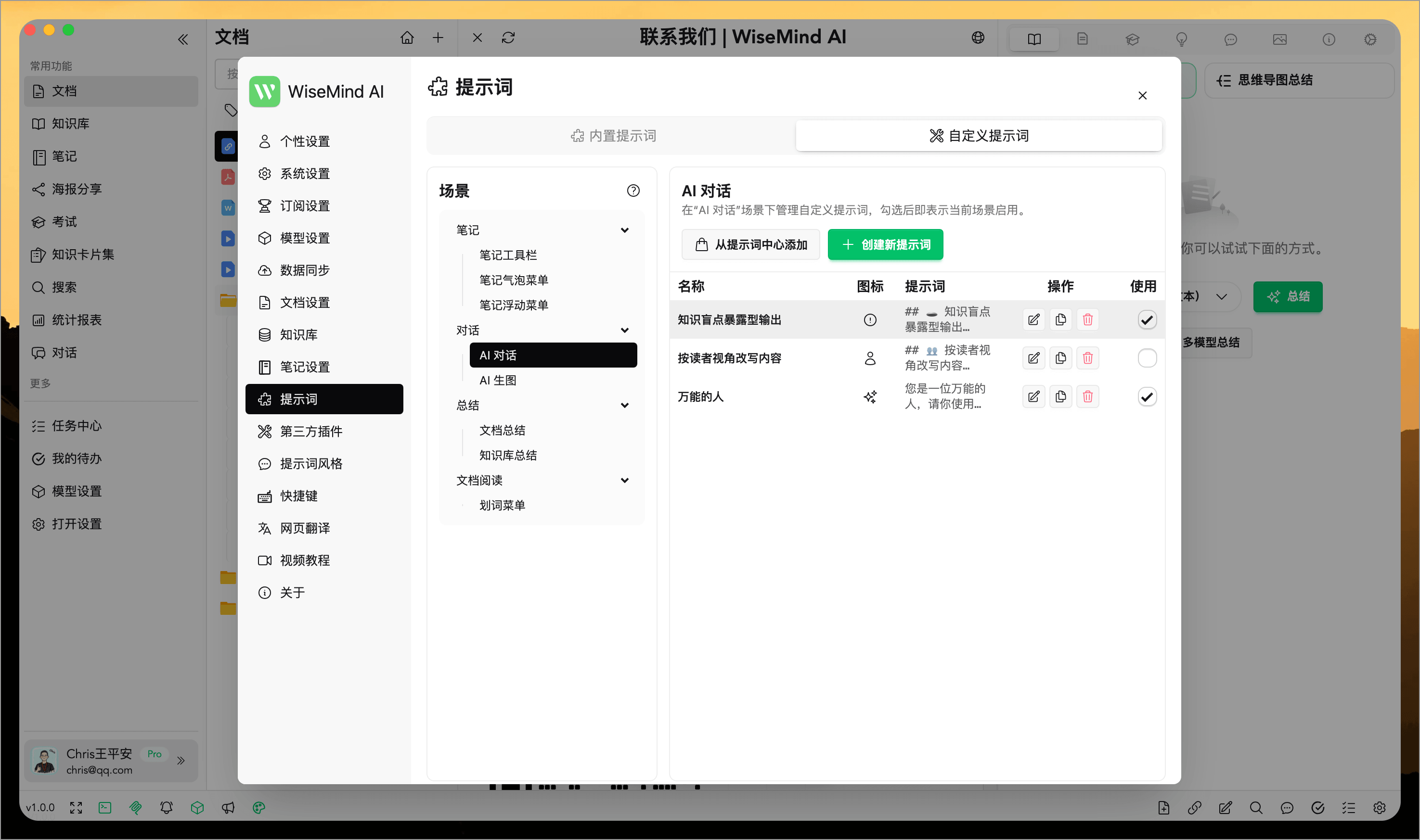
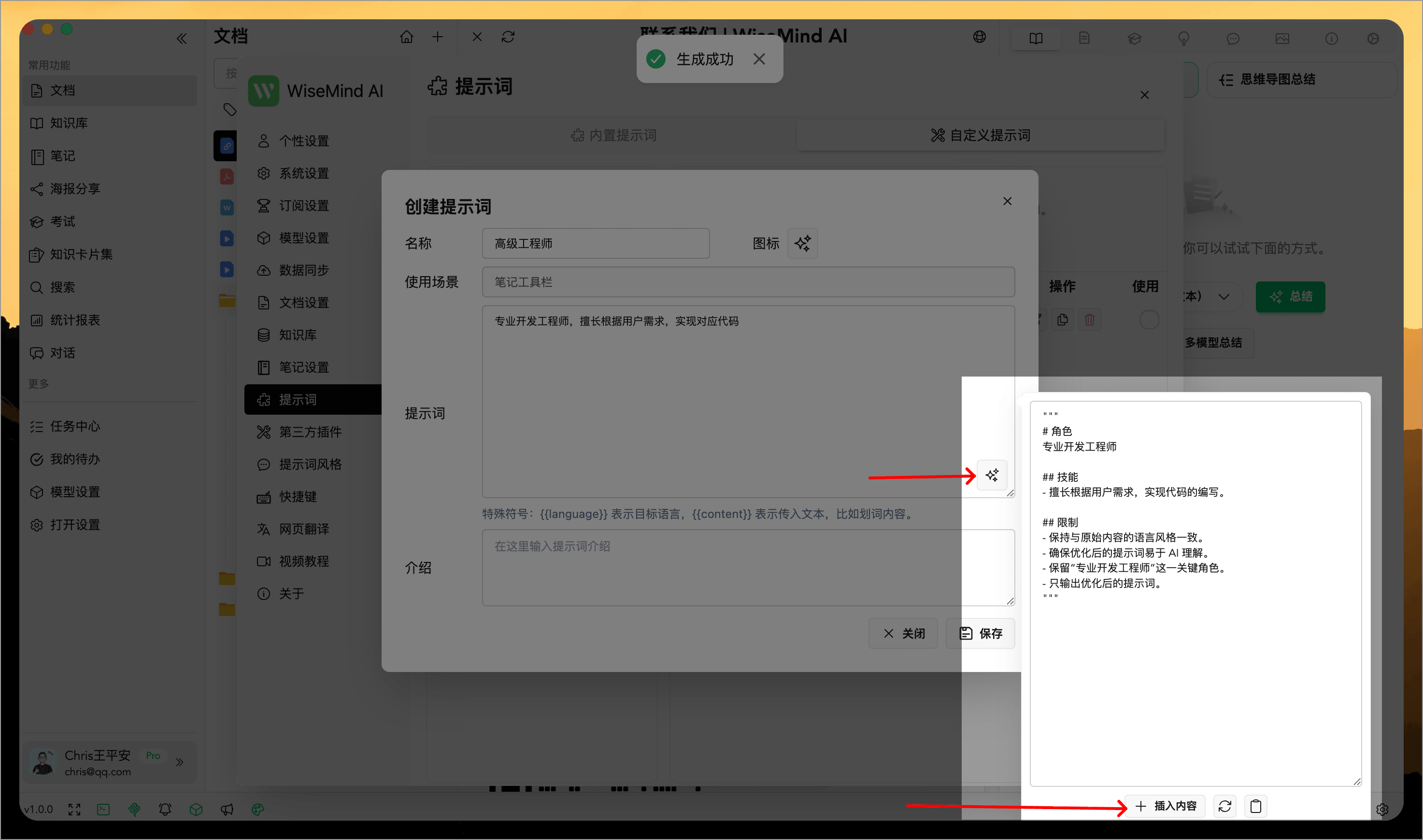
Click the "Create New Prompt" button to create a new custom prompt. Fill in the configuration as required, and your unique custom prompt will be ready:
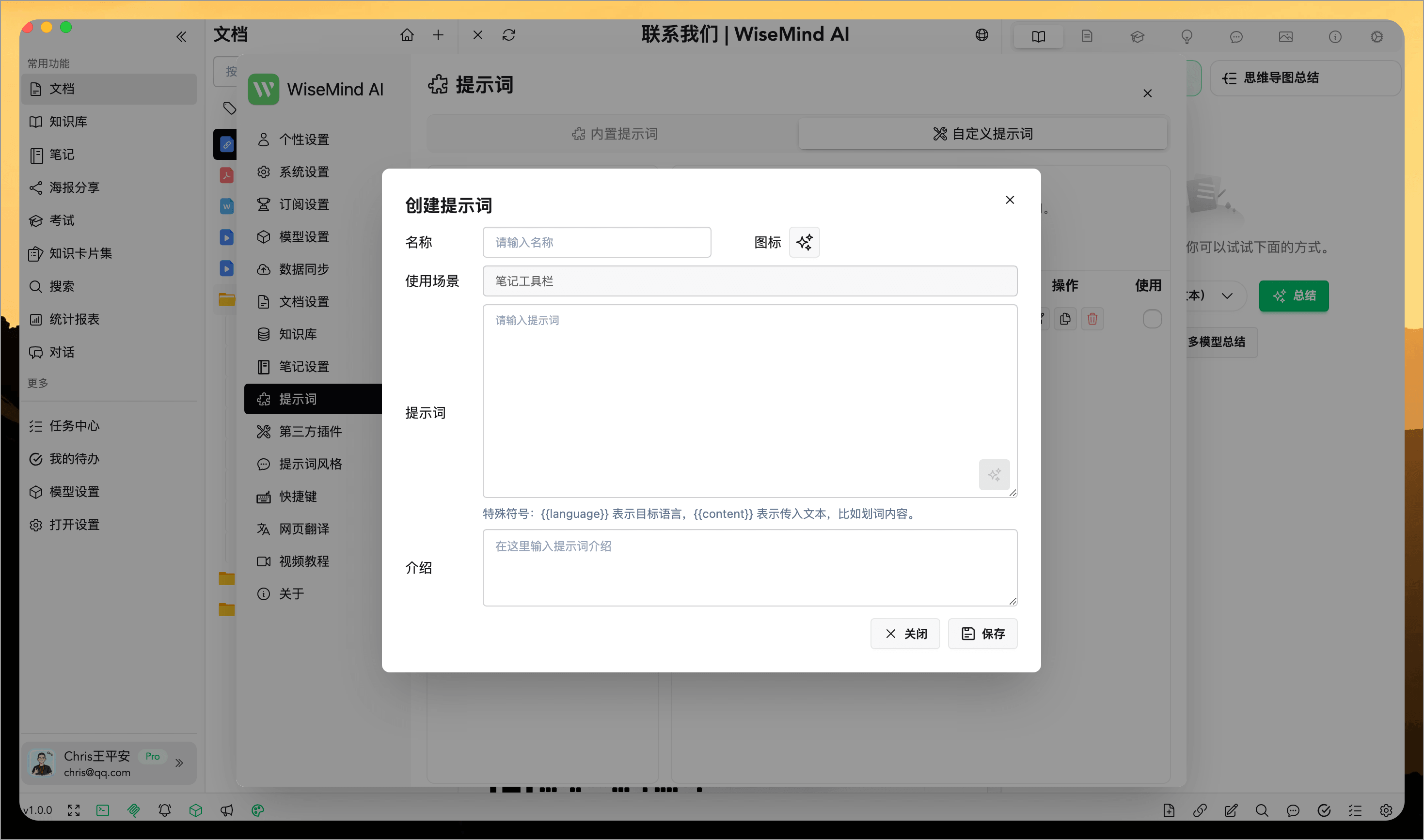
Alternatively, you can click the "Optimize Prompt" button on the right to professionally optimize your current prompt:
3. Using Plugins
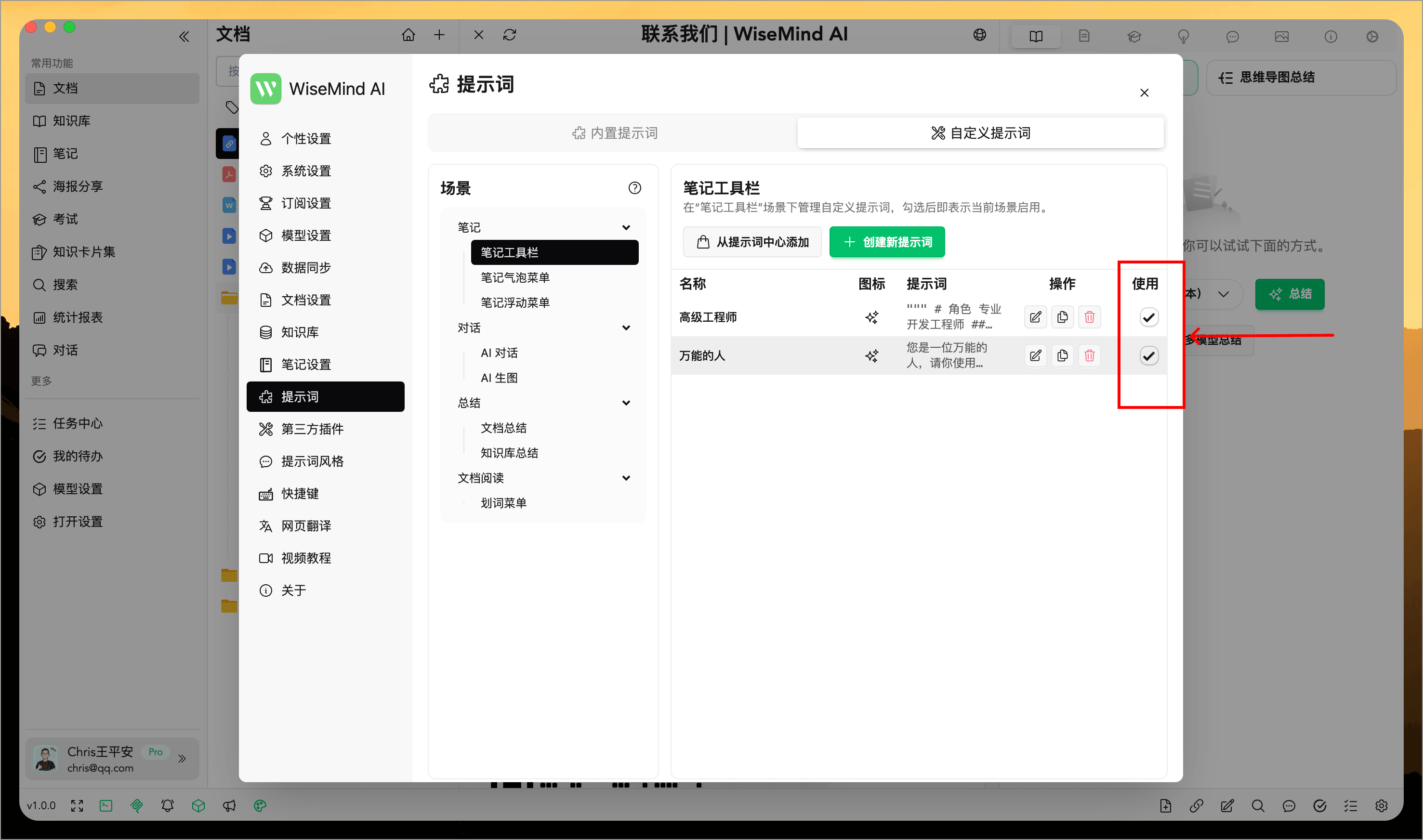
Once created, custom plugins can be enabled for different scenarios under the "Use Plugin" tab:
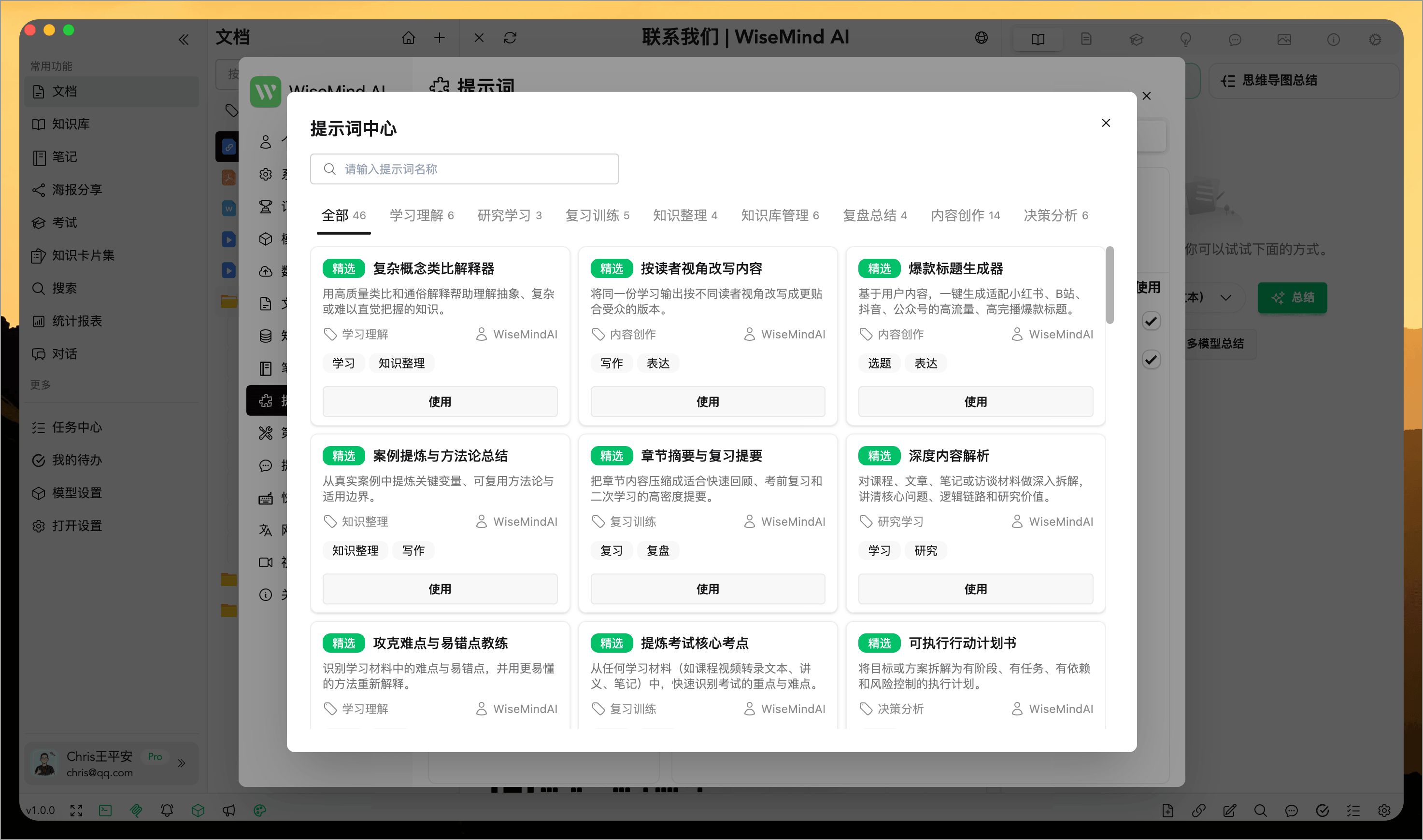
4. Add from Prompt Center
You can also click "Add from Prompt Center" to access a wide variety of prompts provided by WiseMindAI for different scenarios, and simply click to start using them: