
WiseMindAI Obsidian Plugin
The WiseMindAI Obsidian plugin extends the AI assistant features of WiseMindAI directly into Obsidian. You can summarize notes within Obsidian, generate knowledge cards, ask questions based on your content, or synchronize Markdown files between Obsidian and WiseMindAI.
This tool is ideal for users who write notes in Obsidian to organize information while also utilizing WiseMindAI for summarization, learning, review, and knowledge management. The plugin complements rather than replaces Obsidian, allowing its contents to continue being leveraged by the AI assistant.
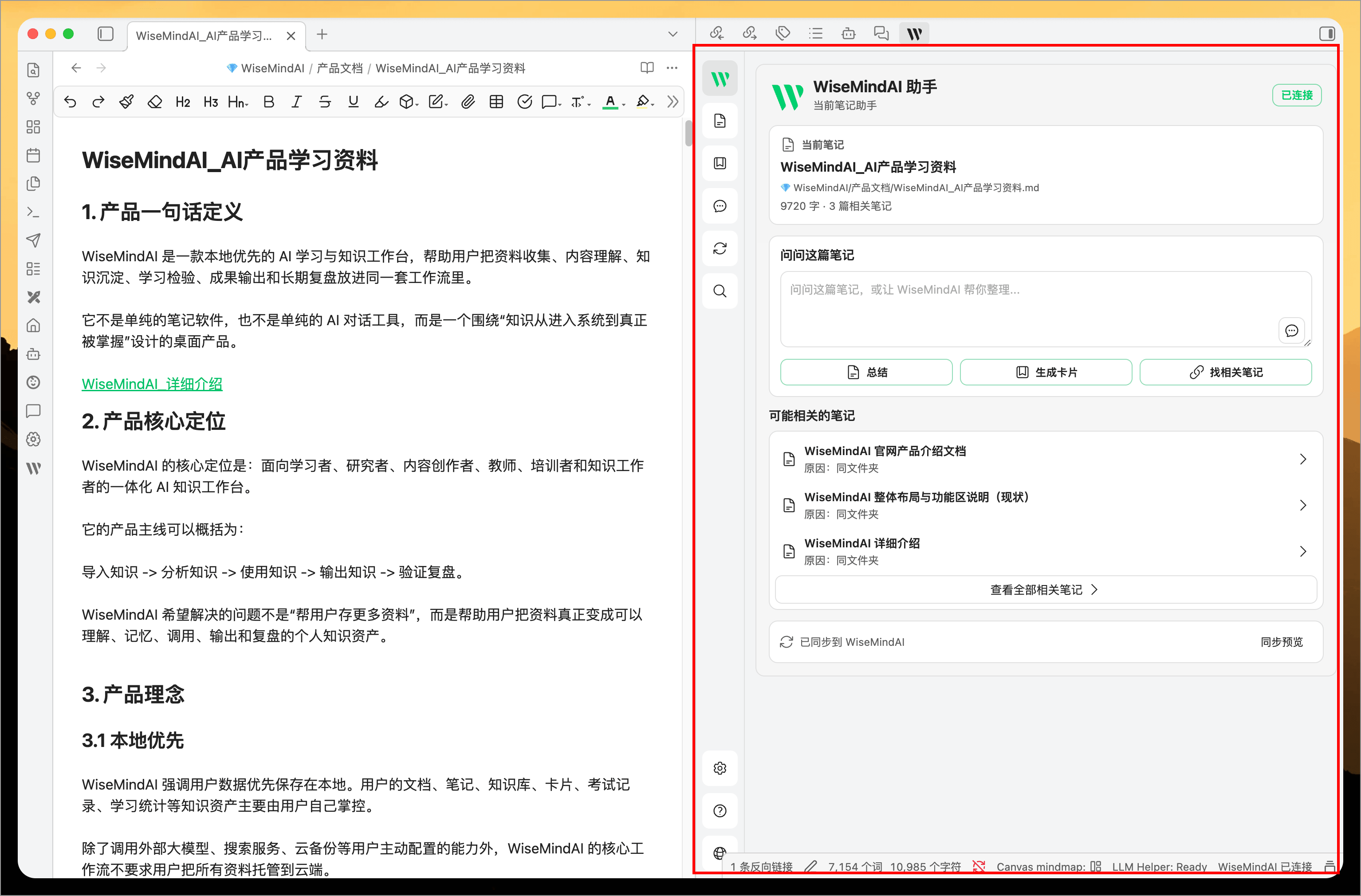
Prerequisites Before Use
Complete the following two steps before using:
- Install and launch the WiseMindAI desktop application.
- Enable the local API in WiseMindAI, with a default address of
http://127.0.0.1:38221.
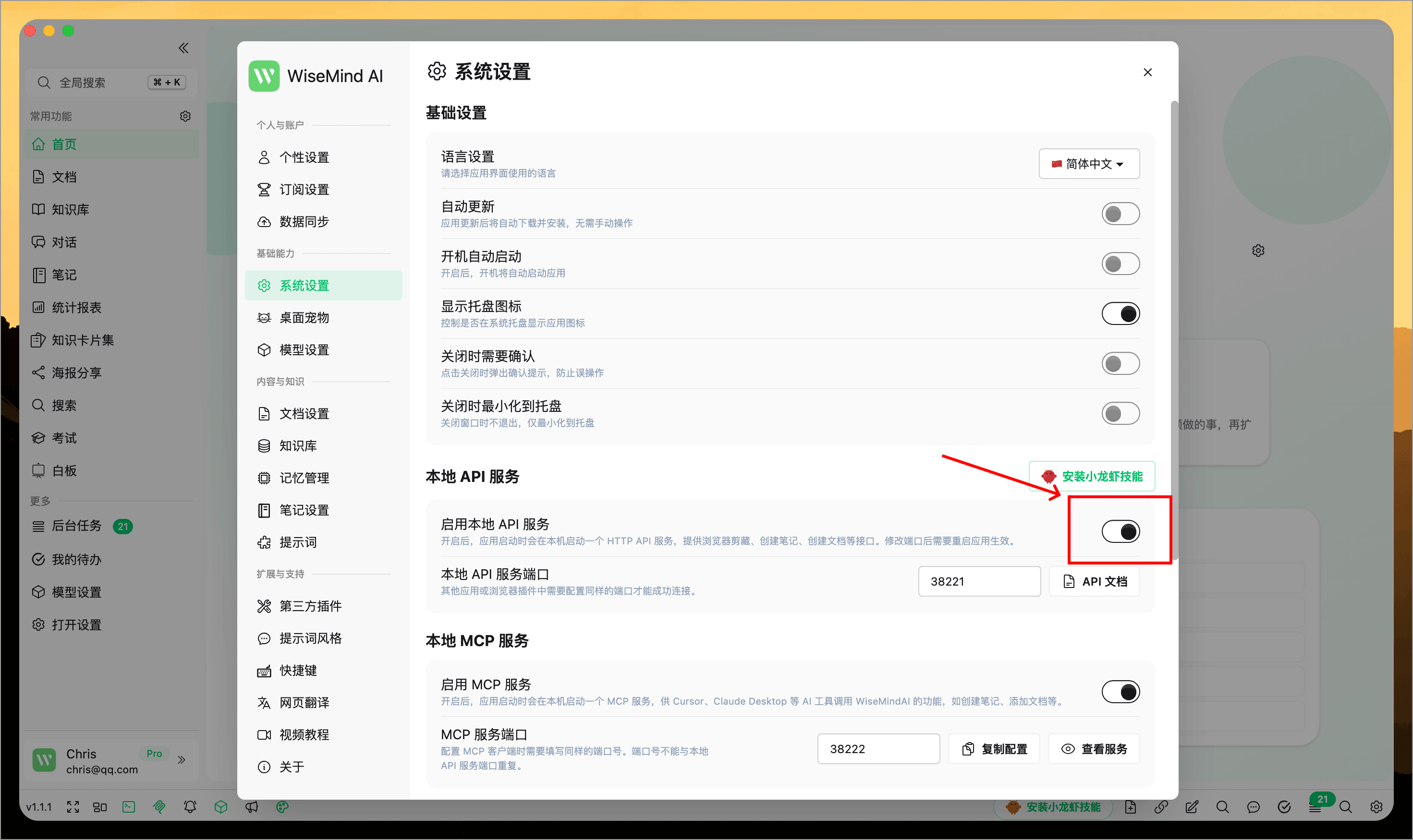
If you have customized the local API port, ensure it matches in the WiseMindAI plugin settings within Obsidian.
Installation
Method 1: Official Obsidian Install (Recommended)
Open Settings → Community Plugins in Obsidian and search for WiseMindAI. Click install or use the button below to open the official page.
Open Plugin Page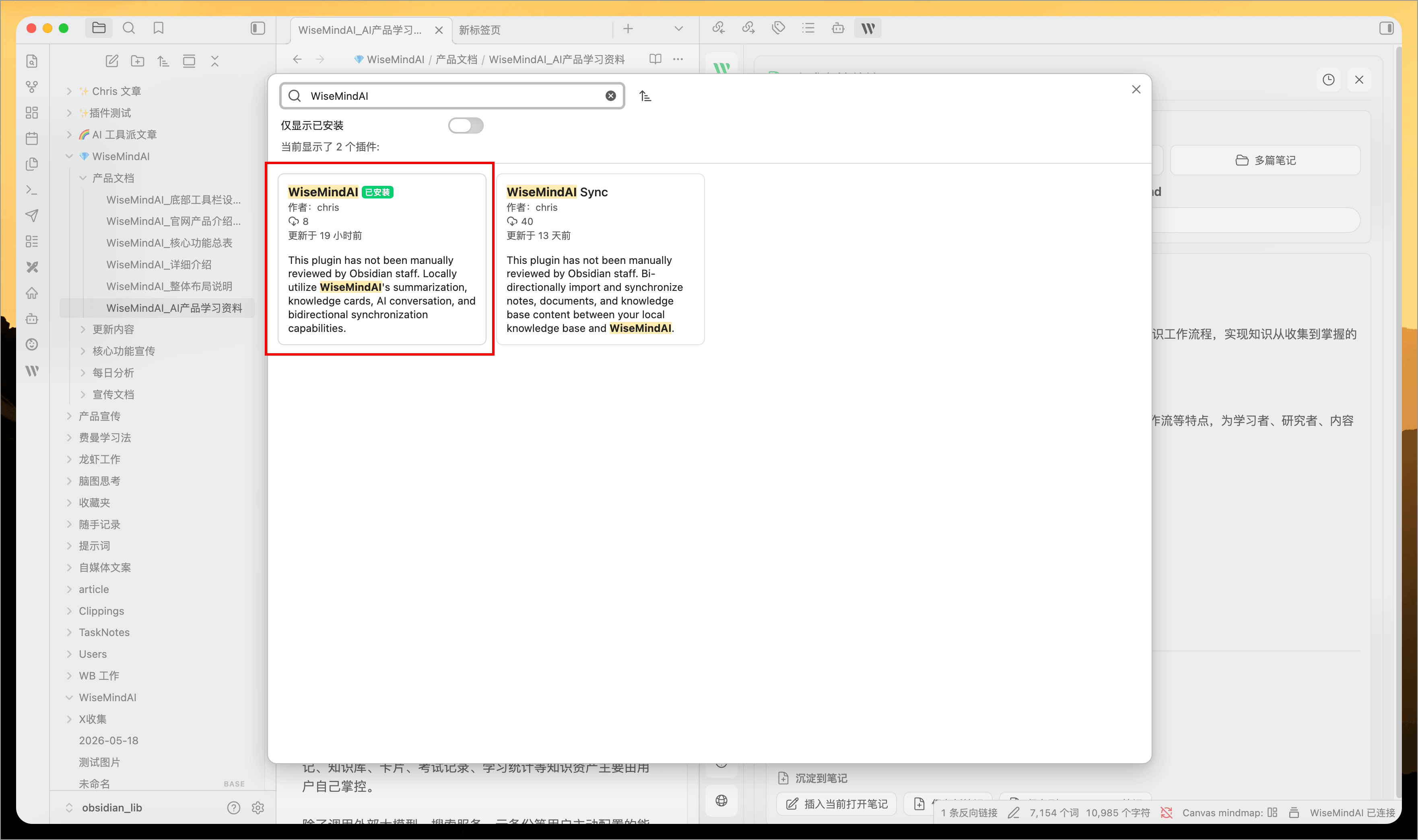
Method 2: Manual Install (GitHub)
Download the plugin archive from GitHub Releases, extract it, and place the files into your current Obsidian vault's plugins directory.
Open GitHub Releases- Verify that
main.js,manifest.json, andstyles.cssare included in the archive. - Create a new folder named
.obsidian/plugins/wisemindai/within your Obsidian vault. - Move these files into this directory.
- Return to Obsidian, open Settings → Community Plugins, and enable WiseMindAI.
Opening the Plugin Panel
After enabling the plugin, you can access the WiseMindAI panel via:
- Clicking the WiseMindAI icon in the left sidebar of Obsidian.
- Running
WiseMindAI: Open Panelfrom the command palette. - Clicking the WiseMindAI status indicator on the bottom state bar.
Upon first launch, a brief tutorial will appear to guide you through basic usage.
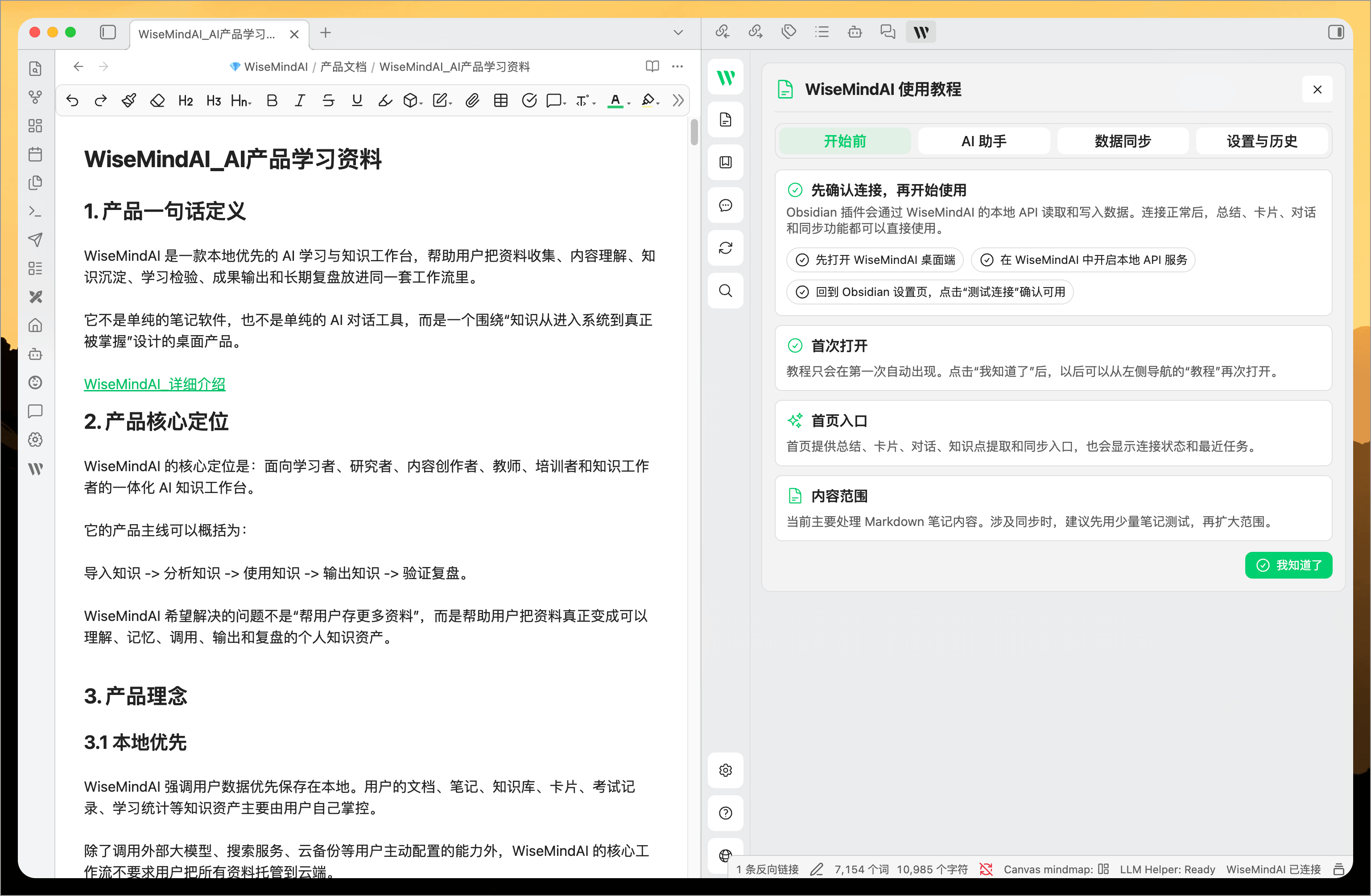
Core Features
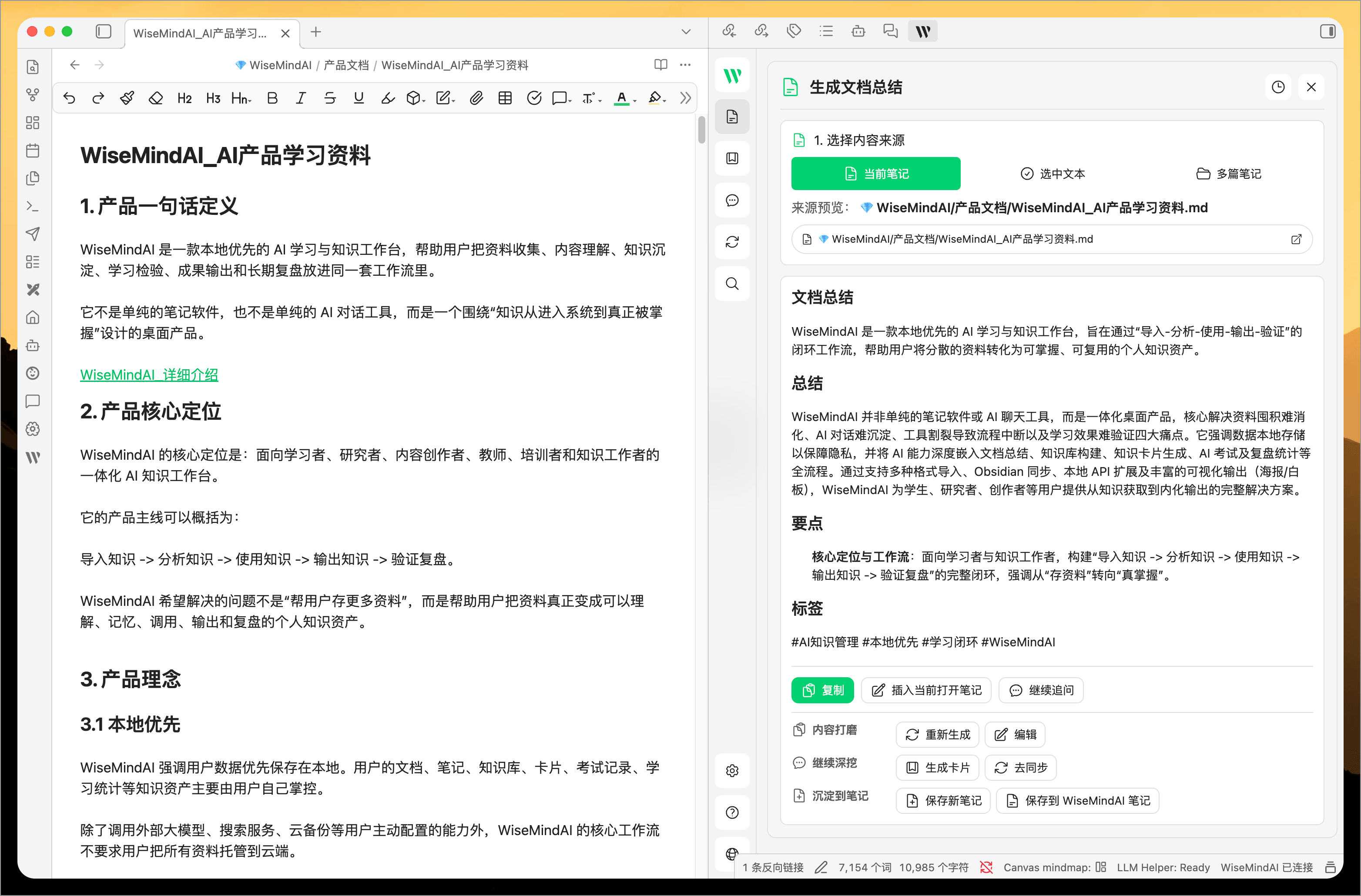
Summarize Notes
You can ask WiseMindAI to summarize the current note, selected text, or multiple notes at once. Results can be copied and inserted directly into your notes or saved as new entries in WiseMindAI's knowledge base.
This feature is useful for organizing long-form articles, meeting minutes, study materials, and reading logs.
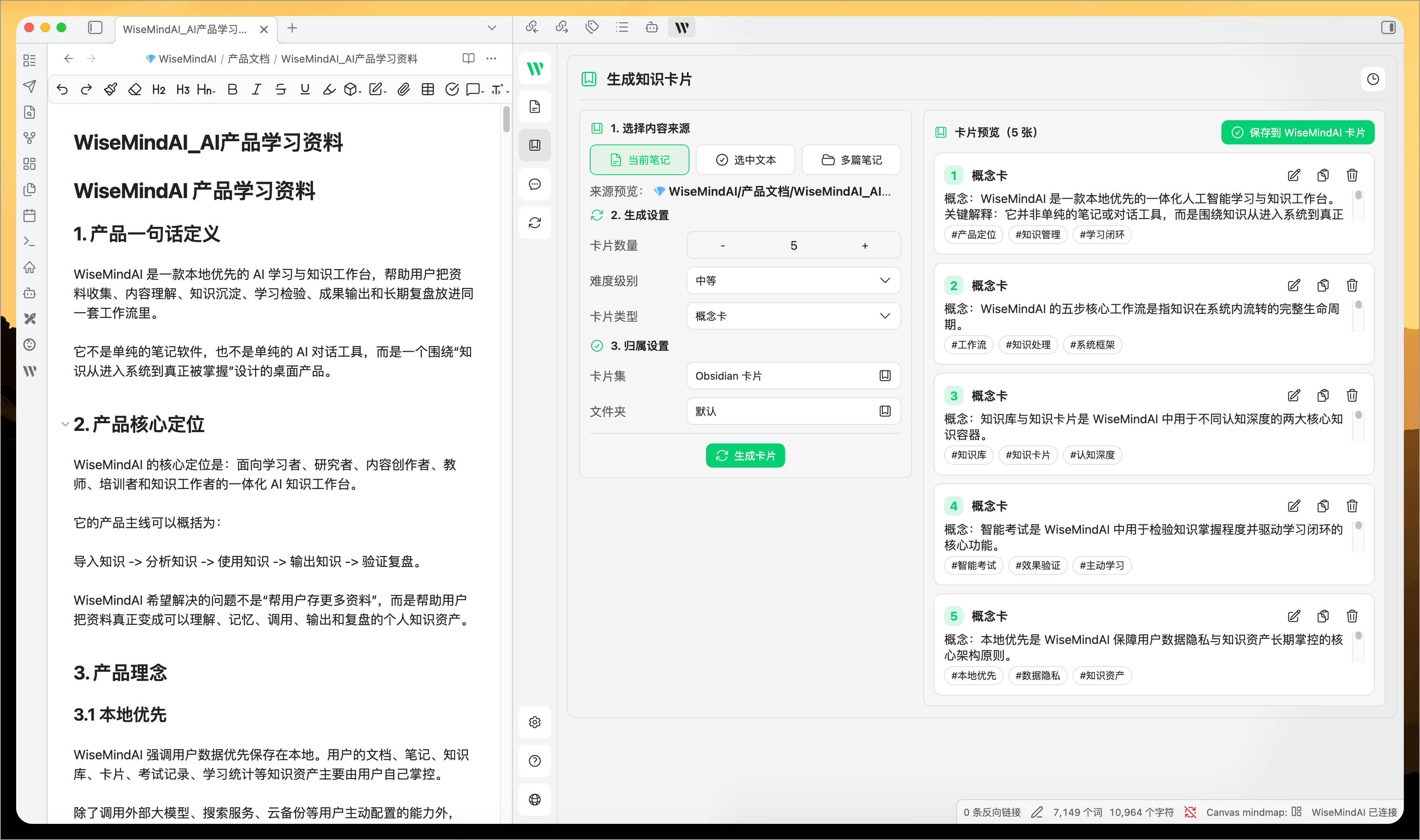
Generate Knowledge Cards
The plugin can generate knowledge cards from your Obsidian notes. You can configure the number of cards, difficulty level, and type (e.g., Q&A cards, concept cards, or mixed sets). After generation, you can preview and edit them before saving to WiseMindAI's knowledge card set, facilitating future review sessions.
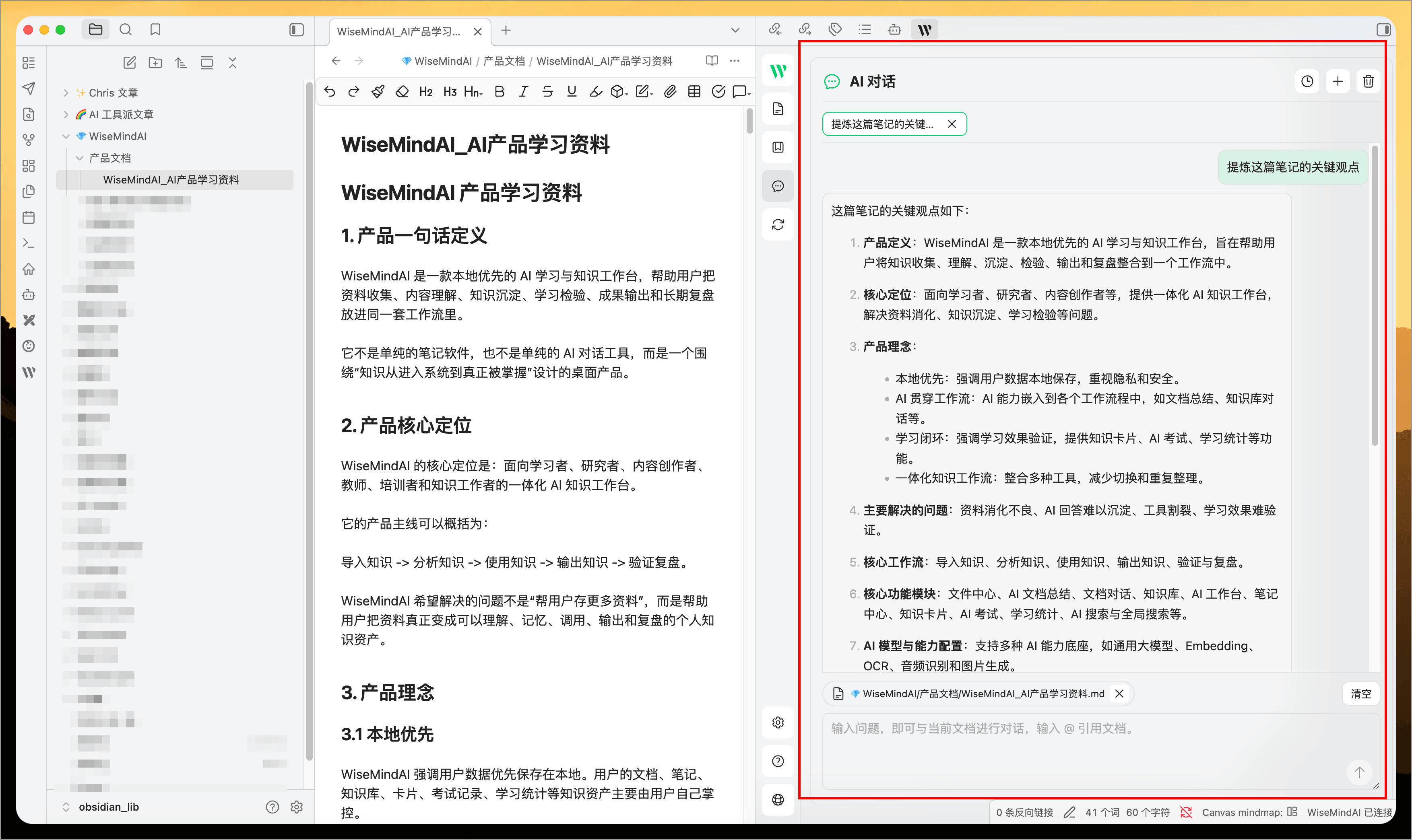
Chat with Notes
In the Chat interface, you can continue asking questions based on your current note. For example, request explanations of specific concepts, extraction of key points, or follow-up suggestions derived from the text. You may also use @ to reference other notes within the input box, allowing WiseMindAI to cross-reference multiple documents. Responses can be copied or inserted directly into your active note.
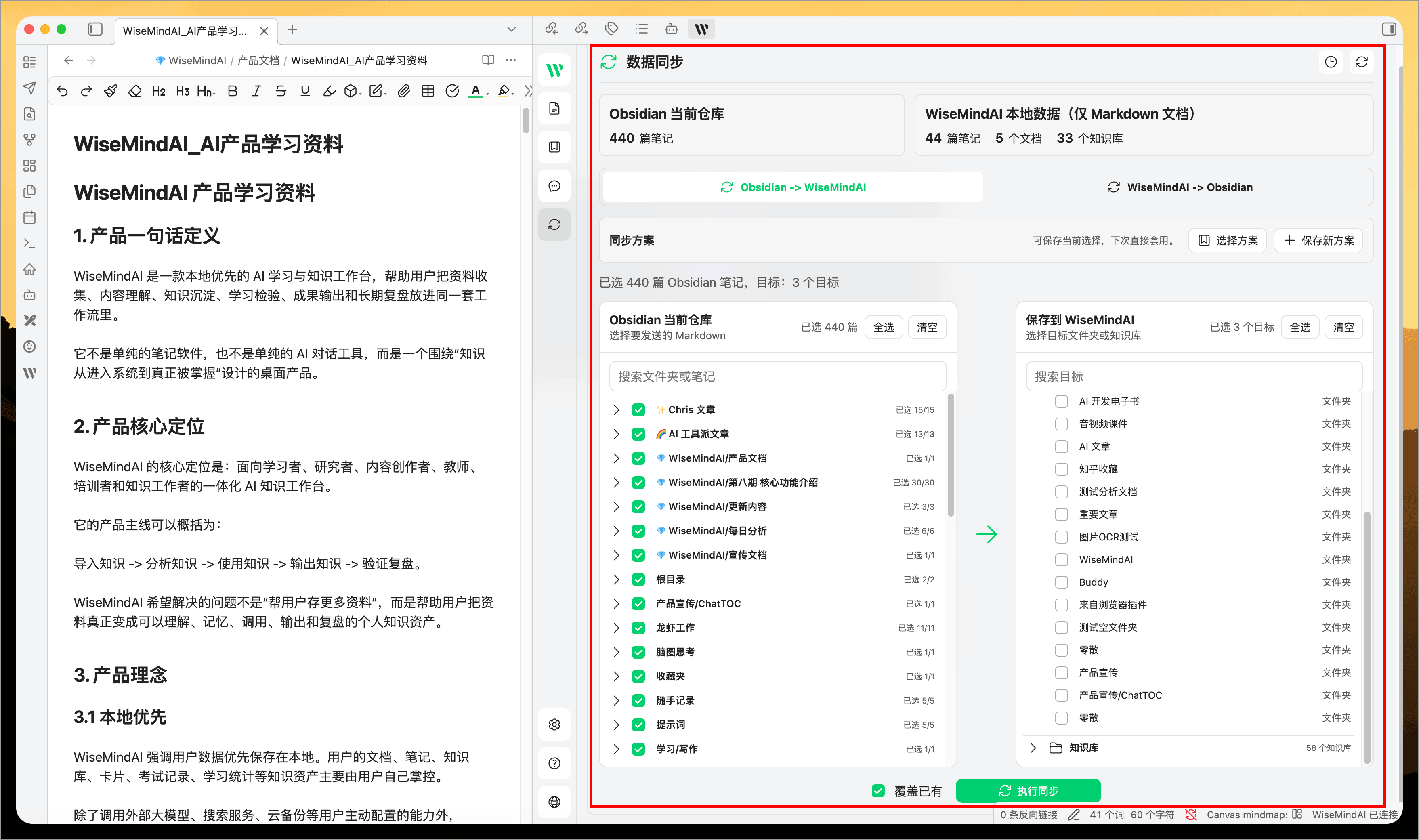
Bidirectional Synchronization
The plugin supports bidirectional synchronization between Obsidian and WiseMindAI.
Obsidian → WiseMindAI
Synchronize Markdown notes from Obsidian to WiseMindAI, saving them as documents, notes, or content within the AI's knowledge base.
WiseMindAI → Obsidian
Write back notes, documents, and knowledge base files from WiseMindAI into Obsidian for continued management using your local workspace.
During synchronization, you can select specific content, choose a target folder, decide whether to preserve directory structures, or opt to overwrite existing items.
Right-click quick send
The plugin adds a right-click menu in Obsidian:
- Right-click on a Markdown file to send it to WiseMindAI.
- Right-click on a folder to send all Markdown notes within that folder.
- Right-click inside the editor to send the current note.
- After selecting text, right-click to send only that paragraph or directly generate a summary and knowledge card.
Using the right-click entry is faster for temporary processing of single notes or excerpts.
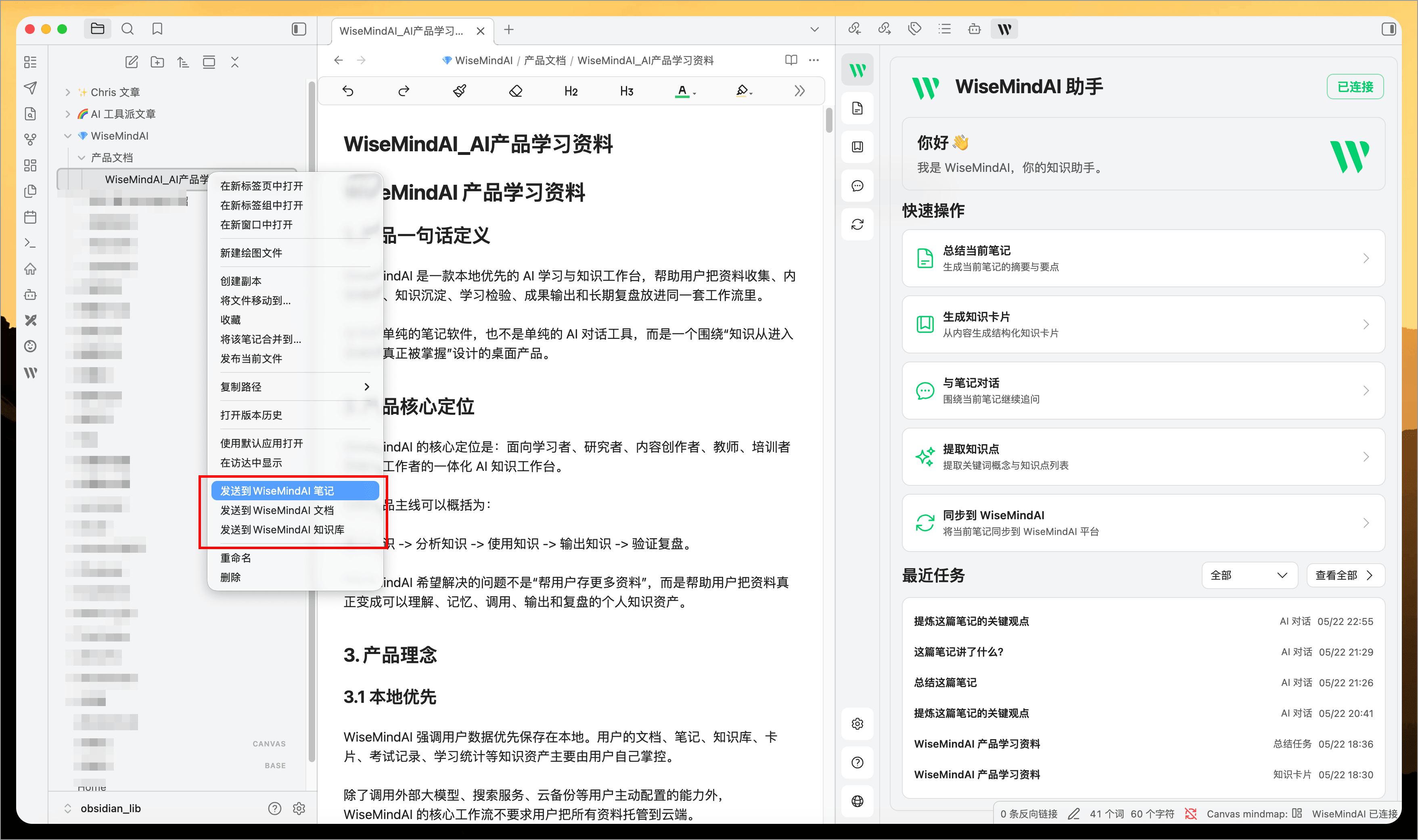
If you prefer not to have the right-click menu occupy space in your Obsidian menus, you can disable it via the plugin settings and re-enable it as needed based on your usage habits.
Import/export history
The plugin retains recent summaries, knowledge cards, and sync records for easy review of previously generated content. You can import or export all records at once to avoid data loss when switching devices or upgrading applications.
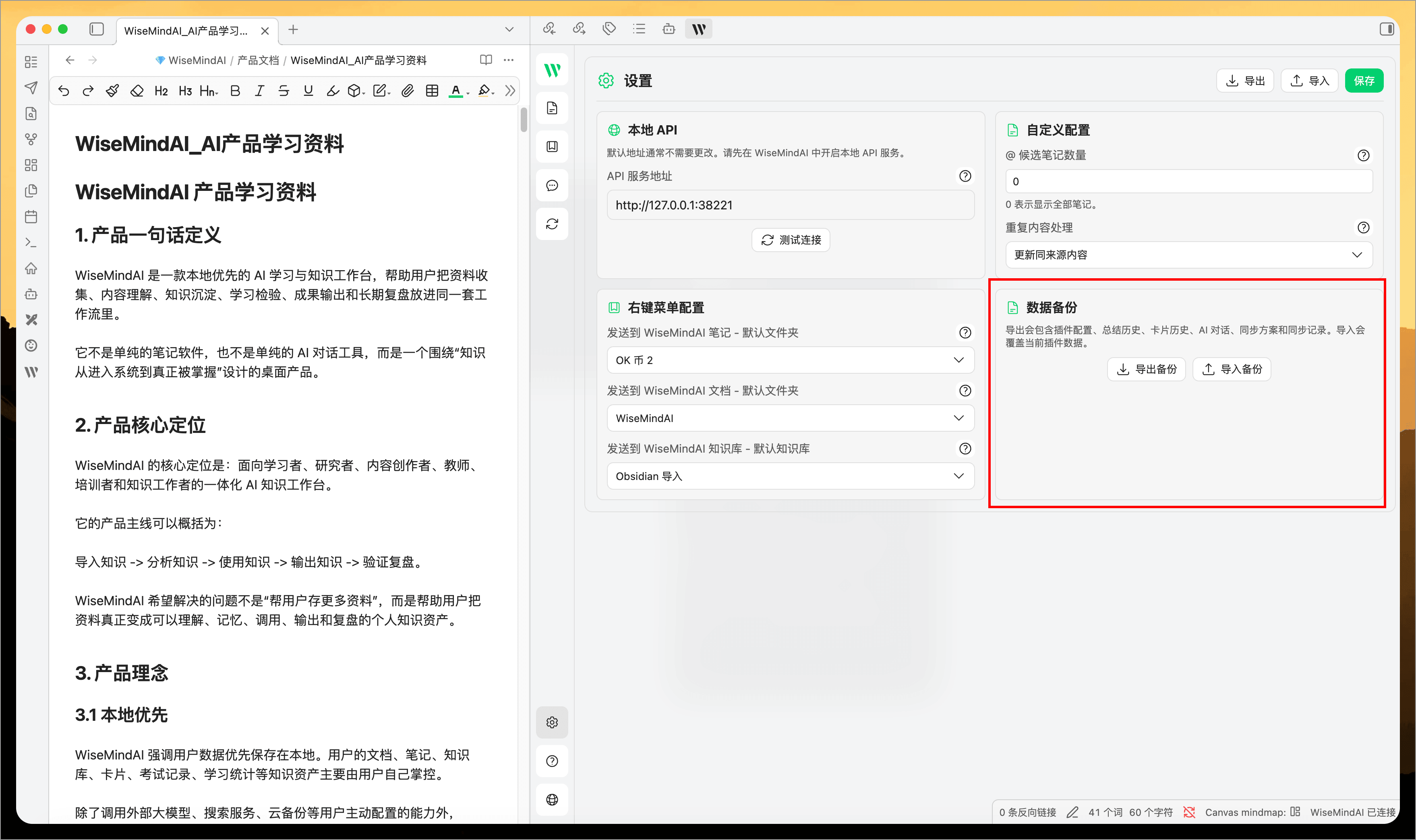
Common usage scenarios
Summarize the current note
- Open the Markdown note you want to process in Obsidian.
- Open the WiseMindAI panel and navigate to the Summary page.
- Select Current Note and click Generate.
- After generation, copy or insert the result into your note as needed, or save it directly to WiseMindAI.
Generate knowledge cards from notes
- Navigate to the Cards page.
- Choose a content source: current note, selected text, or multiple notes.
- Set card quantity, difficulty level, and type.
- Select your preferred card sets and folders in WiseMindAI.
- Click Generate, review the output, then save to WiseMindAI.
Ask questions based on a note
- Open a note.
- Navigate to the Chat page.
- Enter your question and send it.
- To reference other notes, type
@in the input box and select the corresponding note.
Sync Obsidian and WiseMindAI content
- Go to the Sync page.
- Choose sync direction:
Obsidian -> WiseMindAIorWiseMindAI -> Obsidian. - Select which content you want to sync.
- Specify a save location or target folder.
- Click Execute Sync.
Privacy notice
The plugin connects only to your local WiseMindAI API (typically at 127.0.0.1). It does not directly read the WiseMindAI database nor upload your Obsidian notes to third-party servers. Summaries, knowledge cards, and chats use AI models configured within WiseMindAI; whether it uses an offline or online model depends on your settings in WiseMindAI itself.
FAQ
What if I cannot connect to WiseMindAI?
Ensure that WiseMindAI is running and the local API has been enabled. If you have changed the port, update the plugin's API service address accordingly.
Can I disable the right-click menu?
Yes. The new version of the plugin supports enabling or disabling the right-click menu in settings. You may turn it off for a cleaner interface or keep it if you frequently send notes to WiseMindAI via this method.
What should I do if scrolling fails on the Chat page?
Upgrade to the latest plugin version first. The new release optimizes chat page scrolling and layout while fixing several reported issues.
Why don't some Obsidian files appear in the menu?
The plugin primarily processes Markdown files. Files named .obsidian, items in the trash, hidden directories, or excessively large files are ignored.
What is the difference between right-click send and Sync page?
Right-click sending is ideal for temporary processing of single notes, folders, or selected text; the Sync page allows batch selection of content, specifying target locations, and viewing sync results.
Will the plugin modify my original Obsidian files?
Summaries, knowledge cards, and chats do not automatically alter your original notes. Content is only written back to Obsidian when you explicitly click Insert or perform a write-back operation via Sync.